Entry Map
In the Crisis Track mobile app, there are three entry tabs that allow you to view different aspects of the entry, and one tab that allows you to save updates. This page focuses on what you can do in the Map tab, which displays the location of this entry. This can help you to understand its physical location when in the field.
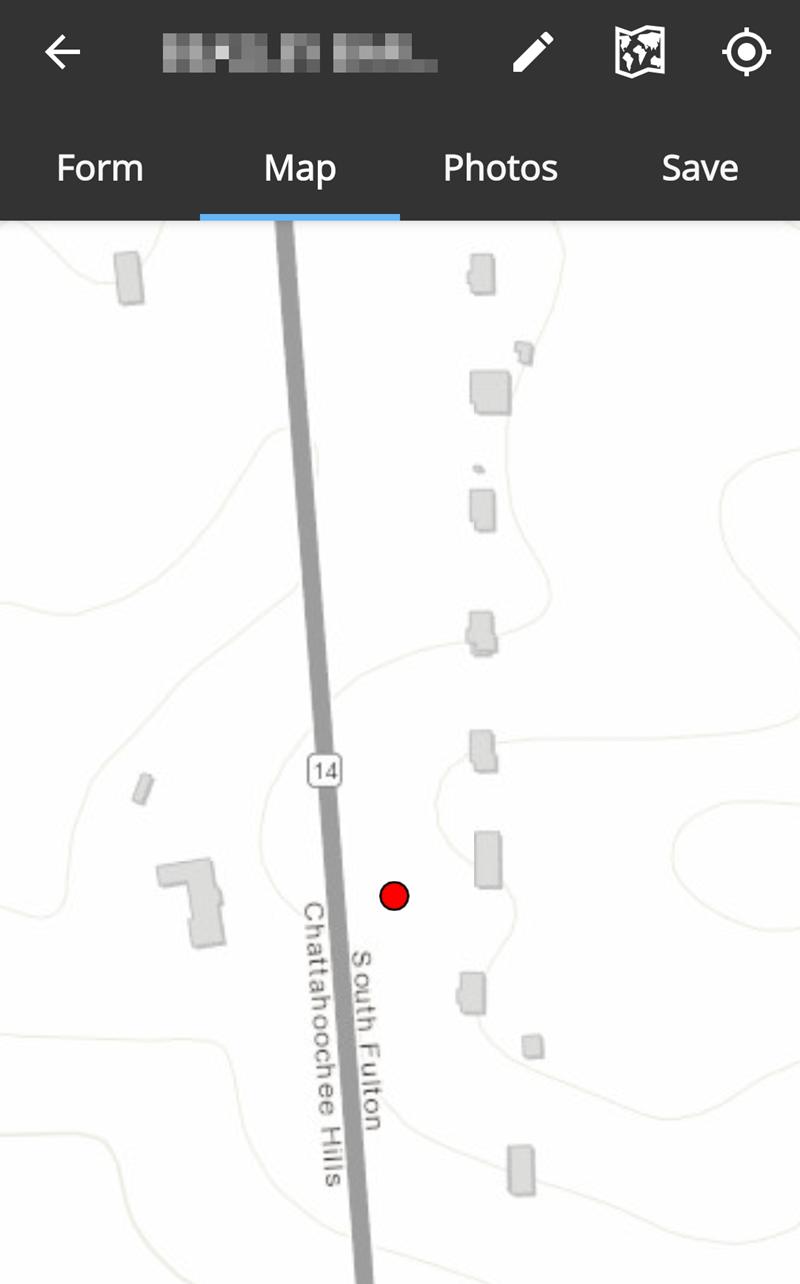
You can drag the map and zoom in/out using standard "pinch" actions. You can also tap the current location  button to center the map on your current location.
If the location of the entry is incorrect or missing, it can be set by tapping the pencil  button, then tapping the correct location on the map. Tapping the pencil button a second time saves the location.
Tap the map  button, then tap Choose Map Type to change the base map type. Your map type options are: Street, Satellite, Topo (topography), or USGS Topo (United States Geological Survey topography).
On the Debris, Protective Measures, and Public Damage forms, you can use the draw tool to draw a perimeter around a site or a debris area. Tap the + button to open the draw tool. Tap the screen to place a dot in the starting location, then tap three more locations to draw the perimeter.
Once your perimeter or debris area is complete, tap the x to close the draw tool. To clear the perimeter, tap the eraser  button, then close the tool.