Save an Entry
In the Crisis Track mobile app, there are three entry tabs that allow you to view different aspects of the entry, and one tab that allows you to save updates. This page focuses on what you can do in the Save tab, which summarizes the entry and displays the data entered into the form, as well as any attached photos. You can then proceed to save the entry. If anything needs to be corrected, switch to one of the other tabs and make the corrections before returning to the Save tab.
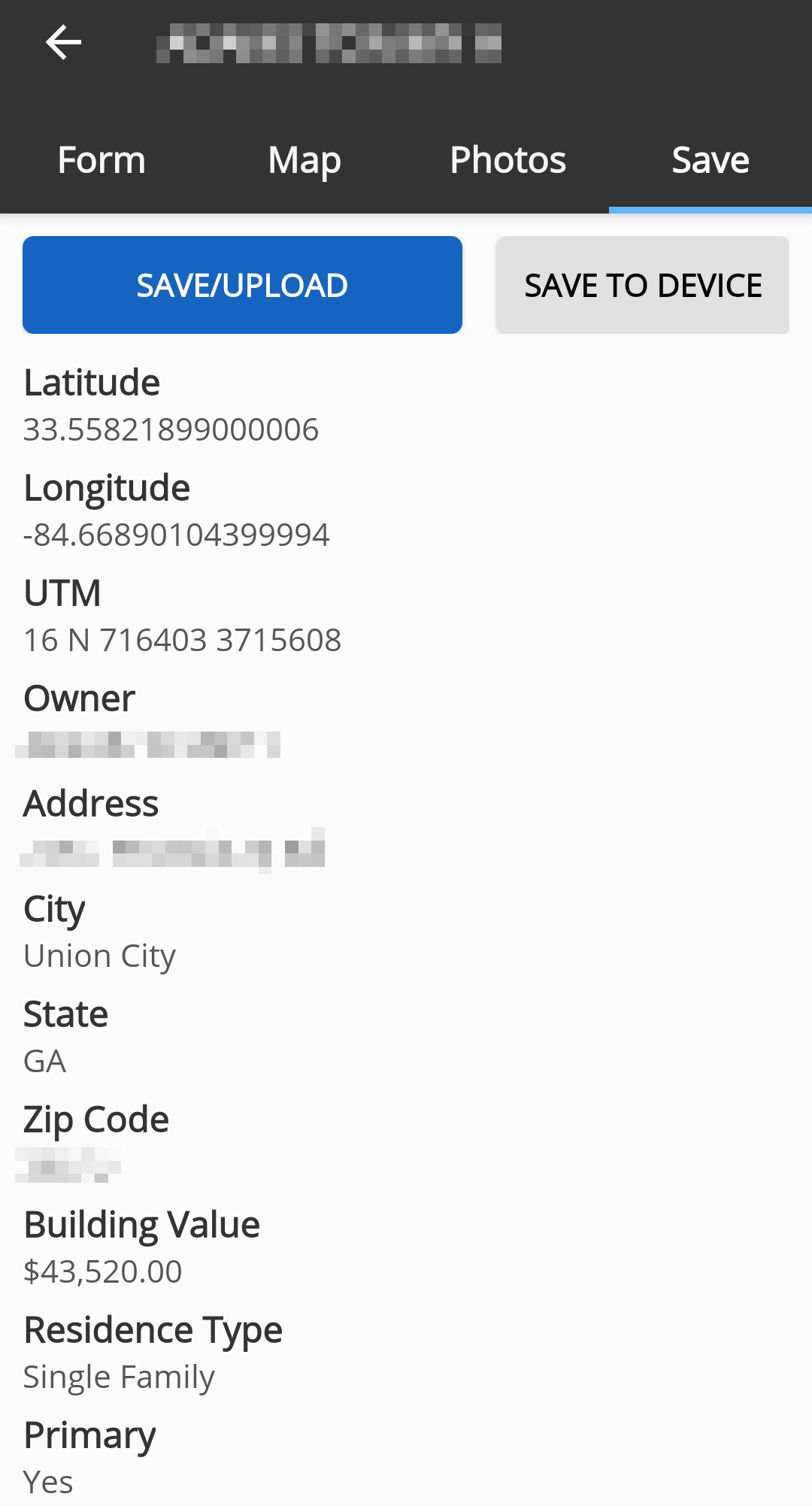
As long as you have either cell or Wifi connectivity, you can click the Save/Upload button to sync the updates to the Crisis Track Desktop Console. If you do not currently have either cell or Wifi connectivity, click the Save to Device button. This saves any entry updates to your device so that you can upload it later, when you regain connectivity.
If you have multiple entries that were saved locally and need to be uploaded when you regain connectivity, click Upload All on the task list screen to sync all new data.