The Time component inserts standard HTML5 field on the form. This field is validated for format.
When you add this field, placeholder text appears within the field to indicate the proper format for entering the numbers. The default format is -:- - for the hours, minutes, and an am or pm indicator. You can change this format.
While you can insert multiple time fields using the Time Component settings window, we recommend that you insert each line in the form as its own Time component.
Example: Time Field Rendered on a Form

Settings
The settings for each component are grouped under tabs. While there are multiple tabs and many fields, some are applicable to advanced users (for example, the API and Conditional tabs and JSON fields) and you do not need to complete them to render the component. For this reason, the settings that are necessary are detailed for each component. In some cases, when an optional field is frequently used, it is listed in a second optional settings table. For tabs and fields that are not listed, advanced users are assumed to have pre-existing knowledge of how to work with them if they elect to apply them; however, they should be aware that the fields may not be compatible with WebEOC. Contact the Juvare Support Center at +1 (877) 771-0911 for additional information.
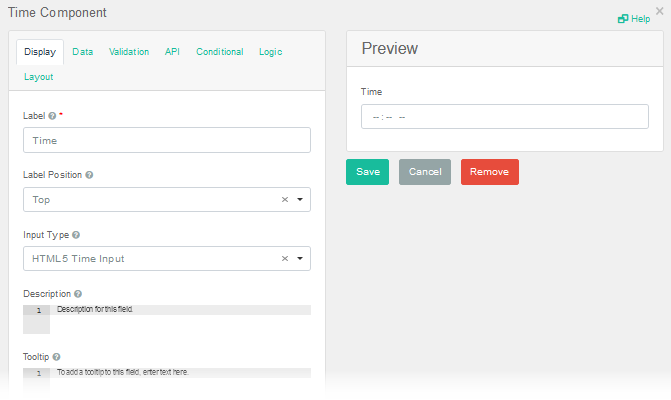
The following setting is necessary to render the component.
|
Field |
Description |
Procedure |
|---|---|---|
|
Label (Display tab) |
A unique identifier that appears as the label for the time field. | Enter unlimited alphanumeric characters, including special characters. |
The following settings are frequently used but are optional.
|
Field |
Description |
Procedure |
|---|---|---|
|
Label Position (Display tab) |
Determines the positioning for the label in relation to the field. |
Select one of the following options from the drop-down list. The default value is Top.
Label position options set both where the label displays in relation to the component and how the label text is aligned. For example, if you select the Left (Right-aligned) option, the label displays to the left of the component with right-aligned text. |
|
(Display tab)
|
A string of characters that indicates the format of valid input values. |
To change the format to an input mask
|
Icons
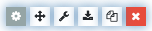
The following tool icons are available.
| Icon | Name | What it Does | Procedure |
|---|---|---|---|

|
Settings |
Displays the settings window, in which you can modify the component’s settings. |
|

|
Move |
Moves the component to another position on the board. This option is useful with touch pages. If you are not using a touch page, you can drag the component to its new location. |
|


|
Copy Paste |
Copies the current component and its settings and pastes it after the current component. |
|

|
Remove |
Removes the current component from the form. |
To remove the component
|