Plan File and Response Guide Management
This explains how to organize Official entities, such as public health authorities, healthcare agencies, and corporations. and maintain the plan resources that support incident response in eICS, plan files, depth charts A list of qualified personnel who can fill an ICS position during an incident., Incident Response Guide A predefined guide containing objectives, tasks, files, and resources for a specific incident. (IRG) and Incident Command System A standardized framework for managing emergency response activities. (ICS) associations, and objectives, so your plans stay accurate, ready, and easy to activate.
Manage Plan Files
The Plan Files section is a centralized, view only list of every file tied to a specific plan. Each entry shows the file name and the IRGs and ICS positions it's linked to, so you can see at a glance why it's there and who it supports.
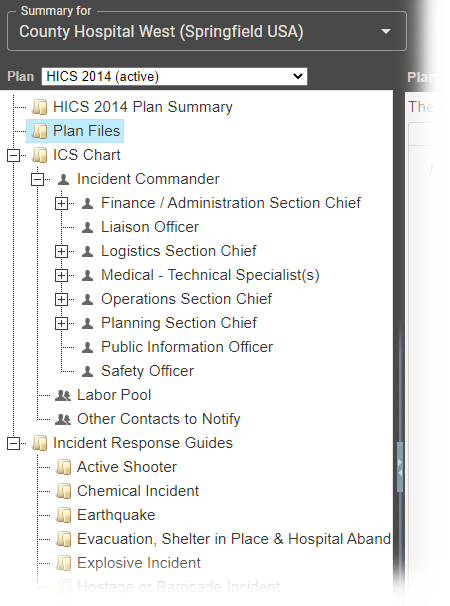
Adding a File to a Plan
To add a file, it must be associated with at least one IRG or ICS position, and to remove a file, all associations must be cleared. These adjustments can be made by navigating to the Plan Summary, selecting the relevant plan, and managing the file’s IRG or position associations. This process ensures that each plan consistently maintains the correct supporting documents and resources.
How to add or remove a file
-
Click Planning from the main menu, and select Plan Summary.
-
Select the relevant plan.
-
Locate the file's IRG or ICS position associations.
-
To add a file to the plan: link it to at least one IRG or ICS position.
-
To remove a file from the plan: clear all of its IRG/ICS position associations.
Best Practices
-
Plan files make sure the right document is in the right hands during a response think Job Action Sheets for a specific role, or reference material relevant to the incident type.
-
Add files in advance as part of the IRG template, or upload them after an incident is activated both are supported, so prepare ahead or adapt in the moment as needed.
-
Example: for a fire response, keep the fire response plan and a fire extinguisher location chart on hand. For other IRGs, a priority phone list or similar reference material may be more useful.
-
The goal is simple: make sure the right information is accessible exactly when it's needed.
Edit Depth Charts
The Depth Chart supports continuity of operations by identifying qualified backups for each ICS position. It lets planners assign alternates who can step in if the primary contact is unavailable, so critical functions are never left unstaffed.
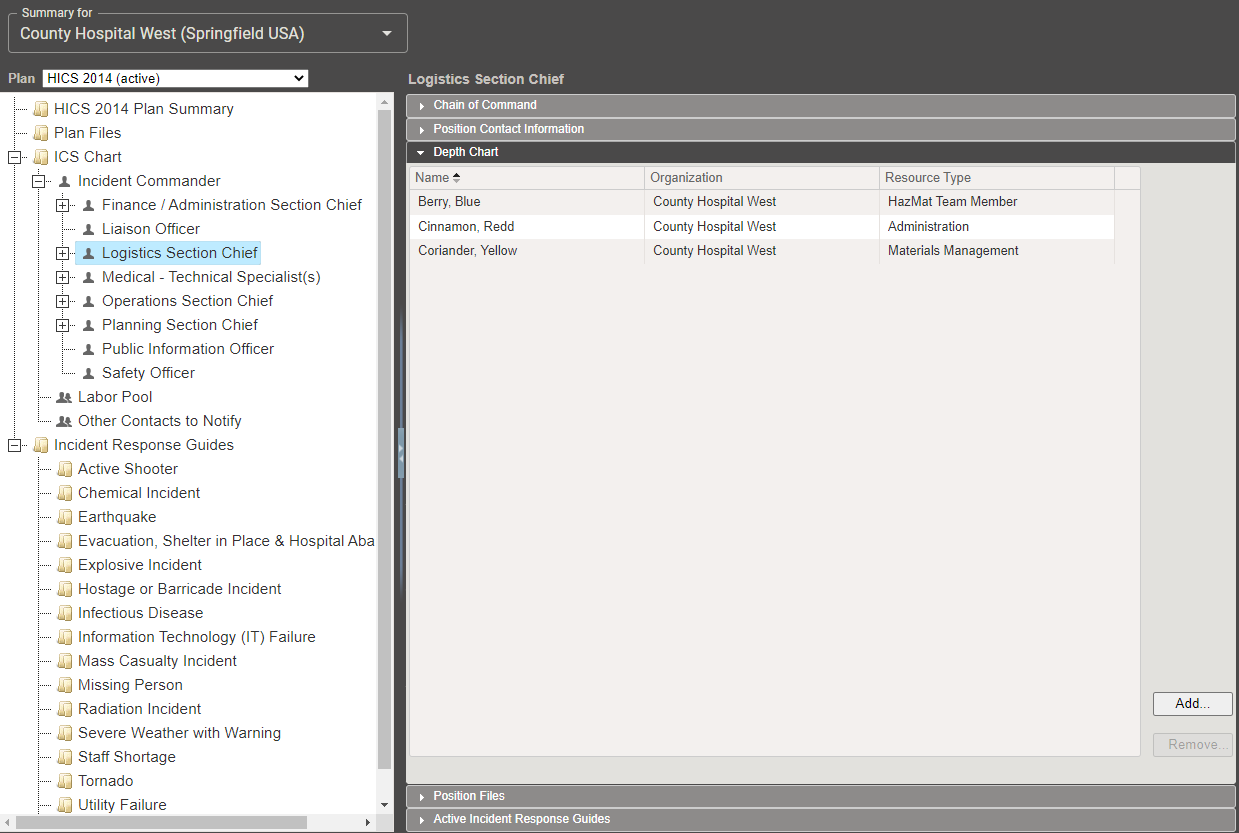
How to manage contacts in a Depth Chart
-
Open the ICS Chart.
-
Select the position you want to update.
-
Open the Depth Chart for that position.
-
Assign individuals from the contact list as backups.
-
Remove any contact who is no longer appropriate for the role.
-
Review and update the Depth Chart regularly.
Best Practices
-
Follow the core Emergency Management principle: activate only the positions you need, when you need them, and deactivate them when they're no longer required. This keeps the response lean and focused.
-
When building out an IRG, identify the minimum essential positions to activate automatically as your starting point, then activate additional positions as the incident escalates.
-
Plan for at least three people deep in every position. Event duration is never certain, so having backups identified in advance supports rotation, breaks, and unavailability and gives you a head start on training each person before they're needed.
-
For high volume roles (e.g., Labor Pool, or hospital department positions in the command chart), use the position's depth chart to select multiple candidates in bulk for greater flexibility.
Manage IRG and ICS Position Associations
Administrators link Incident Response Guides (IRGs) to ICS positions during planning. When an incident occurs and a position is activated, this association automatically triggers the right guides and notifications for the person assigned to that role.
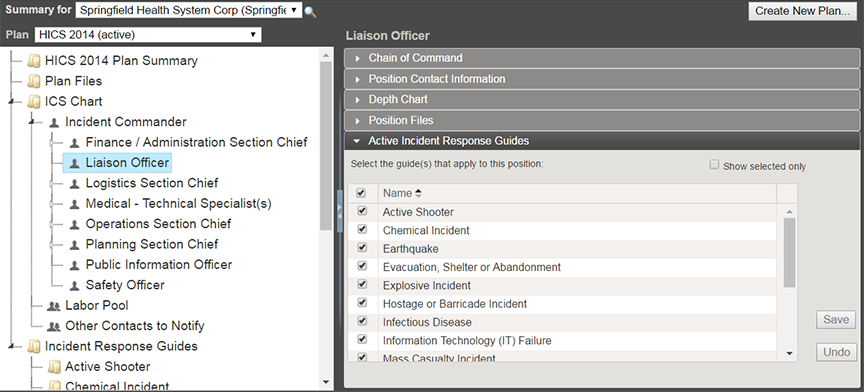
How to map response guides to a position
-
Select the Planning module.
-
Open the Active Incident Response Guides drawer for the position.
-
Select or deselect the appropriate IRGs.
-
Save your changes.
Once saved, these associations are locked into the plan, keeping each role aligned with the correct response materials.
Best Practices
These associations streamline responsibilities and improve efficiency the moment a plan is activated, set them up carefully during planning, not during an active incident.
Add Objectives to an IRG
Objectives define the critical tasks or responsibilities tied to an IRG. They can be assigned to a specific ICS position or to the incident as a whole, and each one can include a name, description, priority, and operational period, so planners can set clear expectations and introduce tasks at the right stage of response.
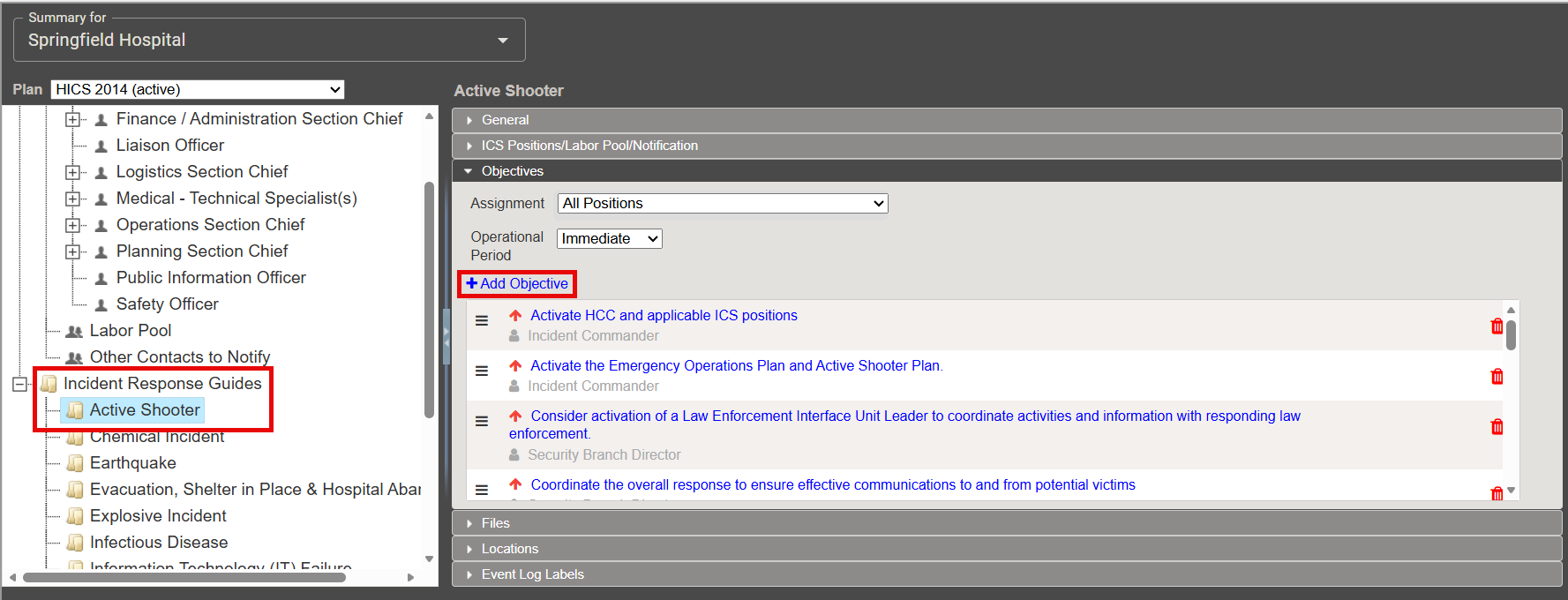
How to create an objective
-
Click Planning from the main menu, and select Plan Summary.
-
Select the appropriate domain or facility from the summary list.
-
Select the IRG.
-
Open the Objectives section.
-
Click Add New Objective.
-
Enter the name, description, priority, and operational period.
-
Apply a template, if available, to add structured question and answer fields for consistency.
Best Practices
-
Pre plan objectives and tasks directly in the IRG template to create a checklist for staff. This is especially valuable in hospitals, where incident command isn't part of most staff members' day to day role, clear objectives give them a starting point and reduce uncertainty early in a response.
-
Objectives aren't limited to what's pre loaded in the template, new ones can be created at any time as an incident unfolds.
-
In practice, objectives function like a dynamic task list: they can be assigned, tracked for progress, and automatically documented, helping staff stay organized and prioritize even under a heavy workload.
Further Information
-
Training Center: Continue your training journey and elevate your skills through instructor-led and on-demand training.
-
Ask an Expert: Have questions after training? Connect directly with Juvare experts for real-time guidance from our team.
-
Juvare Events Page: Your hub for Juvare webinars, training, and trade shows.