Respond to Incident Notifications
When an incident occurs, notifications An alert, update, advisory, information, drill, or test message that can be sent & received through delivery methods such as email, voice, text, fax, or inbox. are sent to contacts The internal and external people that participate in, might be affected by, or need to be notified about an incident. associated with the facility through voice and email messages. Contacts are asked to respond as quickly as possible with information about their availability to participate in the incident response.
To respond to incident notifications, follow the instructions by expanding the headings below.
To Respond to a Phone Call
-
Listen to the notification and options.
-
Respond by pressing the number that reflects your availability.
Phone Availability Options
Press the number that represents your ability to respond on the incident.
1 - Onsite and available immediately
2 - Can arrive in 15 minutes
3 - Can arrive in about 30 minutes
4 - Can arrive in about 45 minutes
5 - Can arrive in about an hour
6 - Will remain offsite for this incident
7 - Not available for this incident
0 - Repeat the message
To Initiate a Notification Test
-
Listen to the message.
-
If you want to listen to the entire notification, write down the phone number and notification ID; then hang up and dial the phone number.
-
Respond by pressing the number that reflects your availability, refer the Phone Availability Options.
To Respond to an Email
-
In the email, click the link to eICS. Your internet browser opens to the eICS Verify Identity page.
-
Enter your phone number.
-
Click Submit. The incident dashboard opens.
-
Continue with step 2 in the procedure To Update Your Status.
To Update Your Status
-
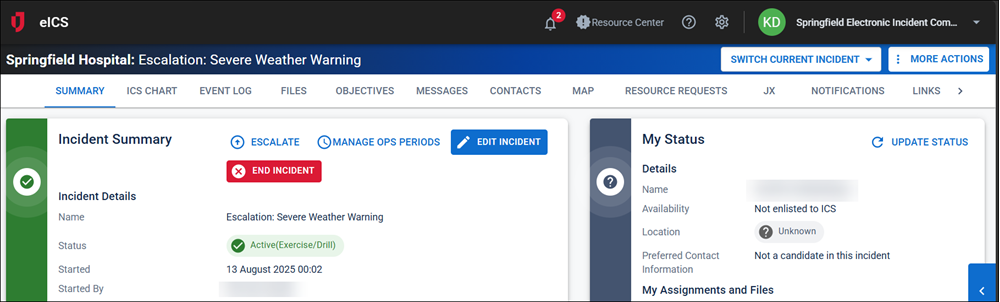
On the Home page, locate the incident and click View. The Incident Dashboard opens.
Incidents can also be located by pointing to the Response menu, clicking Incidents, and in the Incidents for list, selecting the facility.
-
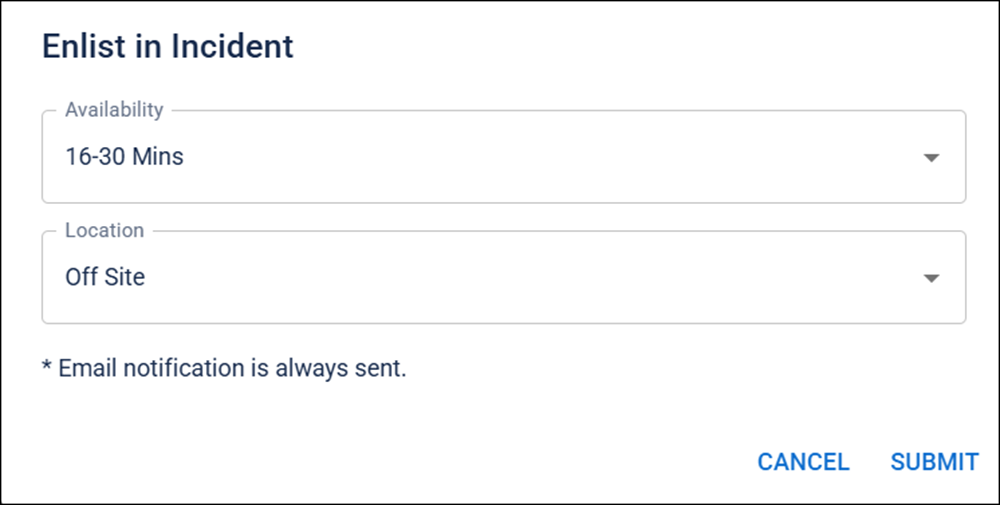
In the Summary tab, click Update Status. The Enlist in Incident window opens.
-
In the Availability list, click the option that reflects your availability.
-
If you indicated you are available, in the Location list, click the option that reflects your current location.
-
Click SUBMIT. The window closes.
We recommend that you update your status when you arrive at the incident site and any time your location or availability changes during the incident.