Administrators can update an HVA draft through the Planningmenu. On the Hazard Vulnerability Analysis page, you can see the status and results of assessments, which provides insight into the risks and vulnerabilities of a facility, health system, facility group Comprised of accounts with certain shared characteristics, such as role or location, but not necesarily employer., or coalition.
When you select an individual facility at the top, information about assessments appears on the left and Top Risks appear on the right. For more information, please go to the article HVAs.
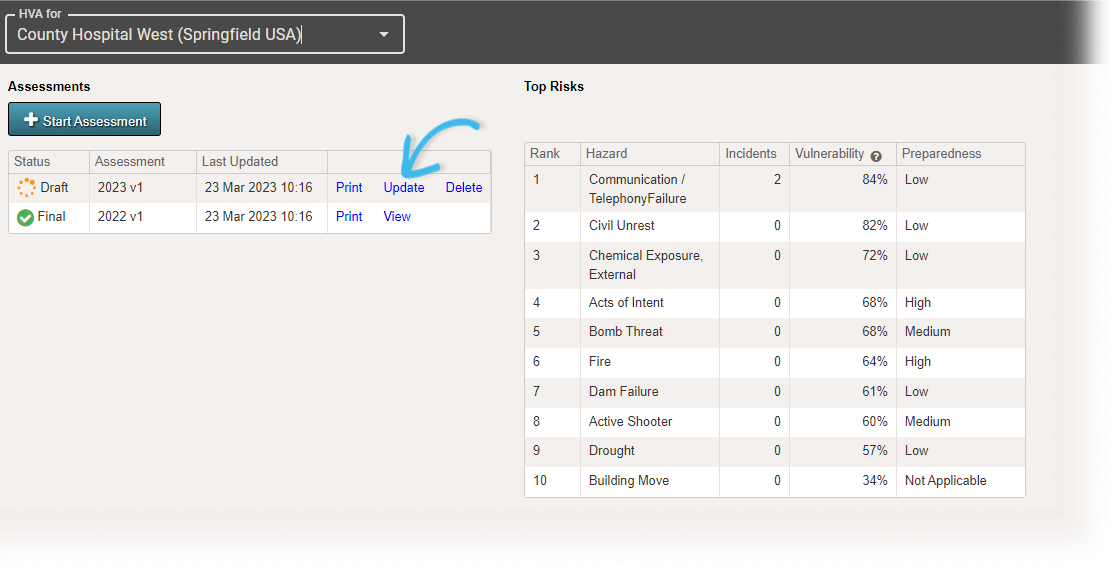
To update an HVA draft
-
Point to Planning, and in the list, click HVA. The Hazard Vulnerability Analysis page opens.
-
If it is not already selected, in the HVA for list, click the name of the facility, health system, facility group, or coalition you want to view.
-
On the left, locate the draft assessment, and click Update. The Hazard Vulnerability Analysis - (facility name) - 1 of 3: Incident-Hazard Association page opens with a list of incidents that occurred that year.
-
For each incident, click Update. The Select Hazards window opens.
If no actual incidents
A real emergency or event that requires an active response. during the assessment period, click Next, and continue to step #8. -
Locate and select the checkbox for all hazards that occurred during the incident. For example, a “mass casualty incident” might include several hazards – such as bomb threat, evacuation, explosion, and fire.
-
After selecting all relevant hazards, click Save. The window closes.
-
When you have selected the hazards for each incident, click Next. The 2 of 3: Threat Evaluation page opens.
-
For each hazard, click Update. The Threat Evaluation window opens.
-
Click N/A, High, Medium, or Low for these fields.
Threat Evaluation fields and descriptions Field
Description
Probability
Likelihood the hazard will occur.
If you click N/A (not applicable) for probability, the magnitude and mitigation factors will be hidden since they are no longer relevant.
Human Impact
Likelihood the hazard will cause human injury or death.
Property Impact
Likelihood the hazard will cause property damages or losses.
Business Impact
Likelihood the hazard will cause service interruptions.
Preparedness
Level or amount of pre-planning completed for this specific hazard.
Internal Response
Level of internal resources available for response.
External Response
Level of community or mutual aid resources available for response.
-
At the bottom of the window, click Previous, Save and Continue, or Save. The window closes.
-
When you have completed the evaluation for each hazard, click Next. The 3 of 3: Review Assessment page opens with a list of likely hazards that are ranked from the highest to lowest threat by default.
If you foresee any changes, save the assessment as a draft because the finalized HVA cannot be edited. However, if you create a draft, remember that you will need to finalize it.
-
Review the assessment, and click either Save Draft or Finalize.
Related Concepts