During an incident, the Files tab on the Incident Dashboard provides access to documents associated with the incident. With adequate permissions, you can check a file out, edit it, and then check the edited file back in.
When you check out a file, you download a copy that you can edit and reupload. Other people can still view the file, but they cannot check that file out until after you check it back in. If you check out a file and decide not to make changes, you can discard your check out. Other users can also discard your check out if necessary.
If you want to view a document before deciding whether to edit it, in the General drawer, click Download to View. The file is downloaded to your computer but not checked out for editing.
To check out, edit and check in files
-
On the Incident Dashboard, click the Files tab.
-
On the left, locate and click the file you want to edit.
-
On the right, in the General drawer, click Check Out. The file is downloaded to your computer.
-
In the appropriate application, edit, save, and close the file.
-
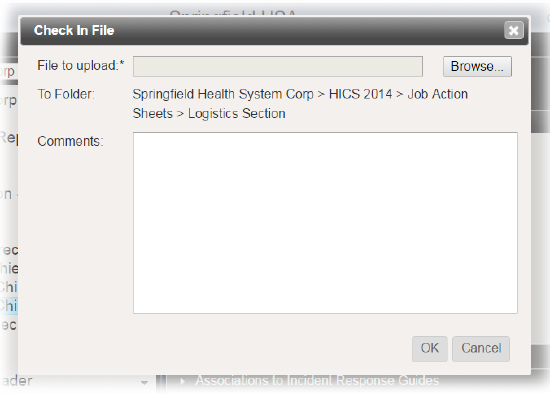
On the right, in the General drawer, click Check In. The Check In File window opens.
-
To the right of the File to upload field, click Browse. Your browser's file navigation window opens.
-
Navigate to locate and select the file you want to upload.
-
Click Open.
-
For Comments, enter notes or details about your edits.
-
Click OK. The file is checked in and your edited version is available to other users.
Related Concepts