During an incident, you can update objectives to adjust details, clarify the workload, change the status, or otherwise make changes to keep everyone informed about the task.
To update an objective
-
Point to Response and click Incidents. The list of incidents opens.
-
Locate the incident in the list and, on that row, click View. The Incident Dashboard opens.
-
Click the Objectives tab.
-
On the left, in the list of objectives, click the objective you want to edit. The objective opens.
-
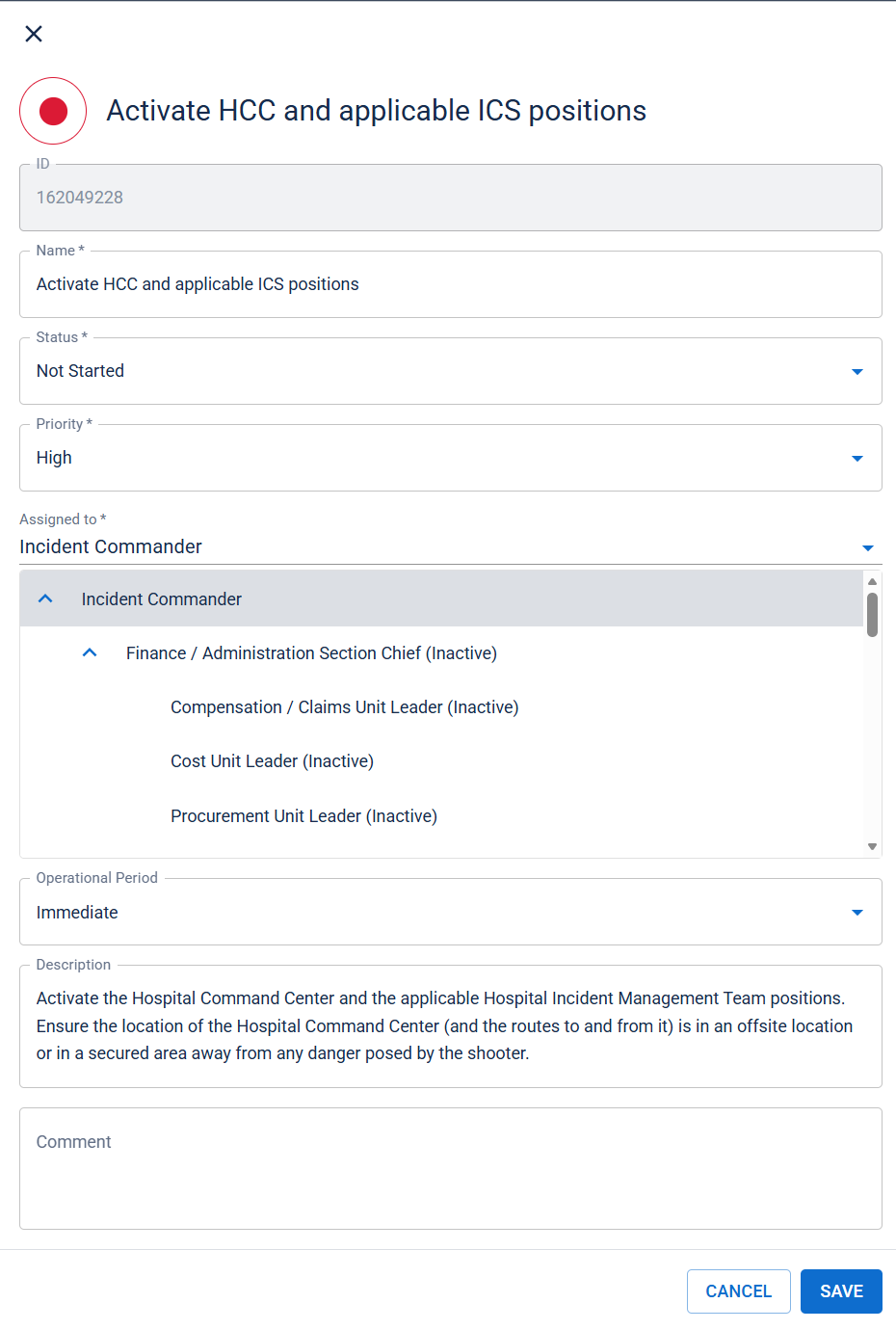
Click Update. The Update Objective window opens.
-
If necessary, click Show more details.
-
Take any of these actions.
Objective update actions If you want to…
Then…
Change the name and/or description
In the Objective and/or Description field, enter or edit the information for this objective.
Assign the objective to someone else
In the Assigned to list, click the ICS Chart position or Incident Level.
Change the priority
In the Priority list, click High, Medium, or Low to indicate the urgency with which you want the objective completed.
Change the operational period
 A defined time frame for executing incident objectives and assignments.
In the Operational Period list, select the operational period in which you want the objective completed.
Update the status
In the Status list, select the appropriate objective status.
Add notes or other information In the Comment field, enter relevant information about the objective. -
Click OK.
Related Concepts