You can delete unnecessary files and folders. However, if you attempt to delete a file that is associated with an ICS position or IRG, the deletion confirmation window will indicate that there is content associated with the file. You can point to the blue text to view the name of the ICS position or IRG. Clicking Yes deletes the file.
To delete a file
-
Point to Planning and click Library. The Library page opens.
-
If necessary, in the Library for list, select your domain or facility.
-
On the left, navigate to the file you want to delete.
-
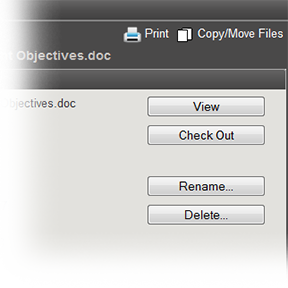
Click the file. The File Details open on the right.
-
In the General drawer, click Delete. The Delete File window opens asking you to confirm the deletion.
-
Click Yes.
To delete a folder
-
Point to Planning and click Library. The Library page opens.
-
If necessary, in the Library for list, select your domain or facility.
-
On the left, navigate to the folder you want to delete.
-
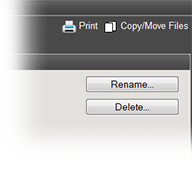
Click the folder. The Folder Details open on the right.
-
In the General drawer, click Delete. The Delete Folder window opens asking you to confirm the deletion.
-
Click Yes.
Related Concepts