You can add to or change the ICS positions associated with a file.
To add or change ICS positions for a file
-
Point to Planning and click Library. The Library page opens.
-
If necessary, in the Library for list, select your domain or facility.
-
On the left, navigate to the location that contains the file.
-
Click the file.
-
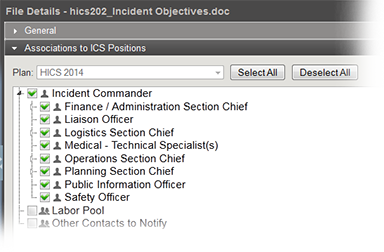
On the right, click the Associations to ICS Positions drawer. The drawer shows the positions currently associated with the file for the selected plan and those you can add.
-
If you are in the Resource Documents library, select the applicable plan.
-
To associate a position with the file, select the position's checkbox.
-
To remove a position's association with the file, clear that position's checkbox.
-
To associate all positions with the file, click Select All.
-
To remove all associations, click Deselect All.
-
Click Save.
Related Concepts