During planning, you can associate a file within your facility’s library with the appropriate incident response guides A predefined guide containing objectives, tasks, files, and resources for a specific incident..
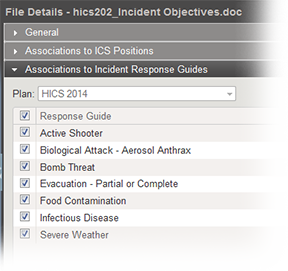
The additions and changes you make in this drawer also appear in the Plan Summary area.
To add or change IRGs
-
Point to Planning and click Library. The Library page opens.
-
If necessary, in the Library for list, select your domain or facility.
-
On the left, navigate to the location that contains the file.
-
Click the file.
-
On the right, click the Associations to Incident Response Guides drawer. The drawer shows the IRGs currently associated with the file for the selected plan and those you can add.
-
If you are in the Resource Documents library, select the plan.
-
To associate a guide with the file, select the IRG's checkbox.
-
To remove a guide, clear that IRG's checkbox.
-
To associate all guides with the file, select the checkbox next to Response Guide in the header.
-
To remove all guides, clear the checkbox next to Response Guide in the header.
-
Click Save.
Related Concepts