You can rename files and folders as necessary, however you cannot rename a file that is checked out.
To rename a file
-
Point to Planning and click Library. The Library page opens.
-
If necessary, in the Library for list, select your domain or facility.
-
On the left, navigate to the file you want to rename.
-
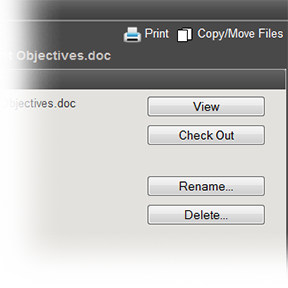
Click the file. The File Details open on the right.
-
In the General drawer, click Rename. The Rename File window opens.
-
For New Name, enter the new name for the file.
-
Click OK.
To rename a folder
-
Point to Planning and click Library. The Library page opens.
-
If necessary, in the Library for list, select your domain or facility.
-
On the left, navigate to the folder you want to rename.
-
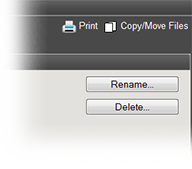
Click the folder. The Folder Details open on the right.
-
In the General drawer, click Rename. The Rename Folder window opens.
-
For New Name, enter the new name for the folder.
-
Click OK.
Related Concepts