Set Up Template Notifications
With appropriate permissions, you can define the notification settings for an event template Predefine settings for specific types of events..
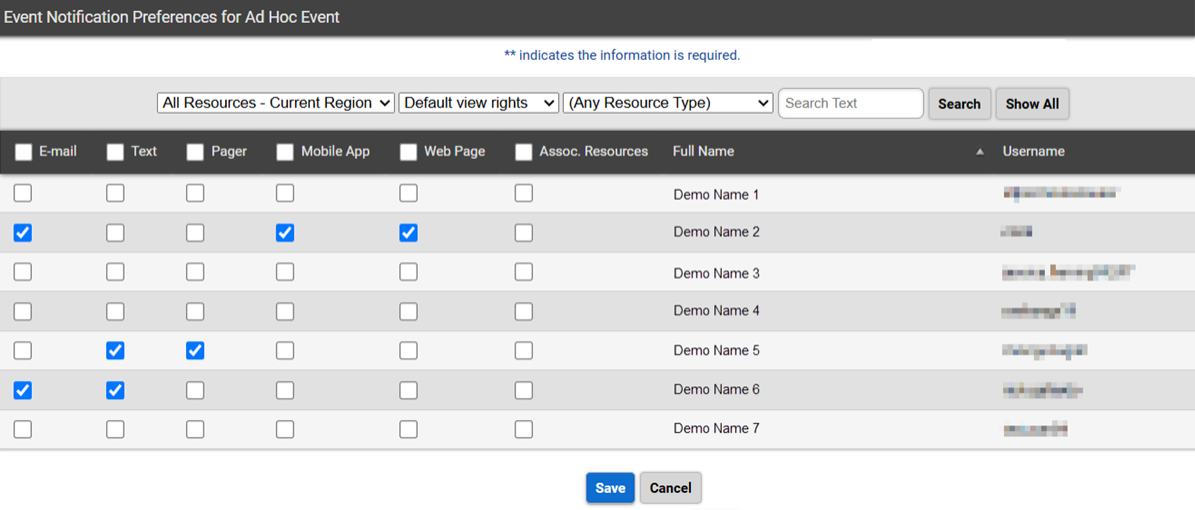
On the Event Notification Preferences for (event template name) page, users in your region are listed, along with checkboxes for notification by email, text, pager, mobile app, the solution (web page), and voice (for clients who have this add-on). You can select various types of notifications for individual users or search for users by resource group Comprised of resources that share one or more characteristics., notification status, role Assigned to determine which features and functions are available to users., or resource type Categories used to divide and distinguish resources., and then select the method checkbox in the header row to subscribe all users that meet your search criteria to that type of notification.
For event types that target resources, you can also limit notifications by resource. For example, selecting the Associated Resources Only checkbox means the user will only receive notifications when the resources for which they have associated rights are involved in the event.
At least one delivery method Used to ensure messages reach recipients when creating a notification, and may include email, inbox, voice, text, fax, or pager. must be selected to receive notifications.
Selections on the Event Notification Preferences page override the preferences Options you choose in EMResource to determine what kind of information you receive and how you receive it. that users set up in their own profiles A collection of information that identifies and defines you in the solution. Your profile differs from your account, which is how you log in..
To set up event template notifications
-
In the main menu, click Event then click Event Setup. The Event Templates page opens.
-
Locate the event template and, on that row, click the event template name. The View Event Template page opens.
-
Click Notification Preferences. The Event Notification Preferences for: (event template name) page opens.
-
To search for specific users, use the filter lists and/or enter text, then click Search.
-
Take one of these actions to enable notification methods for:
All users in the list
In the header row, select the corresponding checkboxes for one or more notification methods.
Only one user
On their row, select the corresponding checkboxes for one or more notification methods.
-
If you only want notifications sent when the event involves resources with which the user is associated, select the Assoc. Resources checkbox.
-
Click Save.
Related Concepts