Update User Information
You can update your user info in EMResource through the Preferences menu or through your badge (located on the upper right of the solution bar). We recommend that you review and update this information regularly to make sure you receive important notifications.
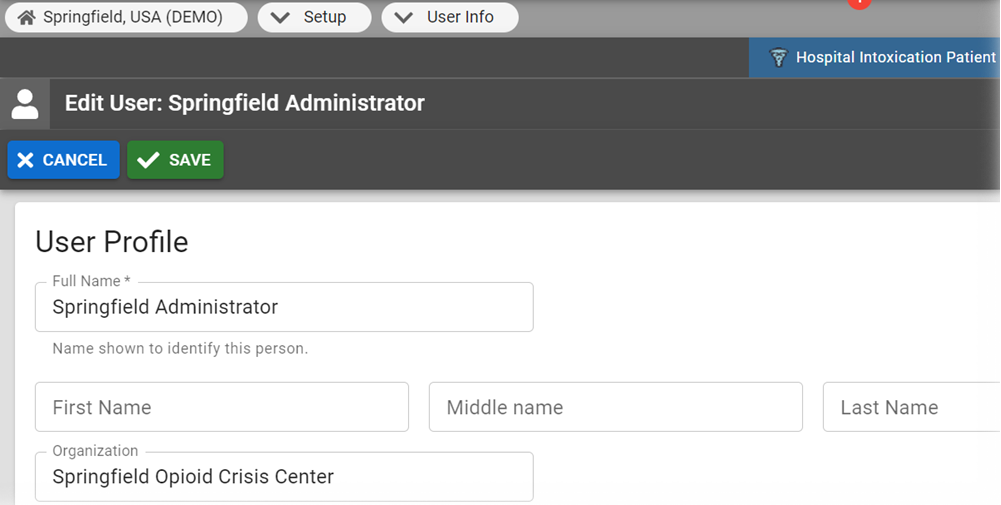
To update your information
- In the main menu, click Preferences then User Info. The Edit User Info page opens.
-
Take any of these actions:
 Update your personal information
In the User Profile section, enter the requested information.
Use colors that make the solution easier to view
This can improve viewing in certain lighting conditions (such as outside or on a large, wall-mounted monitor).
In the User Profile section, select the High Contrast View checkbox.
Add a contact method
-
In the Contact Information section, click + Contact Method. A window opens.
-
Click Email, Text, or Pager.
-
Enter the corresponding address or number.
-
Click Save. Your information appears in the list.
Edit or delete a contact method
-
In the Contact Information section, locate the information you want to update.
-
On that row, click the information to edit or click Remove to delete it.
Enable/Disable certain notification methods
In the Notifications Preferences section, locate the notification method and, on that row, select or clear the Receive Notifications checkbox.
Include updates statuses for all resources of the same resource type
In the Notifications Preferences section, locate the notification method and, on that row, select or clear the Include Resource Summary checkbox.
If you want to receive status change notifications only for certain resources, clear this checkbox and go to the procedure Status Change Notification Preferences.
Receive notifications at any time or only a specific time range
In the Notifications Preferences section, locate the notification method and, on that row, select or clear the Exclude Time Range checkbox.
If you click Exclude Time Range, you must enter the exclusion period in the From and To columns using the 24-hour format.
Identify your default landing page
In the Home section, click the name of the view you want to open when you access EMResource.
-
- Click Save.
Related Concepts