Deactivate or Reactivate Sub-Resources
If you have appropriate rights, you can deactivate and reactivate sub-resources Secondary resources that are considered attributes of resources. These are often objects, services, or functions that belong to resources. as necessary. Once you deactivate a sub-resource, it no longer appears in views and cannot be updated, included in events, selected on forms, or assigned to users. However, you can still run reports Provides specific information about statuses and details, notifications, forms, templates, snapshots, and roles/rights in EMResource. that include inactive sub-resources.
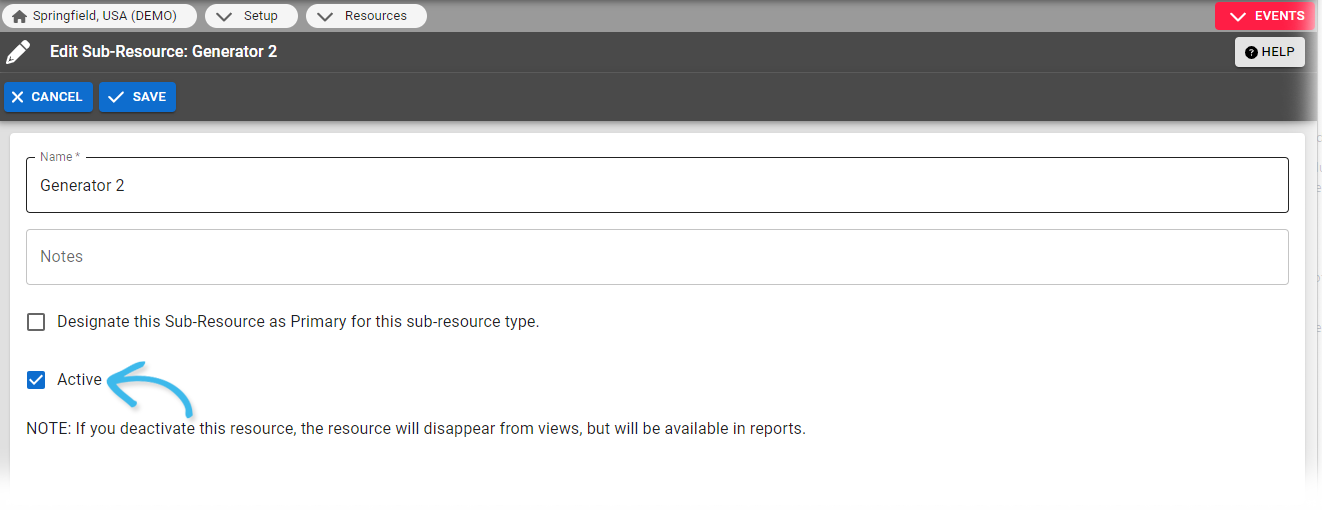
To deactivate a sub-resource
-
In the main menu, click Setup then click Resources. The Resource List opens.
-
Locate the resource that the sub-resource belongs to and, on that row, click Sub-Resources. The Sub-Resource List for (resource) page opens.
-
In the list, locate the resource and, on that row, click the (sub-resource) name. The View Sub-Resource (name) page opens.
-
Click Edit.
-
Clear the Active checkbox.
-
Click Save.
To reactivate a sub-resource
-
In the main menu, click Setup then click Resources. The Resource List opens.
-
Locate the resource that the sub-resource belongs to and, on that row, click Sub-Resources. The Sub-Resource List for (resource) page opens.
-
In the list, locate the resource and, on that row, click the (sub-resource) name. The View Sub-Resource (name) page opens.
-
Click Edit.
-
Select the Active checkbox.
-
Click Save.
Related Concepts