Manage a User's System and Event Notifications
The Notification Preferences page allows you to identify how a person is notified about expired statuses, incident command system (ICS), incoming patient, and general system notifications Provides general information, such as expired statuses, the beginning or ending of incidents in an associated ICS, and upcoming maintenance.. For more information about automated alerts and notifications, see the article Types of Notifications.
With appropriate rights, you can indicate how users receive event notifications Sent when ad hoc, planned, and unplanned events are created, updated, or ended. based on the type of event. If the corresponding contact details have been entered for the user, you can choose to have the solution send notifications by email, text, pager, voice, mobile app, and web page when an event is started, updated, and ended.
Events can be started, updated, and/or ended quietly. Admins can select any combination of these three. When the event is quiet, no notifications are sent.
Email and text notifications contain high-level details, including the name of the event, the name of the individual who created or edited it, and the affected regions. Offering quick access to the event, the email and text notifications also include a link to the event page in EMResource.
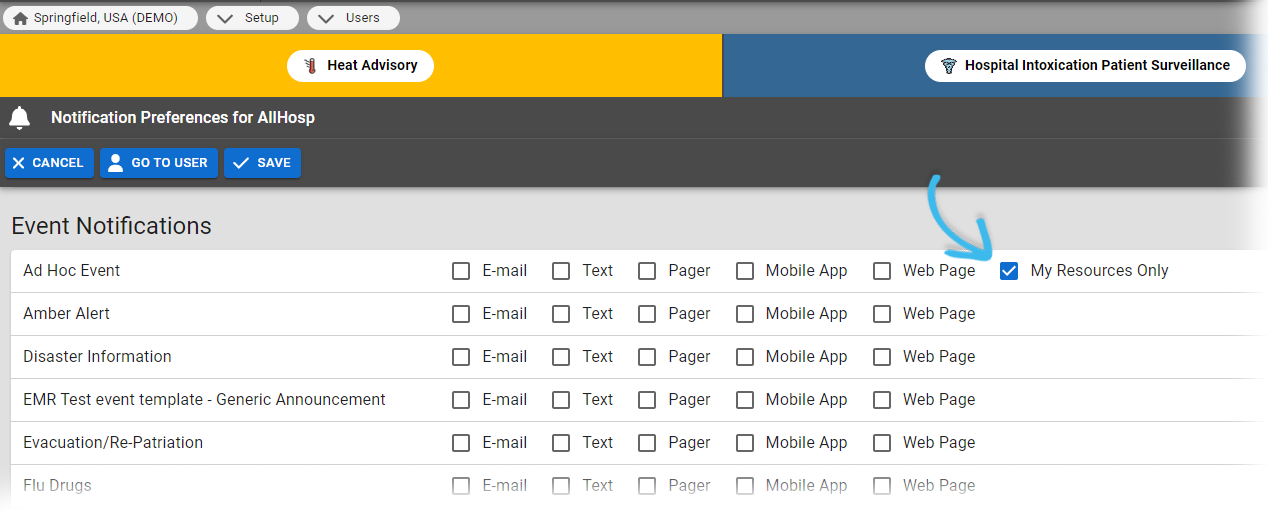
For event types that include resources, you can limit notifications to only be sent when the event involves resources for which the user has associated rights. If this option is supported, the Associated Resources Only checkbox will be visible.
For details on automated alerts and notifications, refer to Notifications.
To manage system notification preferences for a user
-
In the main menu, click Setup and then click Users. The Users List opens.
-
Locate the person and, on that row, click their Full Name. The View User page opens.
-
Above the User Profile section, click Preferences and, in the list, click Notifications Preferences. The Notification Preferences page opens.
-
For each Notification Type, select the checkboxes for the Notification Methods you want to enable (for example, E-mail, Text, Pager, Mobile App, Voice, or Web Page).
-
Click Save.
To manage a user's event notifications
-
In the main menu, click Setup then click Users. The Users List opens.
-
Locate the person and, on that row, click their Full Name. The View User page opens.
-
Above the User Profile section, click Preferences and, in the list, click Notification Preferences. The Notification Preferences page opens.
-
Under Event Notifications, for each Event Type, select the checkboxes for the notification methods you want to enable (for example, E-mail, Text, Pager, Mobile App, Voice, or Web Page).
-
If you want to limit notifications to events that involve resources they have associated rights for, select the Associated Resources Only checkbox.
-
Click Save.
Related Concepts