View Field Reference
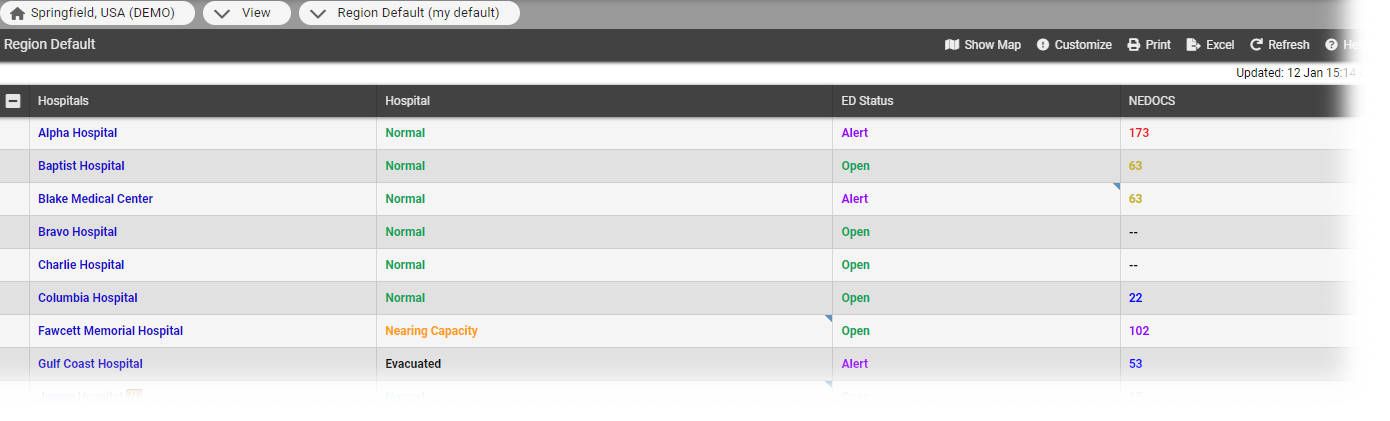
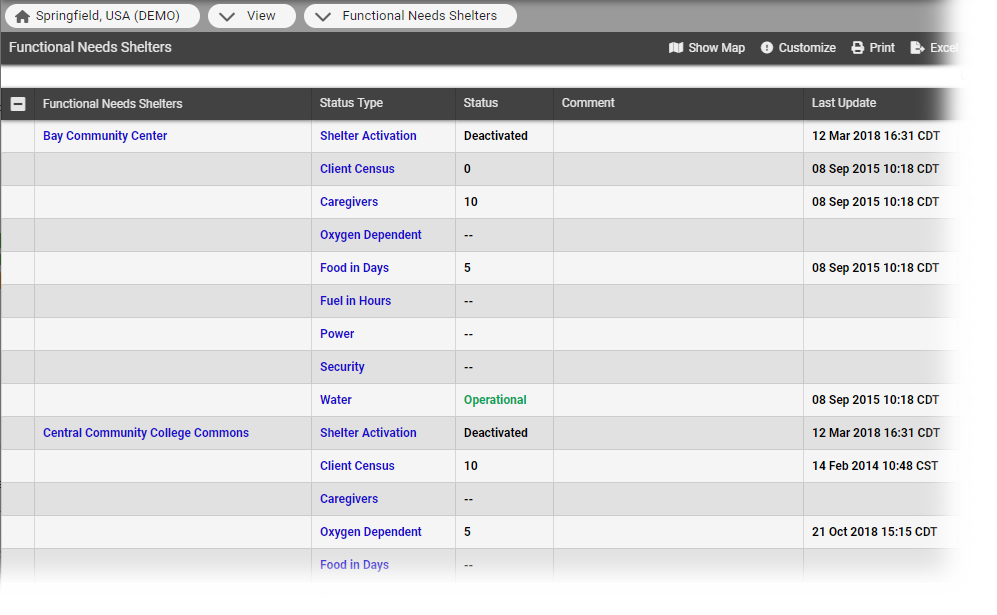
The following table lists the fields and their descriptions that can be found when creating, editing, or copying a view.
The details that apply only to multi-region views are marked with MRV in the following table.
| Field | Description |
|---|---|
|
General tab |
|
|
View Name |
Specify the name of the view (required). This name appears in the View menu and in the view's header. |
|
Description |
Enter a description of the view. The description appears in the list of available views under Setup but is for administrative purposes only. |
|
Select Sub-Resources Types |
Select the sub-resource |
|
Regions tab |
|
|
Select regions to be included in this view |
Select one or more regions to include in the view. MRV: The regions you can include in a view are those that have a confirmed mutual aid agreement (that is, the agreement is verified and active) with the active region. |
|
Resources tab |
|
|
Select resources to be included in this view |
Select resources to include in the view. You can sort the list by name or you can use the search fields at the top to locate the specific resources. You can also search by address. MRV: You can include resources from only the regions you selected. The Region appears in the column to the right of the resource's name. For mutual aid regions, the resources shown in this tab are those that have the Share with Other Regions setting enabled. |
|
Status Types tab |
|
|
Select status types |
Select status types to include in the view. You can include daily and event-only status types. Event-only status types appear in the view only when an incident is occurring that includes that type. You can include status types from only the resources you selected. You can sort the list by name or you can use the search fields at the top to locate the specific status types. When you select a specific region, you can search by section. MRV: For mutual aid regions, the status types shown in this tab are those that have Status Type Visibility set to Allow regions with mutual data sharing agreements to view this status type. |
|
Sort Status Types tab |
|
|
Adjust sort order for selected status types |
Specify the order in which the status types should be displayed in the view. You can set the order by dragging and dropping status types within this tab. If appropriate, you can also remove a status type from the view. You can also specify alphabetic order by clicking the Sort alphabetically option at the bottom of the tab. |
|
Advanced tab |
|
|
Configure settings for resource types |
Configure each of the Resource Types listed and specify the order in which the resource types appear in the view to define how resource and status information is presented. By default, all options are selected.  Create View Types Create View Types
|
|
Region |
Region to which this resource type belongs. |
|
Resource Type |
Resource types included in the view. You can change the name that appears in the view for these resources. MRV: Renaming resource types can come in handy when creating multi-region views that contain resource types with repetitious names or where the current name does not fit well within the view. |
|
Statuses by Column |
Select to show statuses in the view in columns rather than rows (not selected). |
|
Comments |
Select to show in the view any comments that were entered the last time the status was updated. |
|
Timestamp |
Select to show in the view the date and time of the last update to the status. |
|
User |
Select to include in the view the name of the user who last updated the status. |
|
Future Resources |
Select to automatically include in the view any resources that are added to the resource type in the future. |
|
Sort Resources |
Sort resource information by choosing one of the following: Name, Status, Custom.
|
|
Override Mobile Default Status Type |
Configure the EMResource mobile app to show the view-specific status (associated with a color) instead of the resource type’s default status for that view. For example, hospitals on an EMS view might be colored by emergency department status and hospitals on an MCI view might be colored by trauma surgeon availability. This feature only applies to the mobile app; web browsers still display the web-specific status color. For more information, refer to Mobile View Configuration. |
|
New Resource Types added in future |
Select to automatically include in the view any resource types that are added to the region in the future. You can only specify this option for the originating region that is, the region you or another user was logged into when the new view was set up. |
|
Sort buttons |
For quick sorting, use the buttons at the bottom of the table to sort by region, resource type, or region and resource type. |
|
Display Status Type Summary |
Select to include grand totals at the bottom of the view. A grand total appears for each numeric status type that is set up to display summary totals. |
|
Fix columns width |
Select to apply a fixed width to the Comments, Last Update time, and last update By User columns. |
|
Users tab |
|
|
Security |
Select the checkbox to make the view available to all users in all selected regions or clear it to select individual users. MRV: If you decide to select individual users, you can select from only those from the originating region. |