SFTP Data Uploader Guide
The EMResource SFTP Data Uploader allows facilities and partners to bulk upload status updates into EMResource. Excel or CSV files generated by an electronic medical record system (EMR) or other facility system can be uploaded to EMResource using the Secure File Transfer Protocol (SFTP). EMResource then automatically ingests the data and updates the application with this information.
 Data Transmission
The data transmission does not contain protected health information (PHI), patient data, or personally identifiable information (PII). Files are sent via SFTP through a controlled port in a firewall (port 2222) to secure servers hosted by Juvare. Juvare automatically delivers these files directly into EMResource without human intervention.
The SFTP Data Uploader does not require any new software to be installed, and all aspects of the connection are secured. Data is encrypted with 256-bit AES and end points are known and controlled.
Building the File
The data generated by your facility must be transformed into an approved XLS, XLSX, or CSV file format, and uploaded to the Juvare SFTP site. You may use one of the following templates for your file:
-
EMResource Bulk Data Upload File: Your Juvare representative can provide this to you. When used, the Bulk Data Upload Template provides the correct headers and Resource IDs needed for automating and uploading data. It is the most flexible format because it allows you to upload any data element that is configured in EMResource and is not limited to data elements that are collected by the CDC.
-
CDC Hospital Respiratory Data (HRD) Template: When used, the CDC Template provides the correct headers needed for automating and uploading HRD data. Hospitals are identified by their NHSN Org ID and Reporting Context. The latest template and detailed instructions can be found on the CDC website at https://www.cdc.gov/nhsn/psc/hospital-respiratory-reporting.html.
-
CDC Hospital Bed CapacityTemplate: When used, the CDC Template provides the correct headers needed for automating and uploading Bed Capacity data. Hospitals are identified by their NHSN Org ID and Reporting Context. The latest template and detailed instructions can be found on the CDC website at https://www.cdc.gov/nhsn/bed-capacity/index.html.
Regardless of which of the templates you use, not all data fields need to be included in the file. Only the data fields that are populated will update the Status Types in EMResource.
If you use one of the CDC templates, you may indicate non-applicable fields (such as Number of Available Pediatric ICU beds in a hospital that does not have any) by leaving the field blank or by reporting “9999”.
Multiple files can be sent separately (for example, HRD and Bed Capacity data).
Providing Information to Juvare
In order to setup your SFTP connection, your Juvare representative will ask you for the following information:
-
The source IP address(es) that will be used to connect (public IP).
-
Your public key from your SSH key pair (refer to Authentication).
-
The NHSN Org ID (if sending NHSN specific data).
-
The NHSN Context (if sending NHSN specific data).
Testing
Your Juvare representative will provide you with the SFTP URL andusername, which will allow you to upload your file to the SFTP site. Once uploaded, you can log into EMResource to verify the information was correctly entered. To do this:
-
Navigate to EMResource and log in with the credentials shown in your Data Map file.
-
Verify that the information was successfully received, with no errors.
You will receive a Data Map file containing test and production IDs for each facility you plan to submit data for. When you are ready to submit test data, simply update the Resource ID or NHSN Org ID in your submission file to use your assigned test resource(s).
The goal of testing is to confirm:
-
A connection to Juvare is established.
-
Data elements flow to the correct fields in EMResource.
-
The data submitted is accurate.
During this time, Juvare will help you set up submission notification emails that let you know if your data submissions have succeeded or failed. To receive these notifications, please provide your Juvare representative the email addresses of the individuals or mailing groups who should receive them.
After successful testing, update the Resource ID or NHSN Org ID in your submission file to use your assigned production resource(s).
If Juvare is forwarding your data to NHSN, we will coordinate directly with the CDC to make sure your data is transmitted on schedule.
Authentication
To set up SFTP access, you must generate an SSH key pair. Once generated, please send your Juvare representative the public key file and we will install it on our SFTP server. You will use your private key to authenticate when connecting.
If you are not familiar with generating an SSH key pair, please follow the steps below.
Windows Users
-
Download the PuTTY key generation utility to your desktop from this URL: puttygen.exe
The program requires no installation, you can run it directly from your desktop. Simply double-click the icon.
-
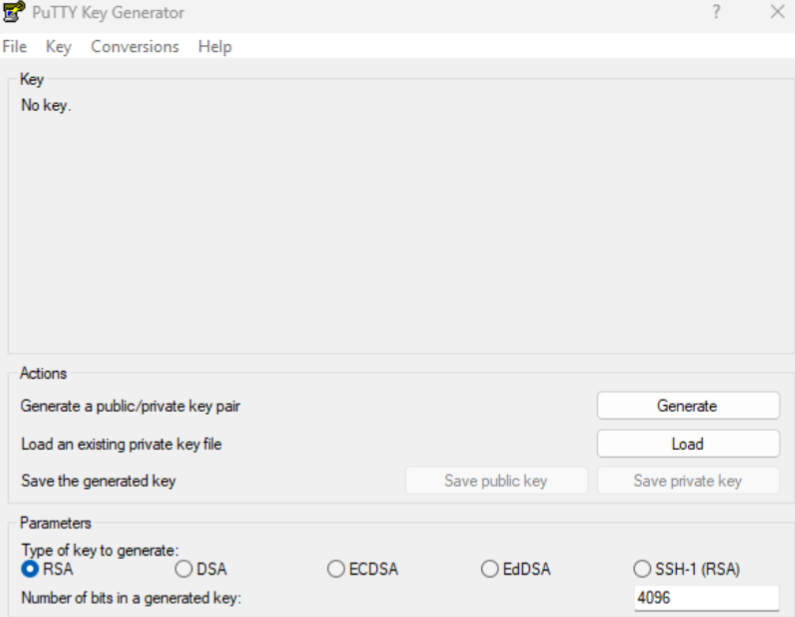
Ensure that RSA is selected (not the SSH-1 option) and the "Number of bits in a generated key" is set to 4096.
-
Click Generate.
-
During the initial phase of key generation, you must move your mouse around in the empty part of the window to generate random data.
-
You do not have to interact with the program during the second phase, simply wait for it to complete.
-
Do not enter a passphrase. The Key passphrase and Confirm passphrase boxes should remain blank.
-
Click Save private key. Save the key with a descriptive name and save it in a very secure location.
-
Click Save public key. Name the key after your organization and give it a .pub extension.
-
Close the PuTTY key generation utility.
-
Email the public key file (the one you created with the .pub extension) as an attachment to your Juvare representative, along with a list of IP addresses from which you will access the service.
Mac OS/Linux Users
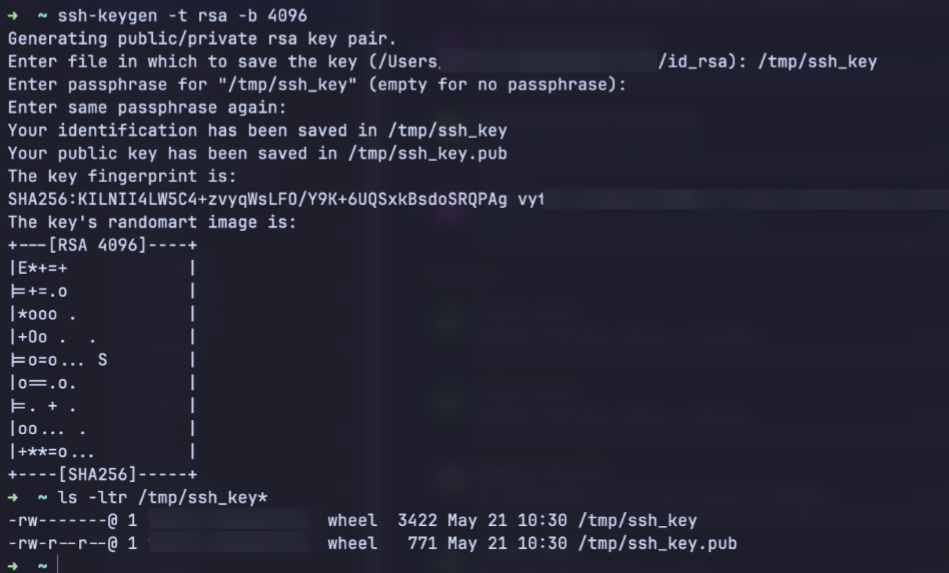
Use the following text in your terminal to generate your keys: ssh-keygen -t rsa -b 4096.
Important Notes
The keys you have generated operate as a matched pair. A private key generated with a different public key or at a different time than the current public key will not work with the public key you have just generated and sent.
Once you have sent the public key to us, you must make sure that you always use the private key that was created with that public key or else you will not be able to connect.
If you need to regenerate the key pair for any reason, you will need to email the new public key to us at support@juvare.com
Assistance
For more information, contact the Juvare Support Center at support@juvare.com or 877-771-0911.