Create a Summary View
Your region may have set up one or more Summary Views Summarizes patient information by incident, provider facility, mobile provider, and division label.. These settings aid you in report generation. Your region may also use these in conjunction with interfaces with external entities.
These views summarize patient information by incident, provider facilities A standing facility, which can be a hospital, long-term care facility, or shelter., mobile providers A transporting agency, such as EMS organizations and fire departments., and division labels Used to classify and locate specific types of patients.. Individual incidents, providers, and labels occupy rows in their respective tables. Table columns represent your triage categories.
Authorized users can maintain the information that appears in the Summary View and add new views. Click System Settings, then on the left under Other Settings, click Summary Views.
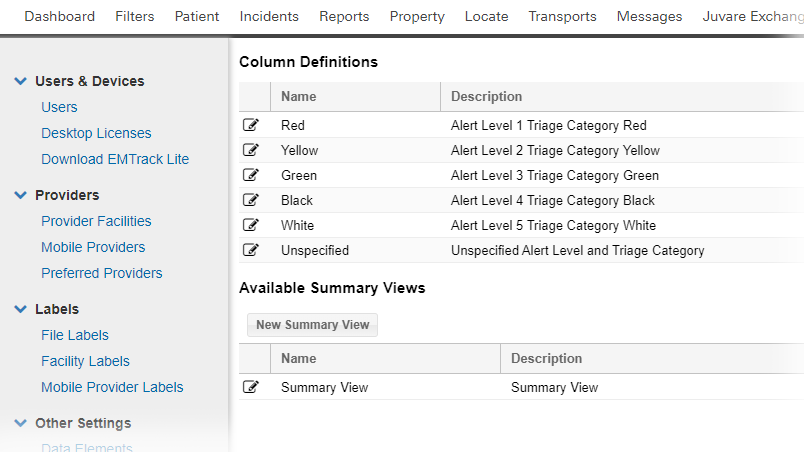
The table at the top of the page allows you to work with your Column Definitions. While you cannot remove a triage category column from the system, you can change its name or exclude it from the summary view. The name and description you assign to a column apply to all views. In other words, you cannot specify 1/Red as the name of a column header in one view and 1/Immediate for another view.
To create a view
-
On the upper right, click System Settings.
-
On the left, under Other Settings, click Summary Views.
-
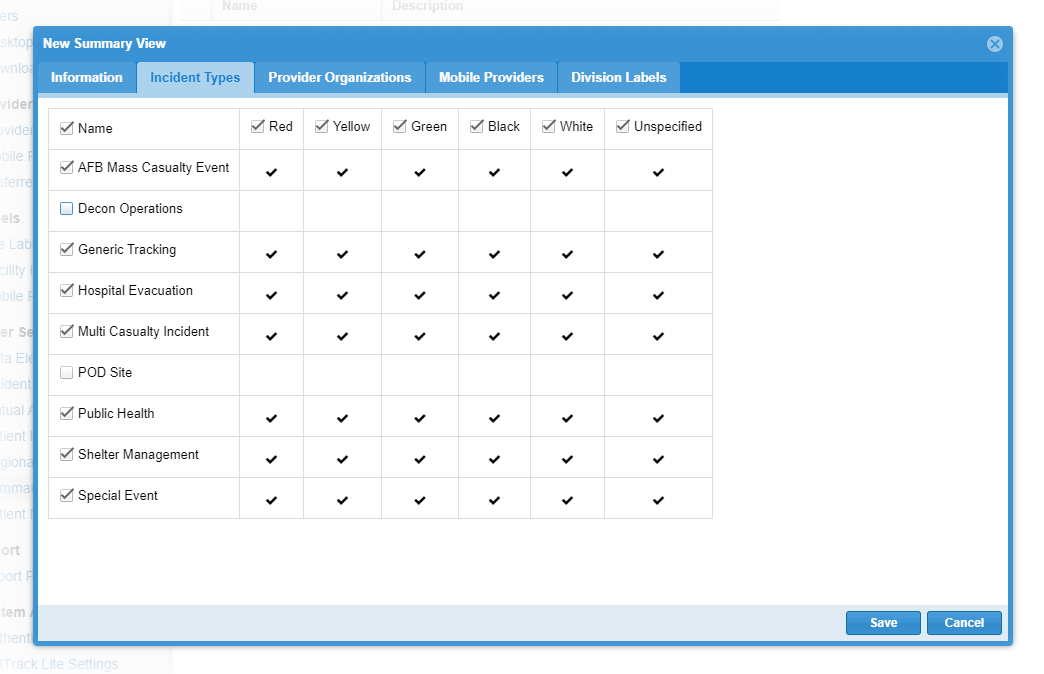
In the Available Summary Views section, click New Summary View. The New Summary View page opens. The page includes tabs for information, incidents, provider facilities, mobile providers, and labels. Each tab also shows triage categories as the table's column headers.
-
Enter the Name.
-
Enter the Description.
-
On the Incident Types tab:
-
Select the incident types
Incidents of the same type can share basic information. to include in the view. -
Select the triage categories (columns) to include for all incident types.
-
-
On the Provider Organizations tab:
-
Select the facility providers to include in the view.
-
Select the triage categories (columns) to include for all facilities.
-
-
On the Mobile Providers tab:
-
Select the mobile providers to include in the view.
-
Select the triage categories (columns) to include for all providers.
-
-
On the Division Labels tab:
-
Select the labels to include in the view.
-
Select the triage categories (columns) to include for all labels.
-
-
Click Save.
Related Concepts