Reactivate Users
On the Users page of the system settings, authorized administrators can reactivate user accounts in their region or division. When you reactivate a user, you must also reassign at least one of their locations/roles. The Users page filters out deactivated users by default and displays a strikethrough on their name.
To reactivate a user account
-
On the upper right, click System Settings. The system settings open to the Users page.
-
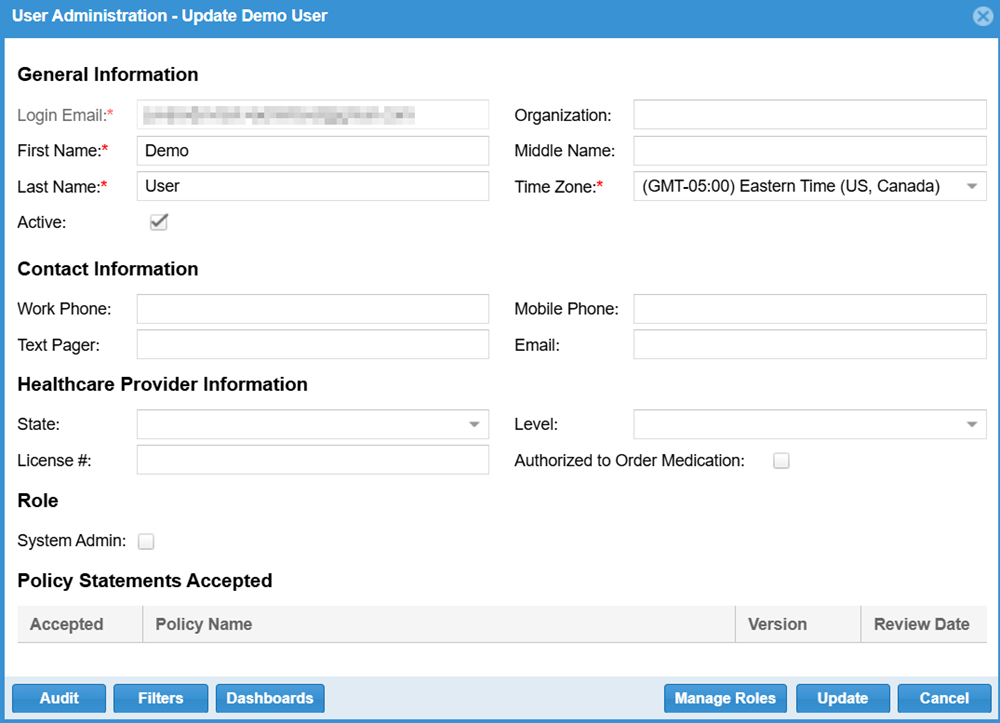
Locate the user you want to reactivate. On that row, click the edit icon. The User Administration - Update window opens.
-
Select the Active checkbox.
-
Click Manage Roles. The User Role Administration window opens. The Role column displays Deactivated for each location
 Generally refers to the region or to a division, such as a provider facility or mobile provider. Every user is granted access to at least one location..
 -
To reactivate this user's access to locations:
-
Locate a location you want to restore access to. On that row, click the edit icon. The Edit Role window opens.
-
Select the appropriate role.
-
Click Update.
-
Repeat these steps as needed for other locations.
-
Related Concepts