Manage IPNs
Incoming Patient Notifications (IPNs) facilitate communication between emergency medical services (EMS) and hospitals that use EMTrack or EMResource. IPNs allow EMS providers to send patient information, collected through EMTrack forms, to destination hospitals.
This information provides critical patient details to help hospitals better prepare for patients before they arrive. Hospitals can respond to notifications, according to regional protocols, by acknowledging, diverting, and/or receiving patients. This gives EMS providers quick confirmation or insight regarding necessary redirects.
IPNs further open communication between EMS and hospitals with secure, bi-directional messaging that allows destination hospitals to request updates, or provide care and delivery instructions.
To start using IPNs in your region, the feature must be enabled in EMTrack, and related settings and forms must be configured. Hospital users in EMTrack and EMResource must have the appropriate rights to receive and respond to IPNs.
 Patient Forms
IPNs are generated when EMS providers using EMTrack Web or Mobile submit patient forms with specific information, including the destination hospital and estimated time of arrival (ETA). Forms submitted with this information automatically send IPNs, with patient assessment and critical alert information, to the destination hospital.
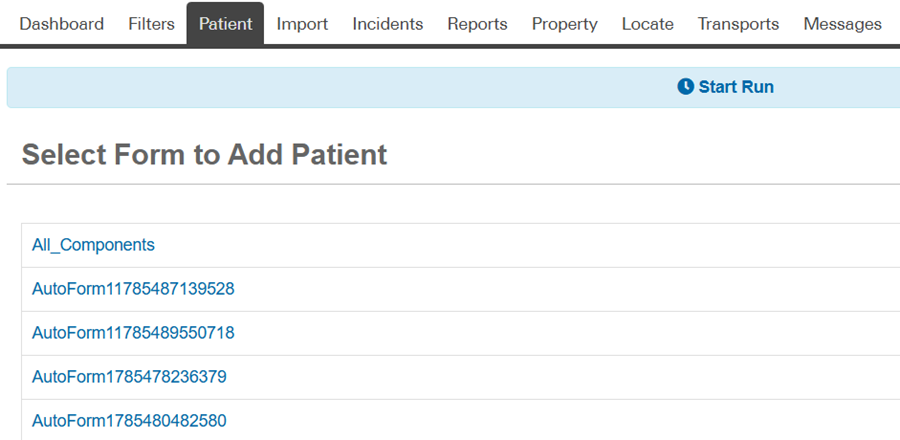
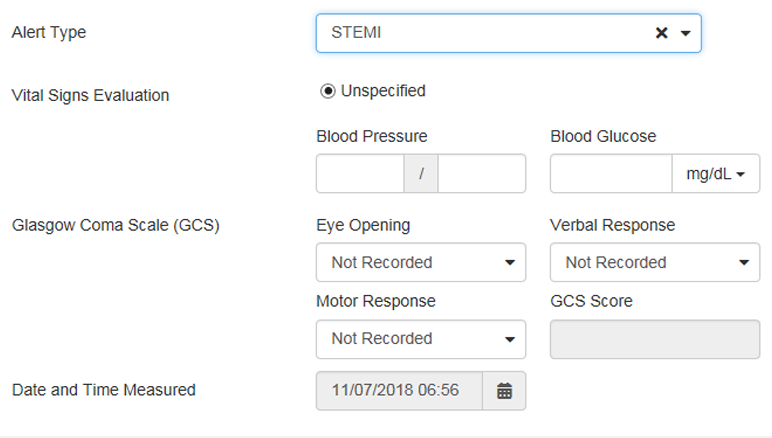
Numerous standard forms, such as the Sepsis Assessment, STEMI Assessment, Stroke Assessment, and Trauma Assessment forms for Web and Mobile, already contain the essential IPN fields and can be quickly activated for your region.
Through System Settings, you can review the standard forms provided by Juvare. Ensure forms are Visible and that Daily Tracking is enabled according to your regional protocols.
To adapt a standard form to meet your specific needs, you can create a copy and customize it by choosing to Edit and Design it. For more information, refer to Edit a Form and Design and Publish a Form.
Through design, you can make fields Required and therefore, automatically send IPNs when forms are submitted. Remember, the following fields must be included and completed on forms to send IPNs:
-
Alert Type
-
Destination Location
-
ETA
Consider adding field components such as Vital Signs and Lab Results to include other valuable information on IPNs.
Daily Tracking
The run timer, located across the top of patient forms, supports daily patient tracking. Starting a run effectively tracks the time spent on a call and, when the patient identification number (ID#) has been entered, allows you to update the patient record during the run without re-entering the ID#.
The timer indicates run duration, which is ongoing until manually stopped according to your agency protocols. When ending a run, the patient is marked Delivered to indicate the run was successfully completed.
When configuring forms, select the Daily Tracking option to include the form on the abbreviated list of daily tracking forms.
To enable IPNs
First, you need to contact the Juvare Support Center and ask them to enable IPNs. The IPN feature must be mapped, according to your regional configuration, to open communication between you and your associated hospitals. Mapping may be necessary within EMTrack, as well as between EMTrack and EMResource. To complete this, you may need to approve facility mappings.
To set up IPNs in EMTrack
-
Click System Settings. The Users page opens.
-
On the left, in the under Other Settings section, click Patient Notifications. The Patient Notifications page opens.
-
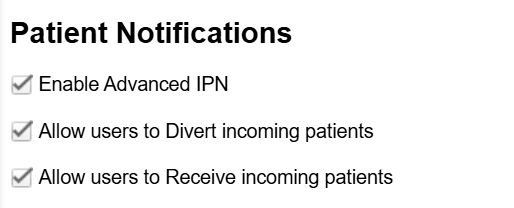
Select the Enable Advanced IPN checkbox.
-
According to your regional protocols, select or clear these options:
-
Allow users to Divert incoming patients
-
Allow users to Receive incoming patients
-
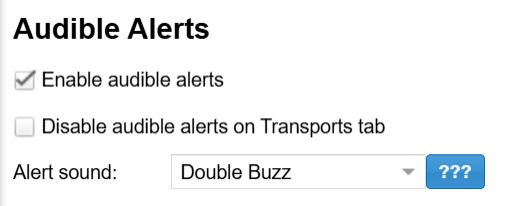
Enable audible alerts
If you enable audible alerts, you can select or clear these options:
-
Disable audible alerts on Transports tab
-
Alert sound
-
-
Show patient details
-
-
Click Save.
To activate standard patient forms in EMTrack
-
Click System Settings. The Users page opens.
-
On the left, in the under Other Settings section, click Patient Forms. The Forms Configuration page opens.
-
In the list, locate the relevant form, such as Sepsis Assessment, STEMI Assessment, Stroke Assessment, or Trauma Assessment.
-
On the right, in the Actions column, next to View, click the arrow and in the menu, click Edit. The Edit Form page opens.
-
According to your regional protocols, select or clear these options:
-
Daily Tracking
-
Visible
-
For more information about designing and editing forms, refer to Form Elements and Fields and Design and Publish a Form.
To enable IPN delivery in EMResource
In EMResource, the delivery of IPNs is enabled by role. All users with enabled roles automatically receive IPNs. Then, through user profiles, you can select the IPN delivery preferences for individual users.
-
Navigate to Setup then, in the menu, click Roles. The Roles List page opens.
-
Locate the role you want to enable and, on that row, click Edit. The Edit Role page opens.
-
In the Select the Rights for this Role area, select IPN – Receive Incoming Patient Notifications.
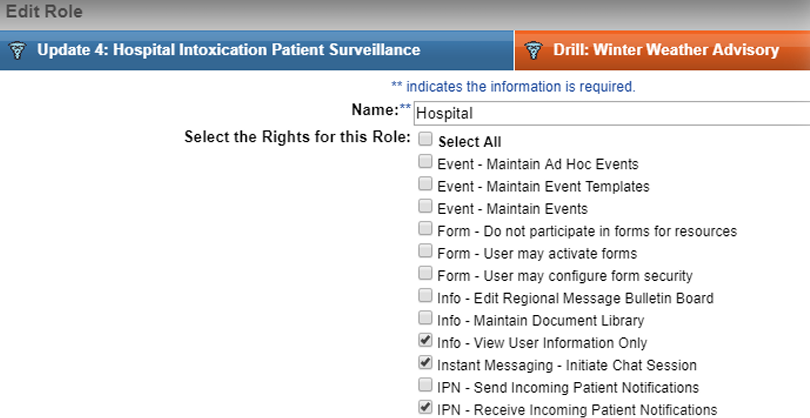
-
At the bottom of the page, click Save.
To edit IPN delivery preferences in EMResource
-
Navigate to Setup then, in the menu, click Users. The Users List page opens.
-
Locate the user you want to edit and, on that row, click Edit. The Edit User page opens.
-
In the User Preferences area, click System Notification Preferences. The System Notification Preferences page opens.
-
On the Incoming Patient Notifications row, you can select E-mail and/or Text Pager.
-
Click Save.