Patient Record Removal
Patient records Patient, client, or relative record containing information entered during intake. can be removed by deleting or archiving them.
Manual Record Removal
Note the following about manual record removal:
-
You can delete or archive patient records one at a time.
-
Deletion is generally reserved for patient records that were created in error.
-
You can archive a patient record only if that patient is not currently involved in an incident.
Removed records are retained, but the patients no longer appear in incidents and dashboards Comprised of groupings of data, called gadgets.. In addition, removed patient records appear in reports only when you specify they should be included. Furthermore, only authorized users can search for these records and, when appropriate, re-instate them.
Automatic Record Removal
In addition to being able to archive a record manually, your EMTrack system automatically archives patient records under the following conditions:
-
Actual Incident: The system archives associated patient records 15 days after the end of the incident.
-
Exercise, Drill, or Test Incident: The system archives associated patient records immediately after the incident’s end.
-
No Incident: If the patient is not associated with any incidents, EMTrack archives the record after 90 days of inactivity.
Search Terms
When conducting a search, you can specify a single search term, a set of terms, or multiple sets of criteria. In a set of terms, the more criteria you specify, the narrower your search results.
Use multiple sets to build an “OR” operation. The resulting list includes the records that meet the criteria specified in one of the sets you defined. For example, you would build two search sets to create a filter Search criteria that allow you to pinpoint the clients and details you need. showing all patients at or en route to your location Generally refers to the region or to a division, such as a provider facility or mobile provider. Every user is granted access to at least one location..
To search for a record
-
From any page, click the Filters or Locate tab.
-
If other results are on the page, in the upper left, click New.
-
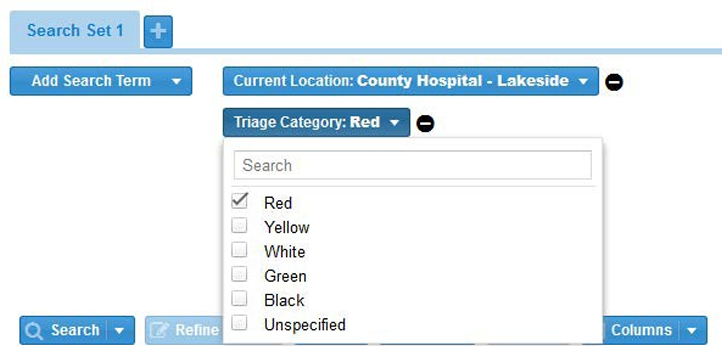
Add search criteria as follows:
-
Click Add Search Term.
-
Select the term from the list. It appears in the page.
-
Click the term and either select the appropriate values from the list or enter data.
-
Repeat steps a – c for each term you want to add.
-
-
If appropriate, add another set of criteria as follows:
-
To the right of the current Search Set tab, click the plus icon.
-
In the new tab, click Add Search Term.
-
Select the term from the list. It appears in the page.
-
Click the term and either select the appropriate values from the list or enter data.
-
Repeat steps b – d for each term you want to add to this set.
-
-
As applicable, repeat step 4 to add another search set.
-
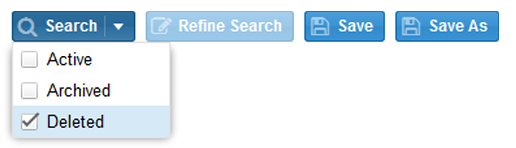
If you are searching for a deleted or archived record:
-
On the Search button, click the arrow.
-
From the menu, select the Archived or Deleted check box, and clear Active.
-
-
Click Search.
To delete or archive a record
-
From the Filters or Locate tab, search for the record as described in To search for a record.
-
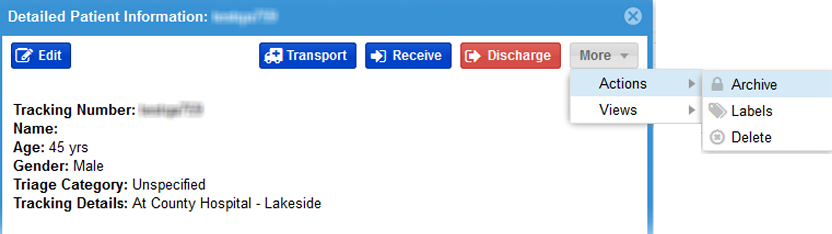
In your search results, click the view icon
 for the appropriate record. The Detailed Patient Information window opens.
 -
Click More then Actions, and choose the appropriate option from the menu: Archive or Delete.
-
If appropriate, for Comment, enter notes or comments.
-
Click Archive or Delete.
To re-instate a removed record
-
From the Filters or Locate tab, search for the record as described in To search for a record.
-
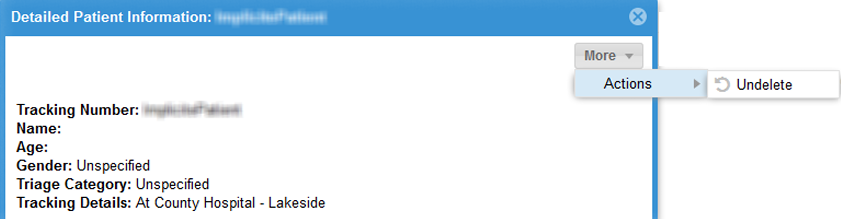
In your search results, click the view icon
for the appropriate record. The Detailed Patient Information window opens. -
Click More then Actions, and choose the appropriate option: Undelete or Unarchive.
-
If appropriate, for Comment, enter notes or comments.
-
Click Unarchive or Undelete.