Receive IPNs
Incoming Patient Notifications (IPNs) facilitate communication between emergency medical services (EMS) that use EMTrack and hospitals that use EMTrack or EMResource. EMS providers that collect critical information, such as vital signs and sepsis, STEMI, stroke, and trauma assessments, in the field using EMTrack can send this information to destination hospitals, along with patient details and the estimated time of arrival (ETA).
Hospitals using EMTrack Web or Mobile receive IPNs to help them better prepare for patients before they arrive. Hospitals can review IPNs and respond to them, according to regional protocols, by acknowledging, diverting, and/or receiving patients. These responses provide quick confirmation or insight regarding necessary redirects for EMS teams.
IPNs further open communication between EMS and hospitals with secure, bi-directional messaging that allows destination hospitals to request updates, or provide care and delivery instructions.
 Receiving IPNs
In EMTrack, hospital users receive IPNs when their facility is selected by EMS as the destination location for patient transports. The receipt of IPNs is marked with an audible alert sound and the appearance of an orange Incoming Patient bar, located at the bottom of the page.
Clicking the notification bar opens the Transports page and dismisses the bar, which does not appear again until a new IPN, IPN update, or IPN message is received.
To access and respond to IPNs
-
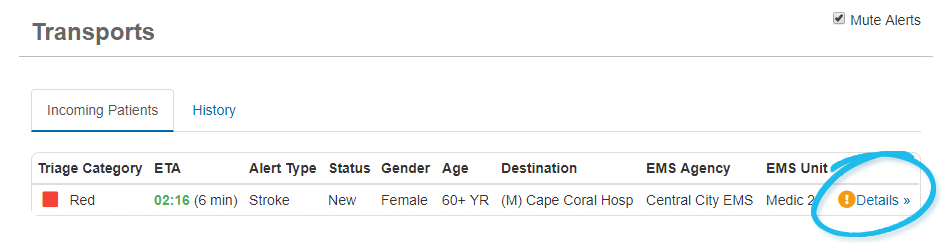
On the orange Incoming Patient alert bar, click View List. The Transports page opens.
-
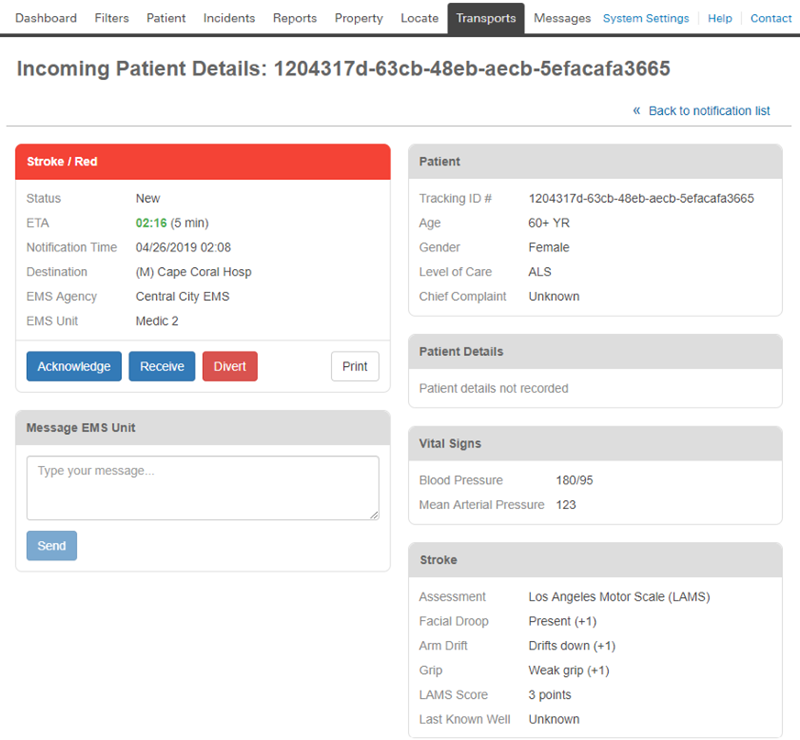
For patient details, on any row, click Details. The Incoming Patient Details page opens.
-
Take one or more of these actions.
If you want to... Then... Notify EMS that you received the IPN Click Acknowledge. Notify EMS that you cannot receive the patient Click Divert. Notify EMS that you have received the patient Click Receive. Print the Incoming Patient Details page Click Print. Message EMS -
In the Message area, type your message.
-
Click Send.
EMS teams have a similar feature that allows them to receive and respond to messages.
-
Viewing IPN Transports
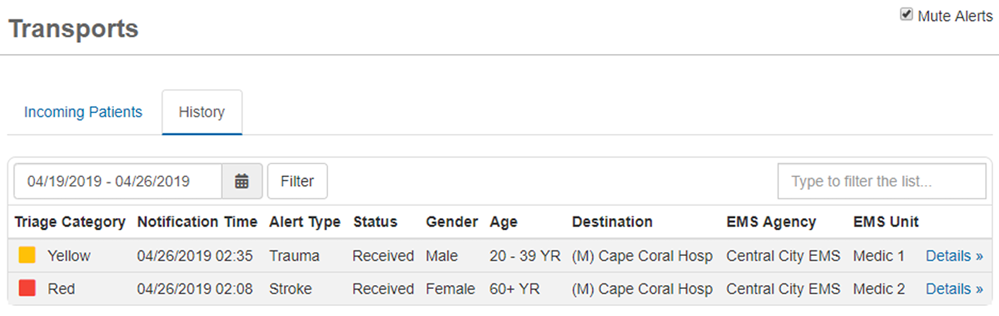
You can quickly access your hospital’s IPNs through the Transports tab, and you can select the Mute Alerts checkbox to silence alerts while you have this page open.
You can access details for individual patients, as described in the procedure above, or review past notifications by clicking History. Historic IPNs can be filtered by time frame and/or keywords.