Add Items to a Checklist
To add items to an existing checklist
-
Click the Checklist Templates tab.
-
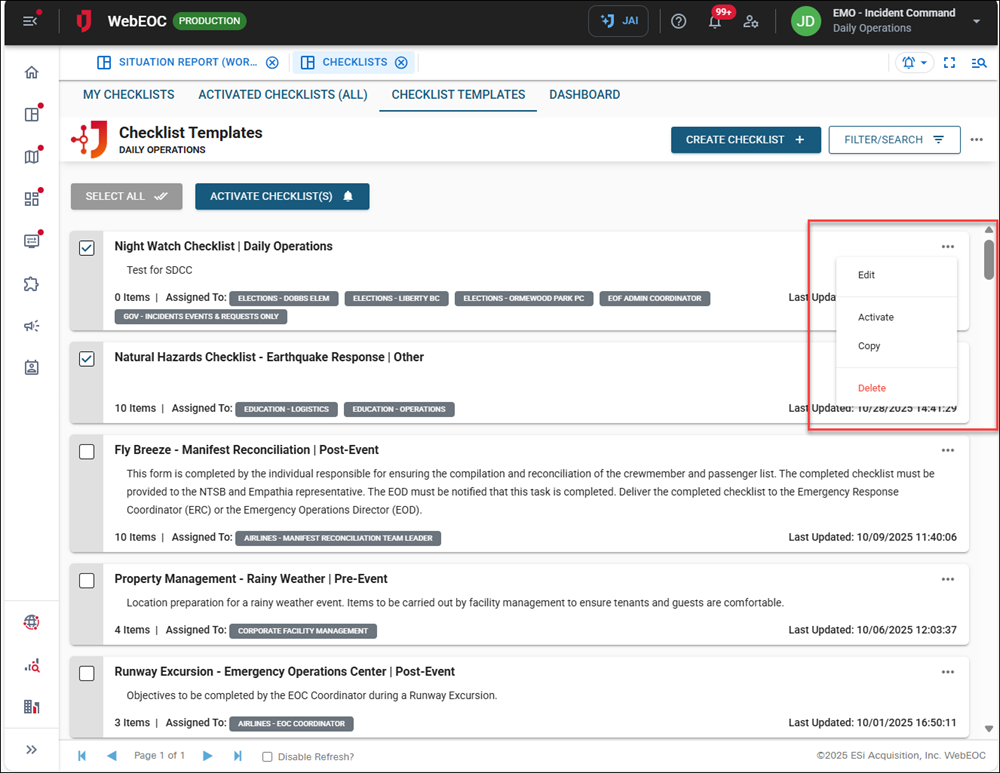
Click the ellipsis icon for the checklist to add items to and select Edit.
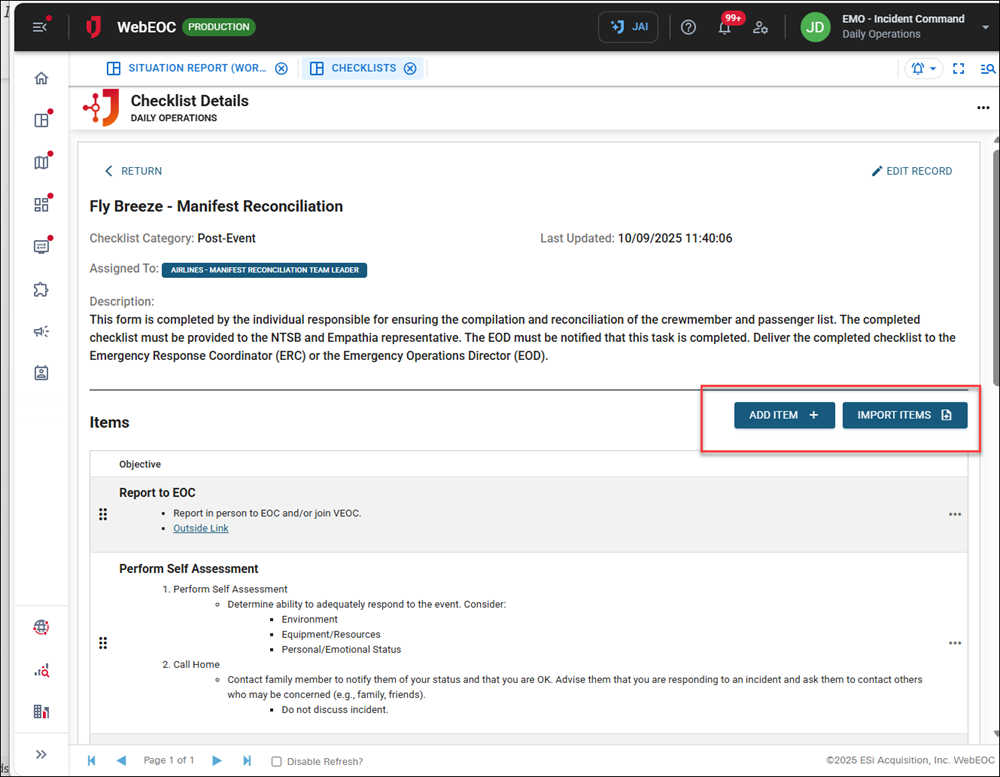
The Checklist Details page opens. Here, you can either add one checklist item or import multiple items.
-
Do one of these actions:
 Add one item
-
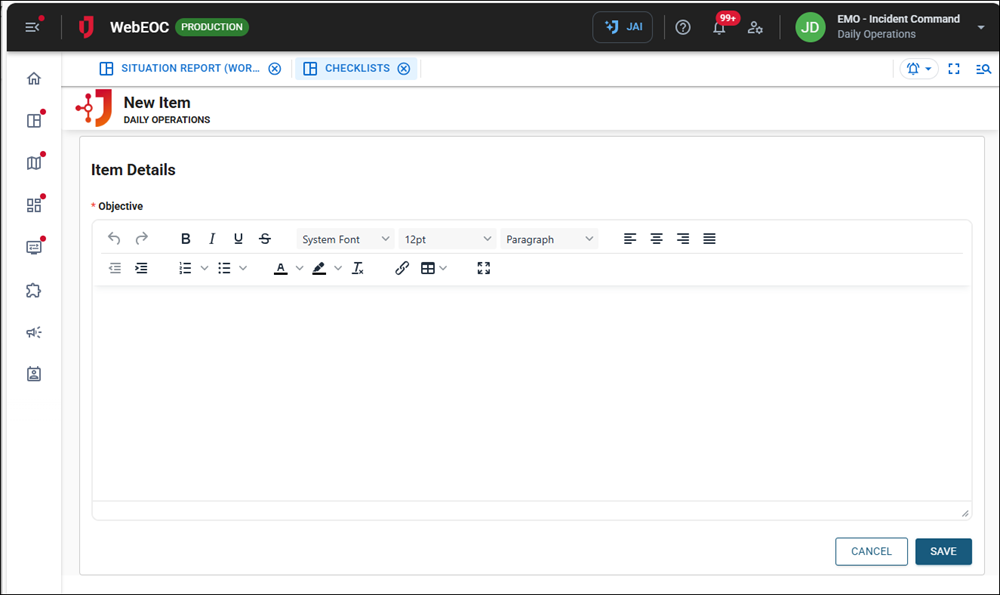
Click the Add Item button. The New Item page opens.
-
In the Objective field, enter the item.
-
Click Save in the bottom right.
The Checklist Details page opens, with your newly added item at the bottom.
-
Repeat these steps to continue adding items to your checklist.
-
Once the checklist is complete, on the Checklist Details page, click Return in the upper left.
Import multiple items
-
On the Checklist Details page, click the Import Items button.
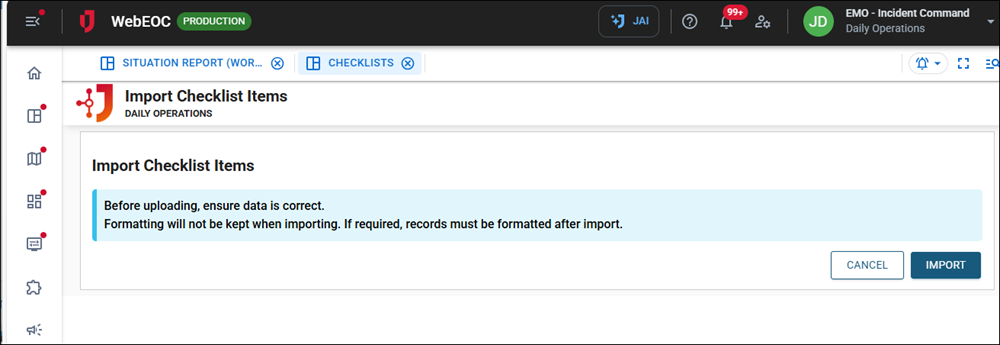
The Import Checklist Items page opens.
-
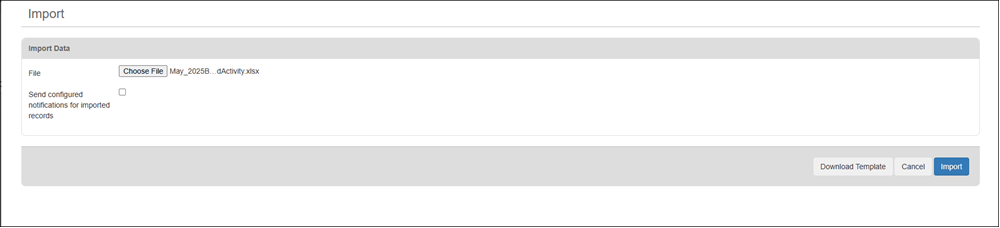
Click the Import button. The Import page opens.
-
On the Import page, click Download Template.
-
Open the template.xls file and add list items to it.
-
Return to the Import page.
-
Click the Choose File button.
-
Navigate to the template file, open it, and import it. The Import Checklist Items page opens again.
-
Click the Import button.
After you add items to a checklist, you must activate it.