Capture Information for Troubleshooting Network Issues
When you contact the Juvare Support Center for assistance with issues connecting to your Juvare solution, include information about what occurs as you attempt to connect by capturing a trace file (stored in a JSON-formatted .HAR file), a recording, and console output.
To create the files using Microsoft Edge
These steps can also be used for Chrome and Firefox.
-
In your Juvare solution, navigate to the step before the issue occurs.
-
Launch developer tools in your browser.
-
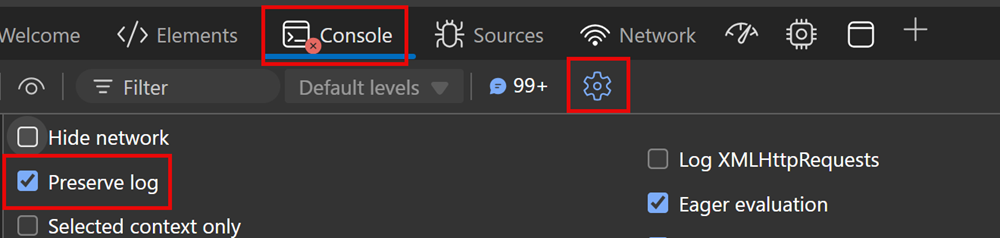
By default, the browser keeps trace information only for the currently loaded page. To set options so that the browser keeps all trace information, click the Console tab, click the Console settings icon, then select the Preserve Log checkbox.
-
Select the Network tab and select the Preserve log check box.
-
On the Network tab, select the Stop recording network log icon and click the Clear network log icon.
-
Select the Record network log icon, then reproduce the issue in your Juvare solution.
-
After you have reproduced the unexpected behavior, select the Stop recording network log icon again, then select the Export HAR (sanitized)... icon and save the file.
-
On the Network tab, select the Stop recording network log icon and click the Clear network log icon.
-
Stop the Steps Recorder and save the recording.
-
In the developer tools pane, select the Console tab. Right-click one of the console messages, then select Save as..., and save the console output to a text file.
-
Package the HAR file, console output, and screen recording files in a compressed format such as .zip and send it to the Juvare Support Center.



To create the files using Safari
-
Sign in to your Juvare solution.
-
Launch developer tools in your browser.
-
By default, the browser keeps trace information only for the currently loaded page. To set options so that the browser keeps all trace information, click the Console tab, click the Console settings icon, then select the Preserve Log checkbox.
-
Select the Network tab and select the Preserve log checkbox.
-
On the Network tab, select the Stop recording network log icon and click the Clear network log icon.
-
Select the Record network log icon, then reproduce the issue in your Juvare solution.
-
After you have reproduced the unexpected behavior, select the Stop recording network log icon again, then select the Export HAR (sanitized)... icon and save the file.
-
On the Network tab, select the Stop recording network log icon and click the Clear network log icon.
-
Stop the Steps Recorder and save the recording.
-
In the developer tools pane, select the Console tab. Right-click one of the console messages, then select Save as..., and save the console output to a text file.
-
Package the HAR file, console output, and screen recording files in a compressed format such as .zip.
-
Share the files by uploading them to the Juvare Support Center.