Juvare Login Services (JLS) FAQs
Below is a list of frequently asked questions from users and administrators that may assist you with any other issues related to Juvare Login Services, such as activation and access issues, username and password retrieval information, and password conventions.
Single Sign-on (SSO) does not handle logging in, password resets, and other account details in the same way. If using SSO, refer to the FAQ on the Single Sign-On page. For assistance with your account or organizational credentials, you can also contact your administrator.
Users
Activation and Access
 As a user, what do I need to do to access my account?
If you have not already done so:
-
Locate the welcome email (if necessary, check your Spam folder), click Click Here, and complete the password reset process in the email.
-
Go to your solution's login page or https://login.juvare.com and enter your login email to sign in.
Why am I unable to access the login page?
Verify that you are using the correct website link.
What should I do if I haven't received the Welcome to Juvare! email?
-
Check your Spam folder for an email from no-reply@juvare.com.
-
Your organization’s email system may have blocked the email. Ask your administrator to share the Hosted Requirements information with your IT Department.
-
You may already have an active Juvare Login Services account because of access to another Juvare product or Knowledge Center, or from training participation. Try to log in to the solution using your email address and last known password.
-
Try to reset your password using the Forgot Password? link on the login page. Check your email for the password reset email and complete the required steps.
-
Check with your administrator to confirm the accuracy of your account credentials.
Why am I receiving an “Access Denied” message when I try to log in?
The most common reasons for this message are:
-
You do not have an active account in the solution. Your administrator can confirm and take action as needed.
-
Your Juvare account uses a different login email address. Your administrator can confirm your account login email.
Why do I keep returning to the login page?
If you enter a login email and password combination that the system does not recognize, the system automatically returns you to the Log In page. Double check the information you entered, and keep the following considerations in mind:
-
Make sure Caps Lock is not turned on.
-
Your browser must be configured to allow cookies from *.juvare.com while you are in the solution, and must be enabled to receive TLS and SSL.
If you suspect this is part of the issue, contact your IT team for assistance.
-
Click the forgot password? link and check your email for the reset password link.
If you are still unable to connect, contact Juvare Support Center at +1 (877) 771-0911.
Can I request help for a locked account?
Juvare Login Services will lock you out of your account after numerous failed login attempts. The lockout period is for 10 minutes, after which you can try again. Juvare encourages you to reset your password in cases where this happens. Password resets are not allowed during the 10 minute lockout period, but can be performed as soon as the lockout period expires.
If you get locked out, do not make any more attempts during the lockout period. Repeated attempts during the lockout period may result in an IP ban for 24 hours. This is only reset when there have been no connections from that IP address for 24 hours.
Why don’t I see all my Juvare solutions in the https://login.juvare.com portal?
Possible reasons for this are:
-
The solution hasn’t been migrated to the Cloud yet and is still being hosted locally. Continue to access that solution through your solution login page until the migration is complete.
-
You do not have an account or your account is not active in a Juvare solution. Your administrator can confirm and create or activate your account if needed.
-
Your Juvare solution accounts do not have your current organizational email address as the login email. Your administrator can confirm and update your email address if needed.
Can I share my account with other people in my facility?
Juvare doesn't recommend sharing accounts.
After I log in, why is the screen blank?
In order for the solution to work properly, pop-up blockers must be disabled in your browser or they must be configured with exceptions for *.juvare.com. Check your browser's Help system for instructions.
Why am I getting logged out?
There is likely a rule built into your organization's firewall that allows a user to be logged in to a secure site only for a set amount of time. Your IT department may need to change this rule to make the solution an exception.
It may also be that background browser tabs are suppressing your session.
For more information on address firewall, proxy servers, and browser requirements, refer to Juvare's Hosted Requirements page.
Why am I taken to my organization's login page after entering my login email?
This occurs when your organization has worked with Juvare to utilize their own authentication for Juvare Login Services access. Simply complete your organization's login process and you will be directed to your Juvare Login Services dashboard.
I already use Okta to log into Juvare Login Services. Why am I receiving another email?
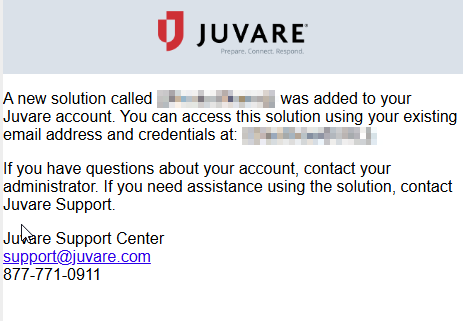
You may have had your account added to a new Juvare product. If this is the case, you will receive an email notification.
Where can I find the latest installers for WebEOC and WebEOC add-ons?
With the appropriate permissions, you can access all WebEOC and WebEOC add-on installers in the administration section of the Support Center. Contact your WebEOC Administrator for more information.
Email/Username and Password
What should I do if the reset password link doesn’t work?
Ensure you follow the steps in the Reset Password page. If you still can’t reset your password, contact the Juvare Support Center for assistance.
What should I do if I don't know which email address is used on my account or is my login email?
Contact your administrator.
What if my login email is a Gmail account?
That is fine. Using a Gmail address as your login email simply means you are logging in with your Gmail email and user-specified password instead of SSO credentials.
How do I retrieve a forgotten email address?
If you forgot the email address associated with your account, contact your administrator for assistance locating your credentials in the system.
How do I retrieve a forgotten password?
If you forgot your password, use the forgot password? link to enter your login email and receive an email with the requested information. The email contains a link to reset the password, click it and follow the instructions.
Be sure to reset your password promptly, as the password reset email expires after an hour.
Keep in mind, using this procedure will change your password for any product that uses Juvare Login Services.
To reset your password:
-
Click the forgot password? link on the Log In page.
-
In Email, enter your email address then click Send me an email. An information page opens indicating an email message is being sent to you.
-
Go to your email to view the new message and click the Reset password link in the email.
-
In the verification page, copy the password reset code and paste it into the Enter Code field in your original browser screen.
-
Click Verify.
-
In New password, enter your new password, and enter it again in Re-enter password then click Reset Password.
Are there specific conventions for creating a password?
Your password must be formatted using the following conventions.
-
Length: Passwords must be a minimum of eight characters long.
-
Complexity: Passwords must contain at least one:
-
Lowercase letter
-
Uppercase letter
-
Number
-
-
Restrictions: Passwords cannot include your first or last name.
-
History: Passwords cannot duplicate the last four passwords in your account history.
If you need to change your password, you will need to change at least one character.
Guidelines
We recommend that you follow these guidelines.
-
Use a unique password for your Juvare solutions; pick a password that is different from the password you use to access other software applications.
-
Do not store written documentation of your password near your computer or where it might be visible to others.
-
Do not reveal your password on questionnaires or security forms.
-
Do not reveal your username, login ID, or password to anyone, including your co-workers, supervisor, or family members.
Who can edit my login email?
Users cannot update their email address using any method. You must contact your Unified Command Platform administrator, who can update the user name (Primary Email) in the Accounts detail page.
If I use multiple products (such as eICS, EMResource, and EMTrack) and I change the password for one, will it change it for the others?
Yes, if you have linked your accounts to a single username and password.
Administrators
General
What are the software and hardware requirements?
End user configuration specifications for software (including supported browsers), hardware, and communications for your system are available on the Juvare Hosted Requirements page.
As a client administrator, what do I need to do?
If required, inform your IT Department, other potential stakeholders, and users about the organization’s decision to use Juvare solutions.
After the users have been added to your Juvare solutions, let them know they will receive a Welcome to Juvare! email that they must complete to log in. Finally, let them know they can go to the Juvare login page, at https://login.juvare.com, and sign in.
-
Click the Click Here link in the email.
-
For organizations that use their own credentials through single sign-on (SSO), log in directly from the Juvare login page https://login.juvare.com.
Can my organization use an SSO with Juvare Login Services?
-
Yes, Juvare supports SSO through OpenID Connect (OIDC) and SAML2.
-
SSO is a premium feature that takes approximately two weeks to implement. For more information, please contact your Client Success Manager (CSM).
What are the benefits of using SSO?
-
With SSO, you can use the same email address and password to log into various software solutions, including the Knowledge Base and Juvare solutions.
-
With SSO, your organization sets the standards for password complexity and other security rules.
What information should I have when I call Juvare Support Center for help?
When calling Juvare Support Center, you should have your Customer ID, the version of WebEOC you are currently using, and a detailed description of the problem readily available.
For assistance finding the version of WebEOC 9.x, see View WebEOC Version Info.
For assistance finding the version of WebEOC Nexus 10.x, see View WebEOC Nexus Version Info.
Additionally, if you have an issue with a board, have the name of the board and view in question available. You should also have the position and incident you are logging in as, and the name of the board as it appears in the control panel in 9.x and on the Boards page in 10.x.
If WebEOC is displaying an error message, having the Error Logs available will also help Juvare provide quicker service. If WebEOC Fusion is causing issues, having the Pull Service Logs as well will be helpful.
Activation and Access
As a client administrator, can I continue to add and deactivate users, and update user permissions?
Yes, you will continue to manage user access and permissions in your Juvare product instance.
Why did my user not receive a welcome email?
There are a few possible reasons why they did not receive an email:
-
It may have gone to the user's spam folder.
It may have been blocked by their organization's email server. Allow list information can be found on the Juvare's Hosted Requirements page.
-
The user may already have an active Juvare Login Services account because of access to another Juvare product or Knowledge Center, or from training participation.
How can a user reset their password for their account if they accidentally deleted the welcome email?
The account will already be activated and the user can click the forgot password? link in the login page. However, if you need access before then, contact the Juvare Support Center by emailing support@juvare.com or, if urgent, call at 877-771-0911.
How do I link users to more than one Juvare solution?
-
User accounts must be created in each application.
-
Accounts created in different Juvare solutions are linked based on the login email and accessible through the Juvare Login Services dashboard.
Email/Username and Password
As a client administrator, can I assign or reset my users' passwords?
No, users manage their own password reset needs directly from the Juvare Login Services portal. All interactions with passwords will be performed by the user when they reset their account password and through a self-service feature on the login page.
How do I update users' email addresses?
As an administrator, you can edit login email addresses for your sites if the Contact Manager feature has been enabled for your solution, and if the appropriate settings have been enabled. If it hasn't been enabled and you would like it to be, email support@juvare.com.
What should I do if a user can’t log in to edit their login email?
Users cannot update their email address using any method. As a Unified Command Platform administrator, when you receive a request to update the user name, navigate to the Accounts detail page, click on the Users tab, and edit the Primary Email.
What should I do if a user cannot remember their password?
On the Juvare sign-in page, https://login.juvare.com, have the user click the Forgot Password? link to reset their password.
Migration
Will access to the demo environment change?
After migration to Juvare Login Services, it is likely that the account used to access the two environments will be the same.
What is the timeline for the migration to Juvare Login Services?
We are already transitioning clients, and all new clients will be required to utilize this service.
How can I get an export of all the users with Username, First, Last, Real Name, Primary email, Secondary Email and Locked/Unlocked?
In Unified Command Platform 9.18, a feature was introduced to allow administrators to export all of their users. This can be accessed from the Administrative Area, specifically Users, actions dropdown, Export Users.
Once I get the users cleaned up in Excel, can we update via upload?
Unified Command Platform offers a premium add-on called User Importer, which allows you to import a list of users to be either created or updated. If you do not have the User Importer, Juvare will provide temporary access to the add-on during your migration to Juvare Login Services.
Do user accounts created in Unified Command Platform automatically get a login at login.juvare?
Once migrated to Juvare Login Services, users will be able to access their instance of Unified Command Platform via the organizations Unified Command Platform URL or by going to login.juvare.com.
Is there any change on how users are created or for sub-admins?
The only change in the user creation process is that admins will no longer be asked to provide a username or password. The username is replaced by a primary email field, and passwords are self managed by the user.
Does the system email the user login information automatically upon creation?
Yes, when the administrator creates a new user, that user will receive an email to reset their password. The email will be from no-reply@juvare.com.
Is the email customizable?
No, the email sent to the user is not customizable.
Do users automatically get access to Learning.Juvare?
No, creating a user in Unified Command Platform only gives them access to that instance of Unified Command Platform.
How does locking an account work with Login.Juvare? A user may have access to our Unified Command Platform, but also eICS through DOH. How do we lock them out of our system without affecting the DOH system?
Locking an account only impacts the users access to that specific instance of Juvare’s software. For example, you can have access to multiple instances of Unified Command Platform, and be locked in one of them. You would not be able to access the instance of Unified Command Platform in which you are locked, but have normal access to the others.
This usage of the "locked" terminology refers to the lock/unlock accounts feature within Unified Command Platform and is not related to the Juvare Login Services lockout that can occur due to password issues.