Chat with JAI
Chatting with JAI is simple and intuitive. Begin by selecting a topic, which is a predefined subject that helps guide the conversation and connects to the appropriate board views to provide the relevant information. Then, enter your questions in natural language, and JAI will quickly return clear and accurate responses. You can also refine your queries, ask follow-up questions, or explore JAI-generated summaries to learn more.
If you are an administrator, you must be in the Unified Command Platform user view to access JAI. For information on configuring JAI administrative settings, refer to the Unified Command Platform Admin Help Center.
To chat with JAI
-
On the top bar in Unified Command Platform, click the JAI button.
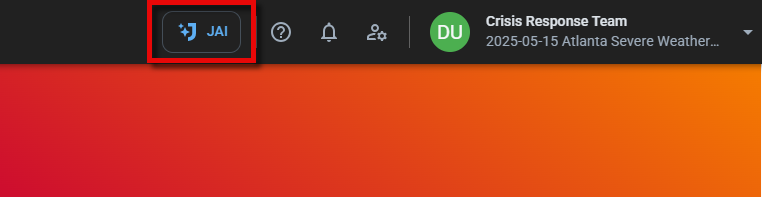
The JAI slideout opens.
-
Select the topic that you're interested in.
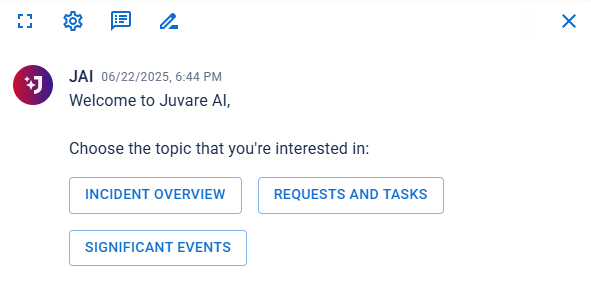
If quick prompts have been configured for the topic, they are displayed.
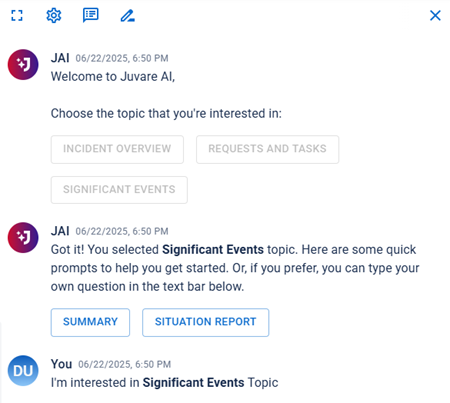
 About Quick Prompts
A quick prompt in JAI is a short, predefined instruction that helps you quickly interact with the system to perform common or useful tasks, such as summarizing updates, generating reports, or answering questions, without needing to type a full custom prompt. Quick prompts are tailored to the specific topic that you are working with.
After selecting a prompt, you can click View Prompt Details below your selection response to view the instructions behind it.
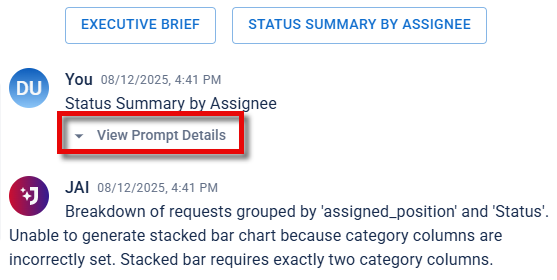
If you are not logged in as an administrator, the settings icon in the JAI slideout will not be displayed.
-
Click a quick prompt or, at the bottom of the slideout, type a question or command related to the selected topic in the Ask me anything field, then click the
 icon or press the Enter key.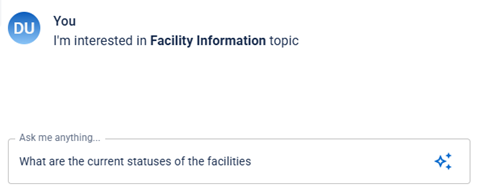
The results are generated and displayed in the chat log.
Tables and Charts
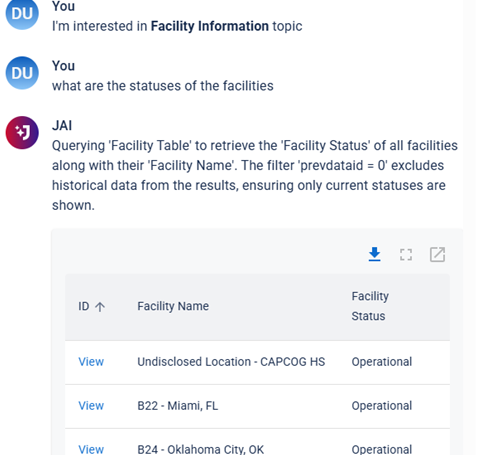
If your results include a table, you can:
-
View more details about a record by clicking View, which will open the record in Unified Command Platform.
-
Click a column header to sort the table by the content in that column; click the header again to toggle between ascending and descending order.
-
To download a copy of the table in CSV format, click the Export CSV icon
 .
.
Available charts include stacked bar charts, pie charts, and bar charts. If your results include a chart, you can:
-
Copy it as a PNG to your clipboard by clicking the Copy Chart icon
 .
. -
Download it as a PNG file by clicking the Export Chart icon
. -
Convert it to a table by clicking the Switch View to Table
 icon.
icon.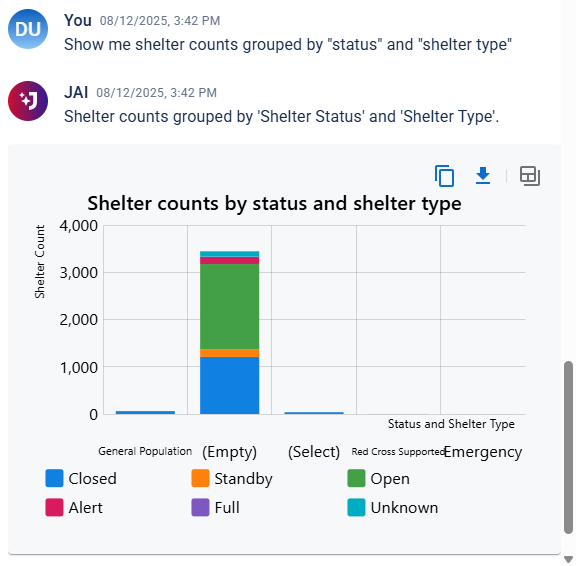
Response Feedback
You can give feedback on JAI's most recent response by clicking the thumbs up icon
 if it was helpful or the thumbs down icon
  if it was not. If you click thumbs down, a text box displays for you to explain what you did not like about the response. Feedback is logged and reviewed by administrators and developers to help improve JAI, and is also visible in chat histories.
 -
-
In the Ask me anything field, continue the conversation as needed to clarify information, get more detailed answers, or refine your requests. You can also enter quick prompts at anytime.
-
Use any of the following features as needed:
-
To resize the chat slideout, hover your cursor near the vertical center of the left scrollbar so that it changes into a double arrow
 , then drag to adjust the width as needed.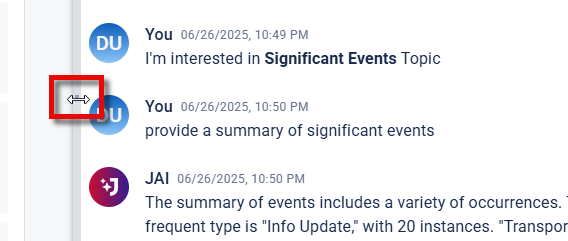
-
To view the JAI interface in full screen mode, click the full screen icon
 . To exit full screen mode, click the
  icon.
icon.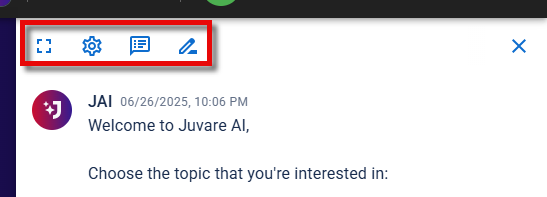
-
To start a new chat, click the new chat icon
 . This resets the chat, making it a blank slate with no memory of past conversations.
 -
To view your chat history, click the chat history icon
 . Your chat history from the past 30 days appears in the slideout panel, organized by time frames and labeled with brief titles for easy reference. Click a conversation to open it and review or continue working from where you left off.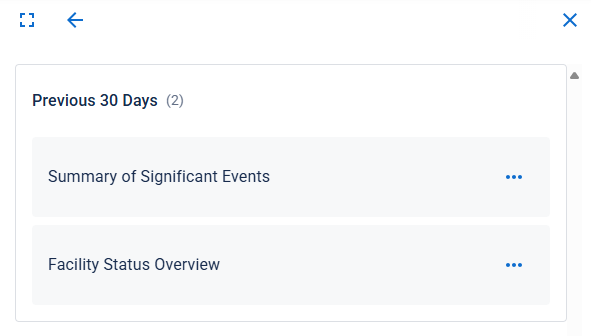
-
To rename a conversation, click the more icon
 . The Rename Conversation dialog appears. Rename it as needed, and then click Save.
 -
To delete a conversation, click the more icon
. In the Delete Conversation dialog, click Delete.
-
-