Edit Checklists
Your ability to edit checklists and list items depends on the tab you are on when you select the Edit option.
-
On the My Checklists tab, you can update the status of items in your assigned checklists.
-
On the Activated Checklists (All) tab, you can update checklist details, add items, and update the status of items.
-
On the Checklist Templates tab, you can edit checklist details, add checklist items, and import checklist items.
Edit a Checklist on the My Checklists Tab
To edit a checklist on this tab
-
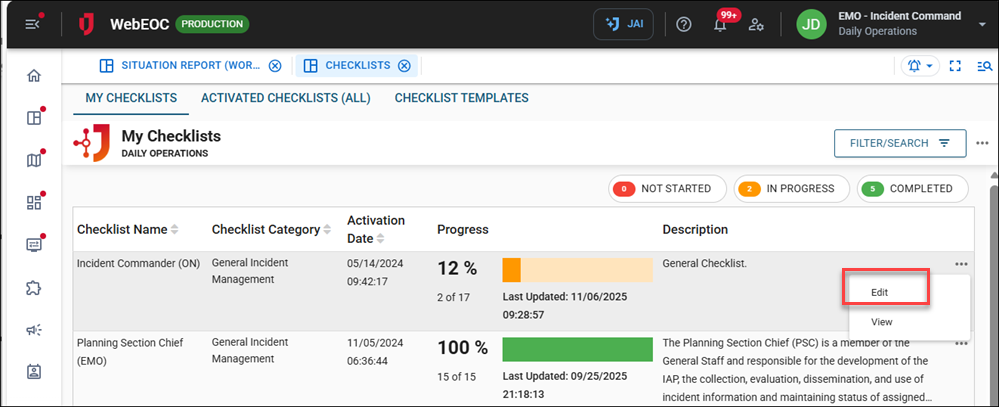
On the My Checklists tab, click the ellipsis icon on the right of the record to edit and select Edit.
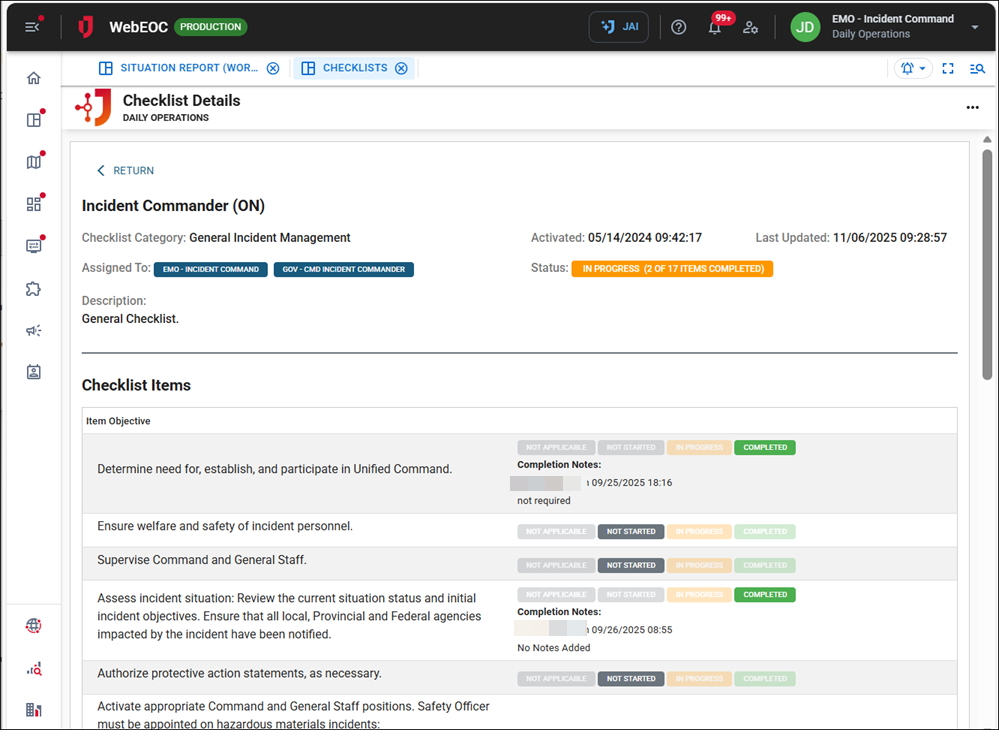
The Checklist Details page opens.
-
In the Checklist Items section, click the applicable status for each item: Not applicable, Not started, In progress, or Completed.
-
If you are moving the item’s status towards completion, add Progress Notes.
-
Depending on which status you are updating, click Revert Item or Progress Item.
If you revert the status of an item, the progress notes for that item are removed.
Edit a Checklist on the Activated Checklists (All) Tab
To edit a checklist on this tab
-
On the Activated Checklists (All) tab, click the ellipsis icon on the right of the record to edit and select Edit.
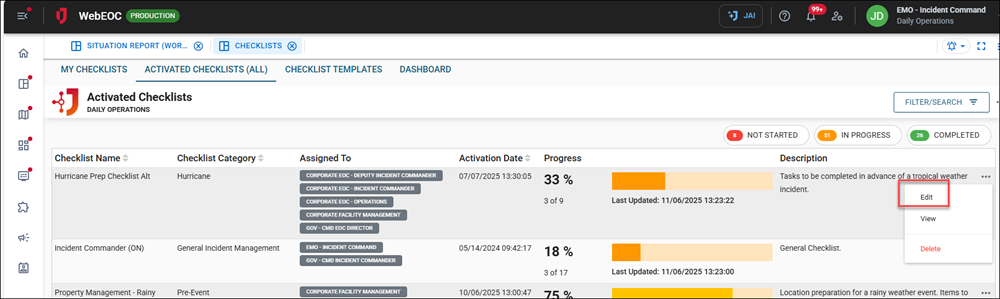
The Checklist Details page opens.
-
To edit the checklist, click Edit Record in the top right.
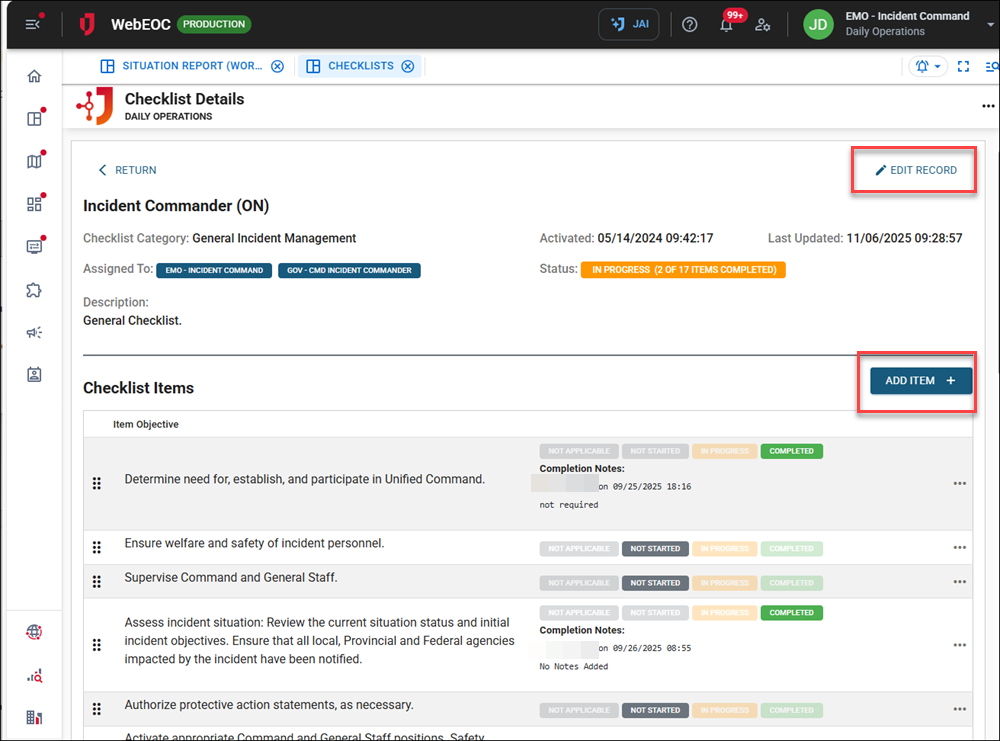
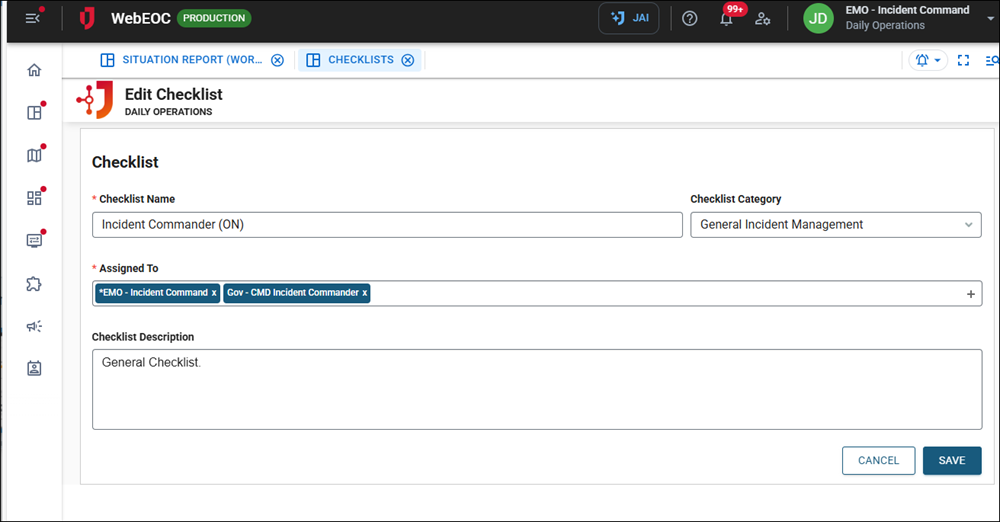
The Edit Checklist page opens.
-
Update the checklist details.
-
Click Save in the bottom right. You are returned to the Checklist Details page.
-
To add an item to the checklist, click the Add Item button in the middle right.
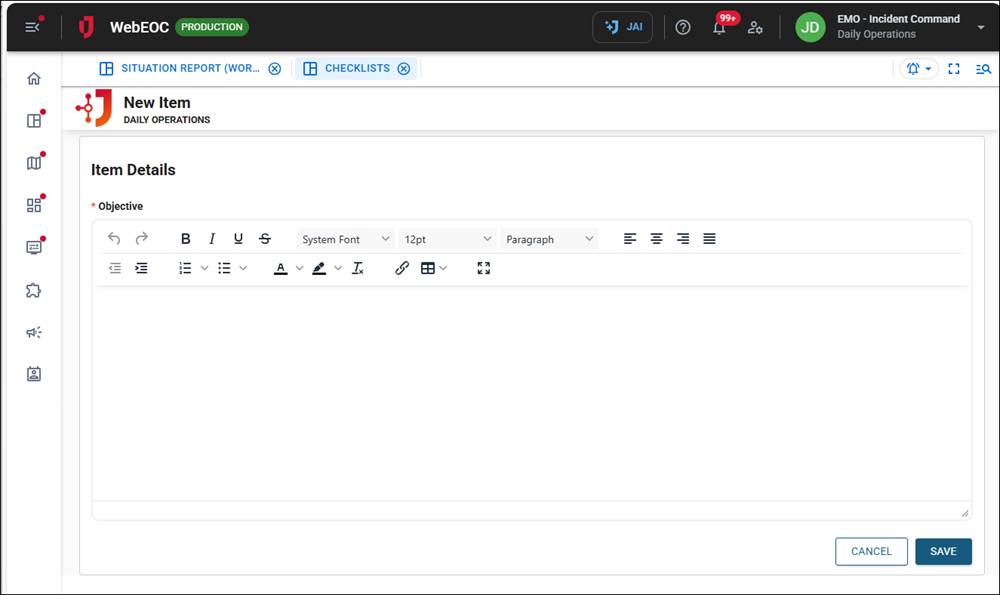
The New Item page opens.
-
Update the Objective field.
-
Click Save in the bottom right. You are returned to the Checklist Details page.
-
To update the status of checklist items, in the Checklist Items section, click the applicable status for each item: Not applicable, Not started, In progress, or Completed.
-
If you are moving the item’s status towards completion, add Progress Notes.
-
Depending on which status you are updating, click Revert Item or Progress Item.
If you revert the status of an item, the progress notes for that item are removed.
Edit a Checklist on the Checklist Templates Tab
To edit a checklist on this tab
-
On the Checklist Templates tab, click the ellipsis icon on the right of the record to edit and select Edit.
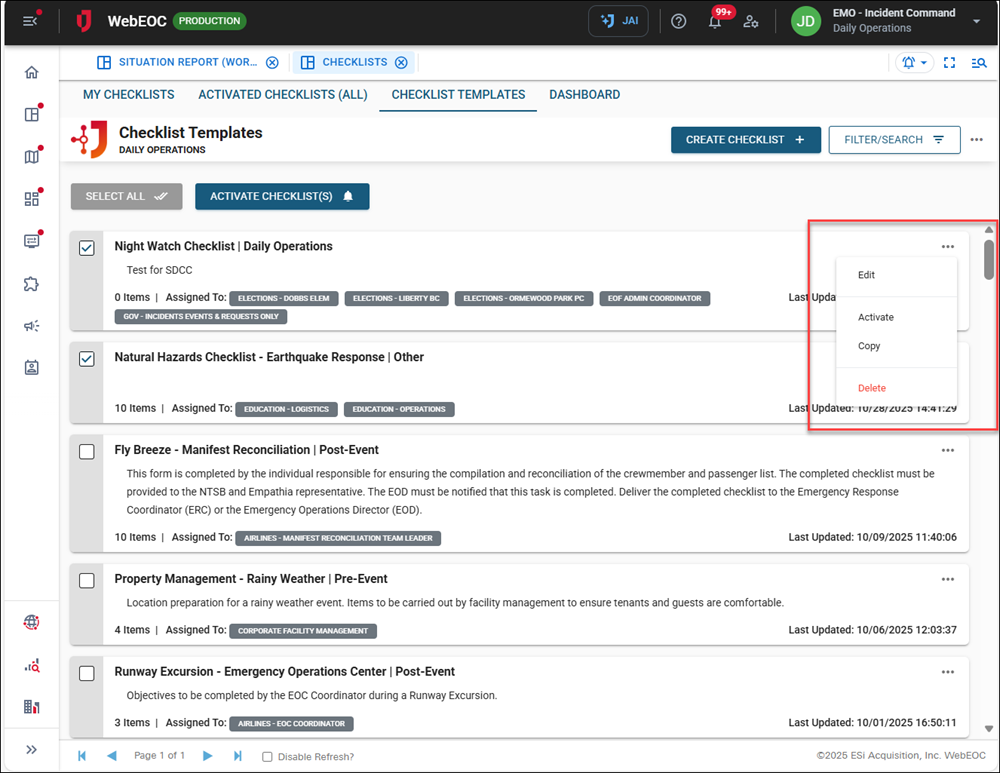
The Checklist Details page opens.
-
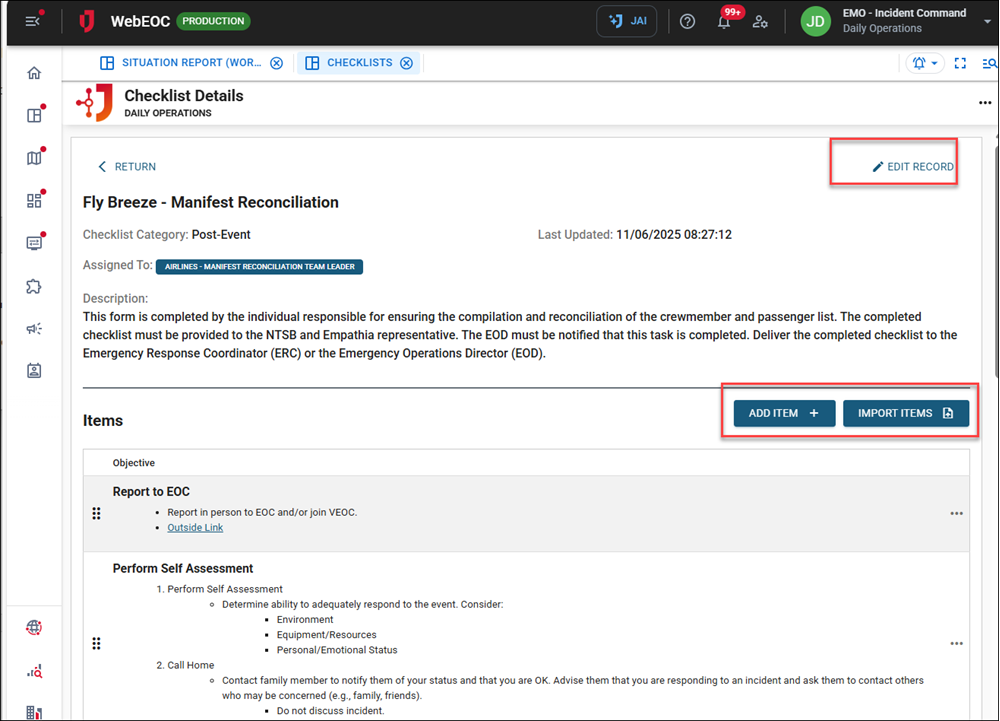
To edit the checklist, click Edit Record in the top right. The Edit Checklist page opens.
-
Update the checklist details.
-
Click Save in the bottom right. You are returned to the Checklist Details page.
-
To add or import checklist items, see Add Items to a Checklist.