Filter and Search Checklists
The Checklist board features advanced filtering and searching capabilities, enabling you to locate relevant records based on key operational criteria quickly. These tools enhance situational awareness and aid in decision-making by allowing you to focus on specific conditions, statuses, or locations. The Filter function narrows down data based on specified criteria, helping to pinpoint records that require attention. Conversely, the Search function facilitates quick access to specific entries.
On the My Checklists, Activated Checklists (All), and Checklist Templates tabs, you can use the filter pills in the upper right to filter the checklists by status.
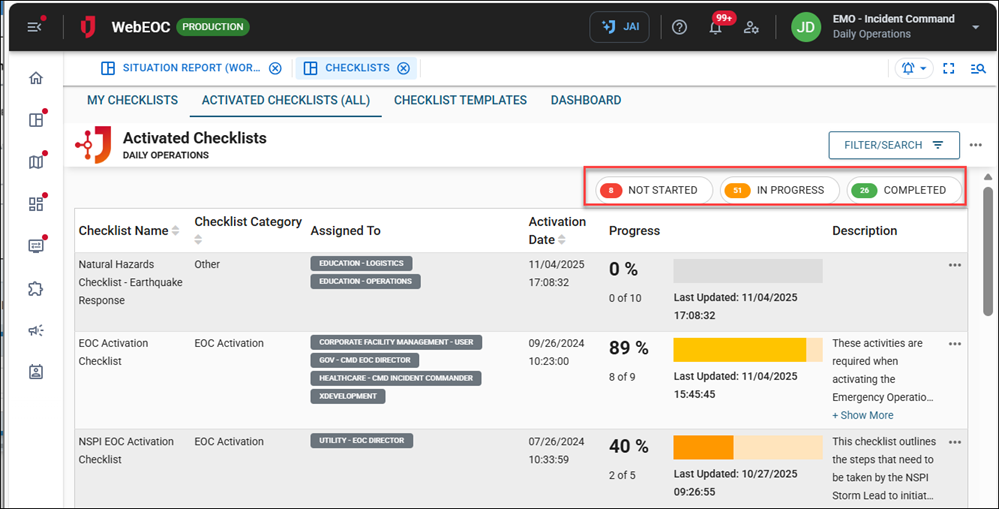
All three tabs also feature a Filter/Search button in the top right corner. Click the button to access additional filter and search features.
On the Filter tab, in the Category dropdown, select the checklist category and click Dismiss to close the pop-up.
The tab displays checklists with the selected checklist category.
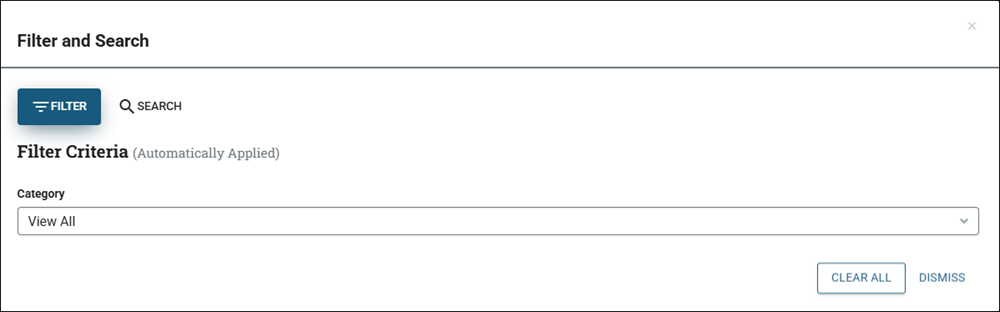
To remove the filter, click the Filter/Search button again and click Clear All.
The Search function significantly enhances accessibility and efficiency by allowing you to quickly locate specific records using names or keywords, which is particularly useful when handling large datasets. When searching within the Checklist board views, you can search by keywords in the checklist name, category, description, or assigned position.
On the Search tab, enter keywords in the Free Text Search field, then click Apply, then click Dismiss. The tab displays checklists that use the keyword.
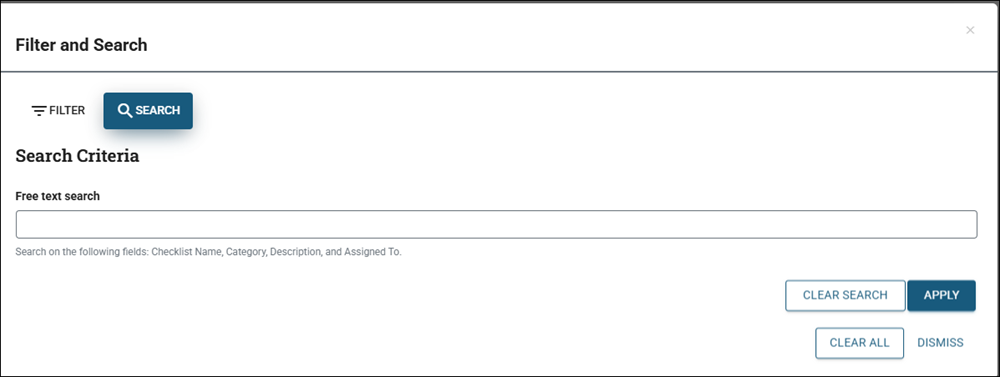
To remove the search filter, click the Filter/Search button again and click Clear All.
Utilizing the search and filter functions enables you to manage data effectively, prioritize response efforts, and address critical infrastructure needs in real-time.