View Checklists and Update Task Progress
To view a checklist and update progress
-
Click the My Checklist or Activated Checklists (All) tab to view your activated checklists.
-
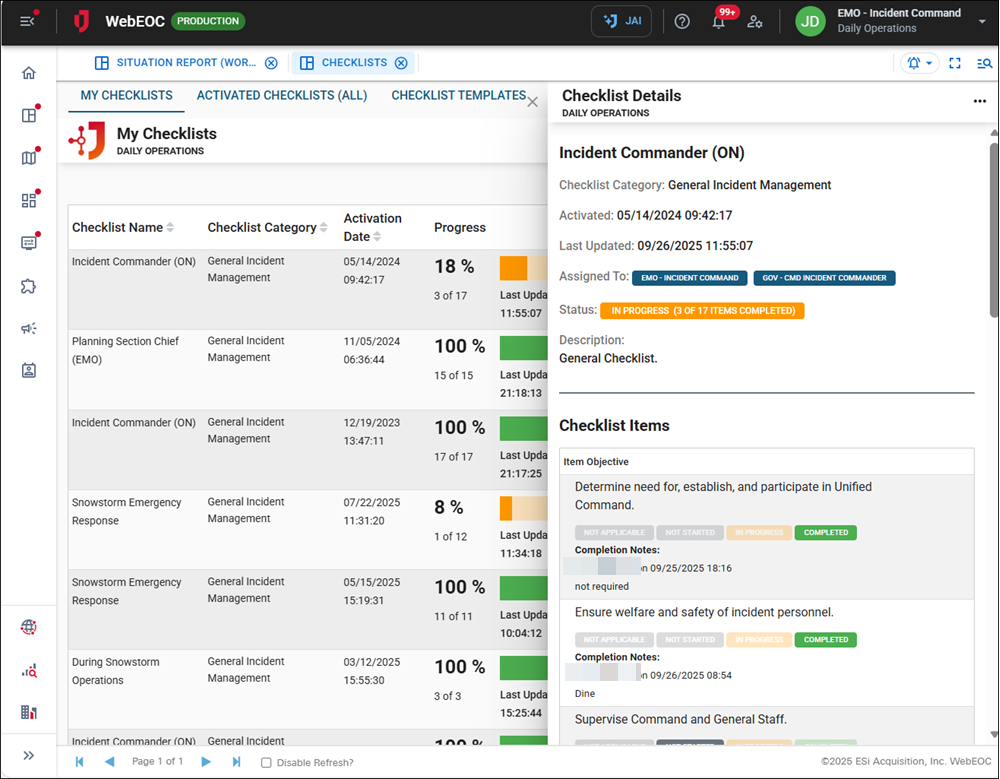
To update a task's progress, find your assigned checklist, select it, and view all tasks on the Checklist Details panel.
-
Click the applicable status for each item: Not applicable, Not started, In progress, or Completed.
-
If you are moving the item’s status towards completion, add Progress Notes.
-
Depending on which status you are updating, click Revert Item or Progress Item.
If you revert the status of an item, the progress notes for that item are removed.
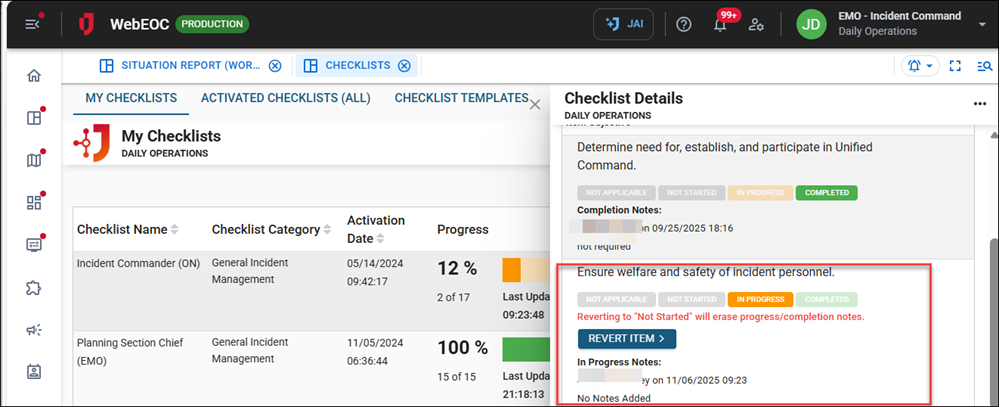
Your updated item displays at the bottom of the checklist.
-
After updating the status of your items, close the panel by clicking on the X to view the progress of the tasks.
The progress bar of a checklist reaches 100% based on the total number of tasks and the percentage of those tasks that are completed.