Reset Saved Login Info
If your user account does not allow you to edit your profile, or you just want to reset your login information, you can reset your default login settings.
This includes:
-
Position
-
Incident
-
Additional login information that has been set as required by the administrator, such as location or phone number
After you reset, the next time you log in to WebEOC Nexus, you will be prompted to complete all required information.
The steps are slightly different depending on your access permissions.
If you are allowed to access your User Account page, follow these steps.
To reset your saved login information
-
Click the position name in the upper right to open the profile menu.
-
Click anywhere in the top item.
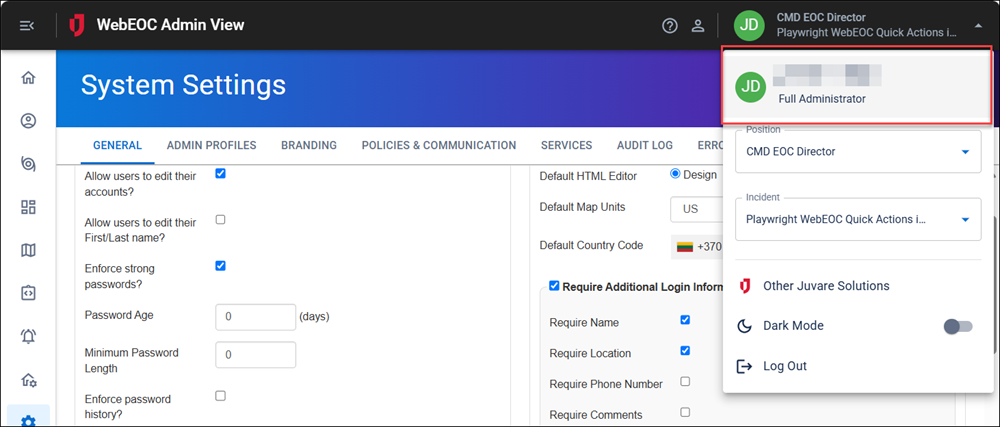
The User Account page opens.
-
Click Reset Saved Login Info.
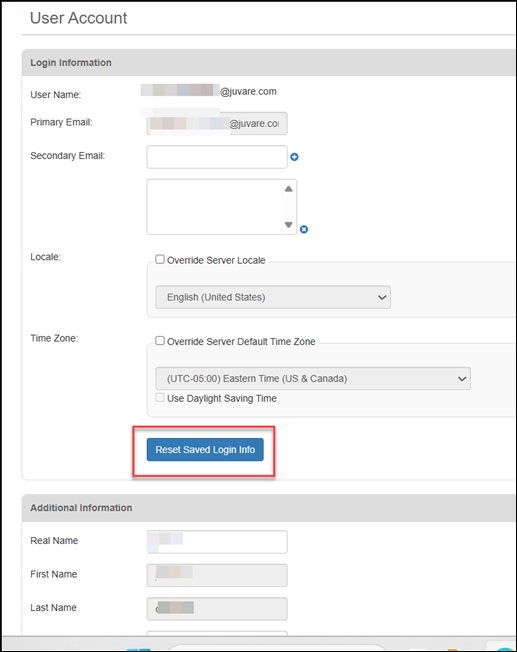
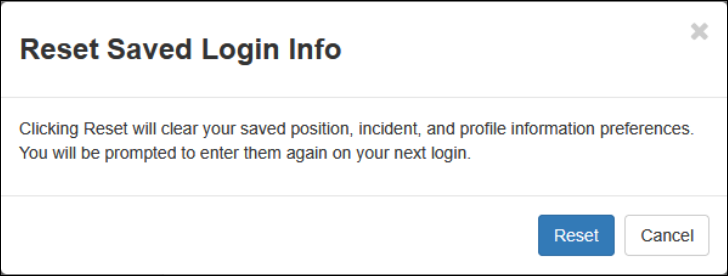
A confirmation dialog displays.
-
Click Reset.
-
Log out and log back in to update your login information.
If you are not allowed to access your User Account page, follow these steps.
To reset your saved login information
-
Click the position name in the upper right to open the profile menu.
-
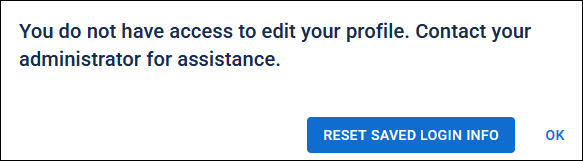
Click the first item, and a message displays.
-
On the message, click the Reset Saved Login Info button.
A confirmation dialog displays.
-
Click Reset.
-
Log out, then log back in to WebEOC Nexus, and you will be prompted to select and enter your login information.