Scan WebEOC Nexus QR Code to Simplify WebEOC Nexus Mobile App Login
This feature is available with the WebEOC Nexus mobile app 3.4.1 for iOS and Android.
Using the WebEOC Nexus mobile app, you can scan a Quick Response (QR) code in WebEOC Nexus to simplify adding the System URL to your account and logging into the WebEOC Nexus mobile app.
You only need to perform this process once when setting up your account in the WebEOC Nexus mobile app.
To scan the WebEOC Nexus QR Code
-
Log in to WebEOC Nexus.
-
Click the ? icon in the top bar and select Get QR Code. A modal window opens with a QR code.
This option is available in the User View and the Admin View.
-
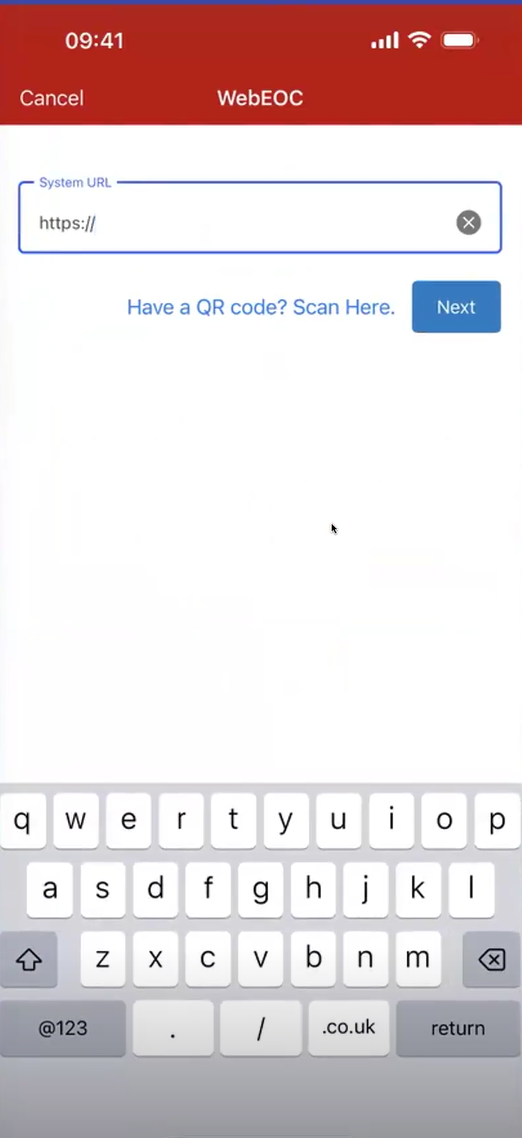
Open the WebEOC Nexus mobile app and tap Login. A page opens with a System URL field. This field contains https://, but must be populated with the URL of your WebEOC Nexus instance as part of account setup.
-
Tap Have a QR Code? Scan Here. A scanner window opens.
Using this code makes setup easier, but you can also enter the system URL in this field if needed and edit it at any time.
-
Scan the QR code displayed in WebEOC Nexus. The WebEOC Nexus mobile app's System URL field is populated with the address of the WebEOC Nexus instance.
-
Continue by entering your username and password to log in.