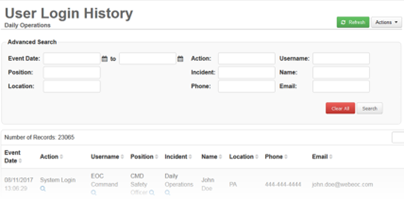
View And Search User Login History
To view user login history
-
From the main menu, open the Active Users board.
-
In the upper right, click Actions and select User Login History.
-
If necessary, to sort the records in the table, click the appropriate column header.
-
To return to the Active Users view, below the Actions button, click Back.
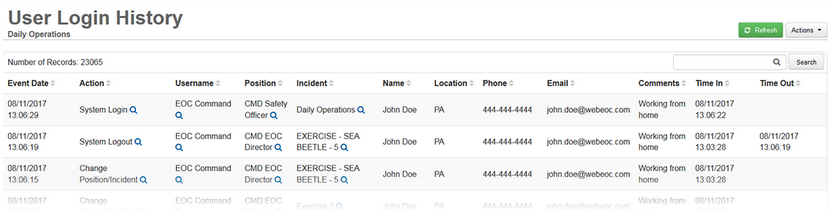
Search User Login Histories
You can search user login histories from the Active Users board. Both basic and advanced search options are available. A basic search allows you to find records using a keyword. Performing an advanced search enables you to narrow down the search results based on multiple criteria.
To perform a basic search
-
From the main menu, open the Active Users board.
-
In the upper right, click Actions and select User Login History.
-
For General Search, enter a keyword and then click the search button. The board is updated to show only the records that match the keyword specified.
-
To reset the search, clear the General Search field and click the search button. All records are shown once again.

The General Search field supports wildcard characters.
To perform an advanced search
-
From the User Login History page, in the upper right, click Actions.
-
Select Advanced Search. The Advanced Search section opens.
-
Enter criteria in one or more fields as appropriate, and then click Search.
-
Click the magnifying glass next to a field value to copy that value into the corresponding search field and filter the table with the updated search criteria.
-
To reset the search and view all records again, click the red Clear All button.