Notifications User Quick Reference Guide
The Notifications solution allows WebEOC Nexus users to subscribe to status boards and receive messages in the form of emails and desktop notifications when new records or updates are posted to those boards.
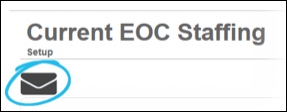
Users can easily identify Notifications-enabled boards by an envelope or other custom icon that appears on the board. Users can manage subscription preferences by specifying the types of notifications they want to receive.
The Notifications desktop application works with the Notifications plug-in, enabling you to receive messages from WebEOC Nexus — even when you are not logged in to WebEOC Nexus. Download the Desktop Client Installer from the Subscriptions tab on the Notifications Settings page.
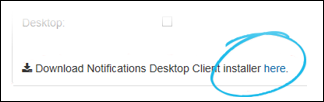
Users who want to receive notifications to their desktop need to install the Notifications application separately on their Windows-based desktop or laptop computers.
 To configure the Notifications Desktop Application
The WebEOC Nexus account you use to configure the application must be assigned the appropriate positions so that you have access to the boards from which you want to receive notifications.
-
After installation, go to your Start menu and click the WebEOC Notifications Client application.
-
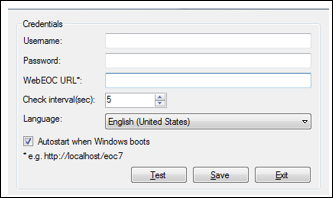
In the Settings window, enter this information.
-
Username: Your WebEOC Nexus username.
Your username is case sensitive. You must enter your username exactly as it appears in WebEOC Nexus.
-
Password : Your WebEOC Nexus password.
-
WebEOC URL: URL for your WebEOC Nexus server.
The server URL must be preceded by http:// or https://.
-
Check interval (sec): A time in seconds that, after which, new notifications are checked for and appear.
The default and minimum allowed interval is 5 seconds.
-
Language: Language to be used throughout the Desktop Application interface.
-
-
If you want the application to automatically start when Windows starts up, select the Autostart when Windows boots checkbox.
-
Test the connection to the server by clicking Test.
-
Click Save. Your information is saved and the application begins running in the background.
Run the Desktop Application
The Notifications icon in the system tray informs you that the application is running. By default, the application stops checking for notifications if, after 10 attempts, it fails to communicate with WebEOC Nexus. You will however, receive any pending notifications after the system resumes automatic checking.
To manually start or stop checking for notifications at any time, select Begin Checking Notifications or Stop Checking Notifications, as applicable.
Markers
By default, an envelope icon is shown on all Notifications-enabled boards. Your administrator, however, may have set up a different Notification icon.
To subscribe to board notifications
-
In the User view, on the main menu, click the boards icon. The Boards landing page opens.
-
Click the appropriate board.
-
To open subscription settings, click the notifications icon.
-
On the Notifications settings page, modify the information in the following sections.
-
Subscriptions: To subscribe to email messages, select Email. Select Desktop to receive messages to your desktop. Click Download Notifications Desktop Client installer here to download the installer.
Subscriptions are table-based. Therefore, settings are shared between all views that use the same table.
To receive emails, your email must be added to your user account by your administrator.
-
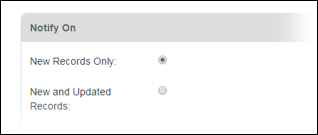
Notify On: Specify if you want to be notified about new records only or both new and updated records.
-
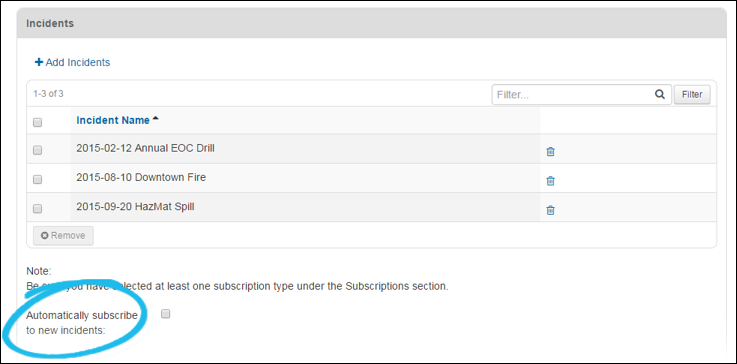
Incidents: Select the incidents you want to receive notifications for.
If the desired incident is not listed, click Add Incidents and select the checkbox associated with the appropriate incident from the Available Incidents window. At least one incident needs to be selected.
Select the Automatically subscribe to new incidents checkbox to subscribe to all incidents that will be created in the future.
Incident options are not available for incident-independent boards.
-
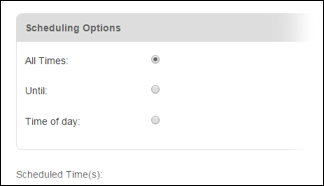
Scheduling Options. Specify when you want to receive notifications.
-
All Times: Receive notifications anytime a record is added or updated.
-
Until: A date and time when you want notifications to stop.
-
Time of Day: A time range during which you want to receive notifications.
Messages sent outside the defined scheduling period are not stored.
-
-
-
Click Save.
When the Notifications application is running, an icon appears in the notifications area of your taskbar. To navigate to the record in WebEOC Nexus, click the notifications pop-up.
When you click a pop-up notification, your default browser automatically attempts to open the actual record. Thus, to ensure you can receive and navigate to notifications appropriately, keep the desktop application running at all times and remain logged in to WebEOC Nexus using your default browser. If you do attempt to click the pop-up when you are not logged in to WebEOC, an error message appears.
Related Concepts