Log In to WebEOC Nexus
All logins to WebEOC Nexus are handled by Juvare Login Services (JLS Juvare Login Service. An Identity and Access Management (IAM) system powered by Okta.). Depending on how your instance is configured, you may be using JLS to authenticate, or you may be using SSO using your organization’s identity provider (IdP).
Log in to WebEOC Nexus using JLS
To log in to WebEOC Nexus if you are using JLS, but not SSO using your organization’s identity provider (IdP), to authenticate
If you have not already done so, you must activate your Juvare account.
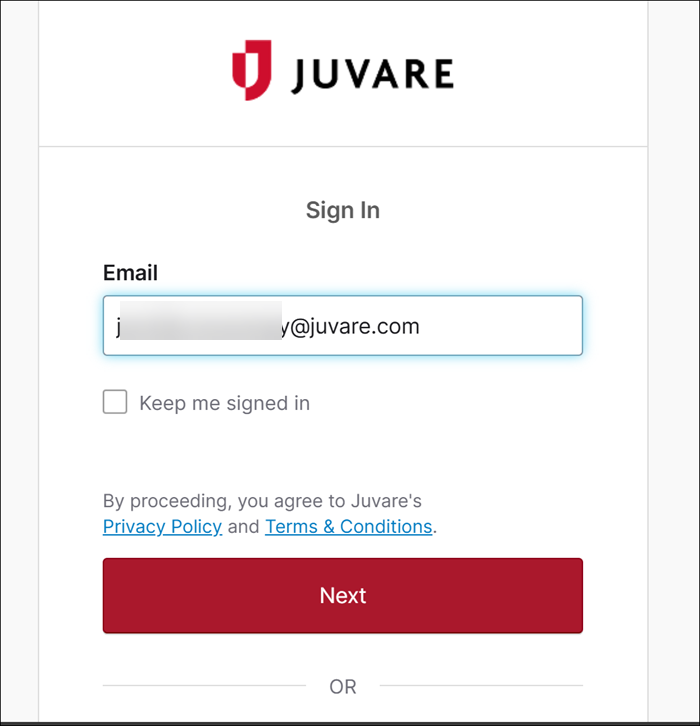
After your account is activated and your password has been set, and if you do not have an active session Active login period for a user in WebEOC Nexus, visible to administrators who can view and terminate sessions through Sessions Manager., the first page you will see when logging in is the Sign In page. This page logs you in to Juvare Login Services (JLS).
-
Enter your email and click Next.
Your organization’s terms and conditions display below the Email field. Refer to Configure System Messages for details on setting terms and conditions.
If you have not previously accepted the Login Policy, the Login Policy window opens.
- Click Accept to continue the login process.
-
Select from these options to continue logging in:
- If you do not have an active, valid JLS session, only the Log in button displays.
Click Log in to move to the next screen to continue the login process.
- If you have an active, valid JLS session, you will also see the Log in As Different User button.
You can click either Log In or Log in as a Different User.
If you click the Log In As Different User button, the current JLS session is cleared, removing tokens, and a clean Login page reloads. This allows you to start a new session with a different user account, clearing any existing JLS sessions that, in previous versions of WebEOC Nexus, occasionally got stuck or corrupted and could not be resolved via password or authenticator resets. -
Enter your email and click Next. You are signed in to WebEOC Nexus and the Homepage
The page displayed at login containing company messages, Quick Actions, and essential boards. displays.
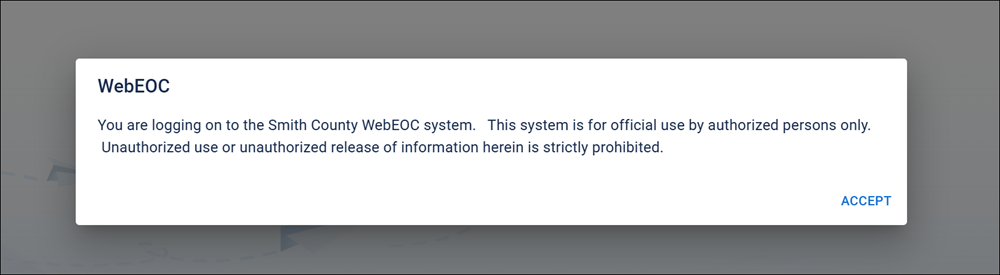
After you accept the Login Policy, this window does not display again, unless the policy is updated.
The Login page opens and displays different buttons depending on the status of your user session.
The Sign In page displays. This page logs you in to WebEOC Nexus.
Additional Login Pages
Select Position and Incident Dialog
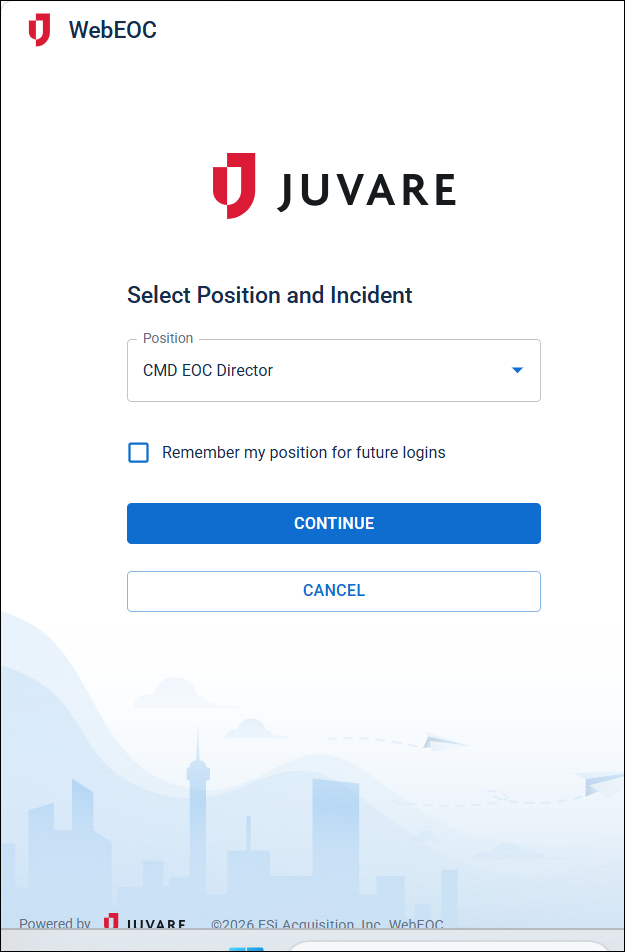
You may see the Select Position and Incident page if:
-
You are logging in to WebEOC Nexus for the first time, or, in the case of a new user, no previous position/incident has been stored.
-
In this case, both the Incident drop-down and the Position drop-down are empty and you must select an option from each.
-
-
The position has been deleted.
-
In this case, both the Incident drop-down and the Position drop-down are empty and you must select an option from each.
-
-
You have been removed from the position.
-
The incident has changed, whether it has been closed, archived, or replaced.
-
When the Select Position and Incident page displays due to an incident change, the Position drop-down is populated with your previous position and the Incident drop-down is empty or shows a newly created incident. In this case, a warning displays that the previously used incident has changed.
-
The administrator has set an incident as the default incident, but your position does not have access to it.
-
You have reset your saved login information and are logging back in for the first time. See Reset Saved Login Info for details.
Default Incident
An administrator can create one or multiple default incidents.
If an administrator has configured a single default incident for your WebEOC Nexus instance:
-
All users will be automatically logged into that incident.
-
If the Select Position and Incident dialog displays during the login process, the Incident drop-down does not display on it.
If an administrator has configured multiple default incidents for your WebEOC Nexus instance and you belong to more than one default incident through your feature group
A group that grants positions access to features such as boards, maps, links, menus, and plug-ins. assignments, the Select Position and Incident dialog displays during the login process. The Incident drop-down displays the default incidents at the top of the list marked with an asterisk.Set an incident as the default by selecting the Default checkbox on the Edit Incident page.
The Incident drop-down is available on the Select Position and Incident dialog during the login process when:
-
There is no default incident or
-
The selected position cannot access the default incident or
-
The current user is assigned to more than one incident through feature group assignments.
The Continue button is disabled until the user selects a position and incident.
-
-
If there is no default incident set, and you have not saved your position in a previous login, the Select Position and Incident dialog displays during the login process. The position and incident that you last used will populate the Incident and Position drop-downs.
-
Both drop-downs include type-ahead search. Enter the position or incident in the drop-down, and matches display.
-
To skip this dialog when you next log in, click the Remember my position for future logins checkbox.
To continue signing in, select your Position and Incident, and click Continue.
Please confirm your information to proceed Dialog
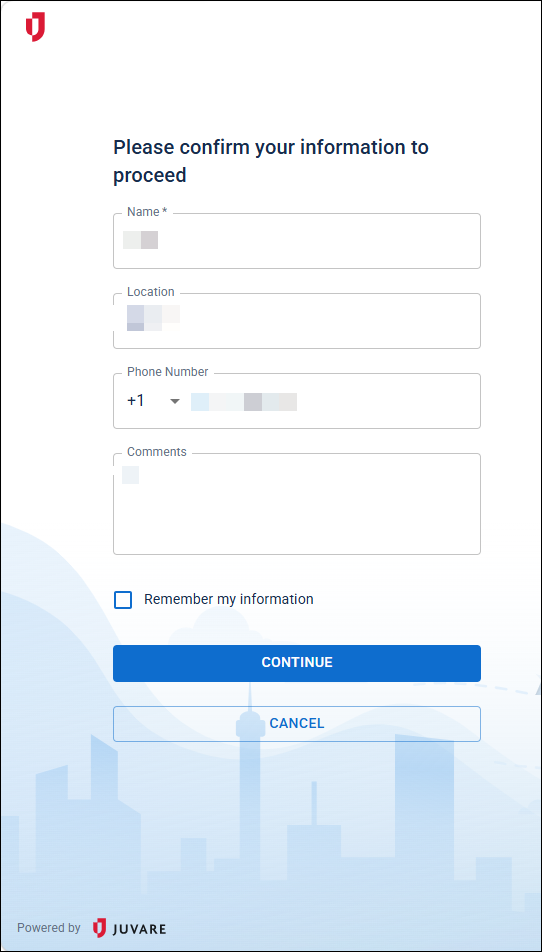
You may see this dialog if:
-
You have no stored additional information. This could occur when you first log in, or if the information was never submitted.
-
An admin has selected the Require Additional Login Information checkbox when it was not previously selected.
-
An Admin clicked the Reset button to force all users to enter their additional information again during the login process.
-
An admin has cleared your stored additional information in the fields. In this case, when you log in, WebEOC Nexus treats this login as if it were your first login.
-
You have reset your saved login information and are logging back in for the first time. See Reset Saved Login Info for details.
-
Your administrator has configured an automatic reset for profile information during which all users must re-enter information at login. See Automatically Reset Saved Login Profile for details.
Enter the information, select the Remember my information checkbox to skip this dialog in the future, and click Continue to sign in.
Log in to WebEOC Nexus Using SSO
To log in to WebEOC Nexus if you are using your organization’s identity provider (IdP)
If you have not already done so, you must activate your Juvare account.
After your account is activated and your password has been set, the first page you will see when logging in is the Sign In page. This page logs you in to Juvare Login Services (JLS).
-
Enter your email and click Next.
Your organization’s terms and conditions display below the Email field. Refer to Configure System Messages for details on setting terms and conditions.
If you have not previously accepted the Login Policy, the Login Policy window opens.
- Click Accept to continue the login process.
- Click Log in to move to the next screen to continue the login process.
You can recover a lost password on this page. See Reset Your Password in WebEOC Nexus for details.
The Sign in page displays. This page logs you in to WebEOC Nexus.
- Enter your email and click Next to log in.
After you accept the Login Policy, this window does not display again, unless the policy is updated.
The Login page displays.
Additional Login Pages
Select Position and Incident Dialog
You may see the Select Position and Incident page if:
-
You are logging in to WebEOC Nexus for the first time, or, in the case of a new user, no previous position/incident has been stored.
-
In this case, both the Incident drop-down and the Position drop-down are empty and you must select an option from each.
-
-
The position has been deleted.
-
In this case, both the Incident drop-down and the Position drop-down are empty and you must select an option from each.
-
-
You have been removed from the position.
-
The incident has changed, whether it has been closed, archived, or replaced.
-
When the Select Position and Incident page displays due to an incident change, the Position drop-down is populated with your previous position and the Incident drop-down is empty or shows a newly created incident. In this case, a warning displays that the previously used incident has changed.
-
The administrator has set an incident as the default incident, but your position does not have access to it.
-
You have reset your saved login information and are logging back in for the first time. See Reset Saved Login Info for details.
Default Incident
An administrator can create one or multiple default incidents.
If an administrator has configured a single default incident for your WebEOC Nexus instance:
-
All users will be automatically logged into that incident.
-
If the Select Position and Incident dialog displayd during the login process, the Incident drop-down does not display on it.
If an administrator has configured multiple default incidents for your WebEOC Nexus instance and you belong to more than one default incident through your feature group assignments, the Select Position and Incident dialog displays during the login process. The Incident drop-down displays the default incidents at the top of the list marked with an asterisk.
Set an incident as the default by selecting the Default checkbox on the Edit Incident page.
The Incident drop-down is available on the Select Position and Incident dialog during the login process when:
-
There is no default incident or
-
The selected position cannot access the default incident or
-
The current user is assigned to more than one incident through feature group assignments.
The Continue button is disabled until the user selects a position and incident.
-
-
If there is no default incident set, and you have not saved your position in a previous login, the Select Position and Incident dialog displays during the login process. The position and incident that you last used will populate the Incident and Position drop-downs.
-
Both drop-downs include type-ahead search. Enter the position or incident in the drop-down, and matches display.
-
To skip this dialog when you next log in, click the Remember my position for future logins checkbox.
To continue signing in, select your Position and Incident, and click Continue.
Please confirm your information to proceed Dialog
You may see this dialog if:
-
You have no stored additional information. This could occur when you first log in, or if the information was never submitted.
-
An admin has selected the Require Additional Login Information checkbox when it was not previously selected.
-
An Admin clicked the Reset button to force all users to enter their additional information again during the login process.
-
An admin has cleared your stored additional information in the fields. In this case, when you log in, WebEOC Nexus treats this login as if it were your first login.
-
You have reset your saved login information and are logging back in for the first time. See Reset Saved Login Info for details.
-
Your administrator has configured an automatic reset for profile information during which all users must re-enter information at login. See Automatically Reset Saved Login Profile for details.
Enter the information, select the Remember my information checkbox to skip this dialog in the future, and click Continue to sign in.