Subscribe to a Shared Incident
If you belong to a JX network where another organization has shared an incident with you, you must subscribe to the incident to access its data. When subscribing, you can map the shared incident to an existing incident, or you can create an incident for it. You can also choose to either download historical data or ignore it.
To subscribe to a shared incident
-
In the main menu, click JX Networks. The Networks page opens.
-
Locate the network that shared the incident with you, and click Go to Network. The network page opens.
-
Click the Shared Incidents tab. The list of shared incidents opens.
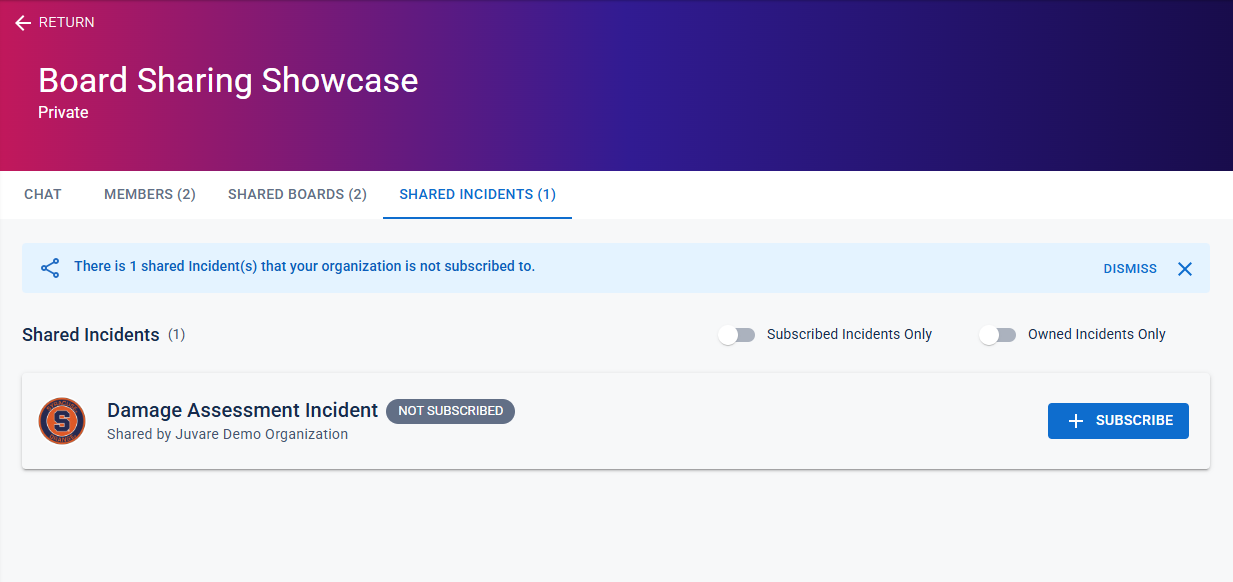
You can filter the displayed incidents by clicking the Subscribed Incidents Only or the Owned Incidents Only toggles.
-
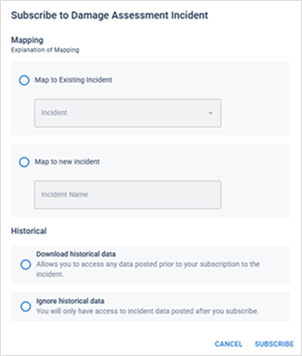
For the incident that you want to subscribe to, click Subscribe. The Subscribe to [Incident Name] dialog opens.
-
In the Mapping area, select either of the following:
-
Map to Existing Incident: If selected, click the Incident drop-down menu and select the incident that you want to map to.
-
Map to New Incident: If selected, provide and Incident Name.
-
-
In the Historical area, select either Download historical data or Ignore historical data.
-
Click Subscribe. A message is displayed to confirm that you are now subscribed to the incident.