Manage Labels
Users with read-only permissions cannot add labels to a map/image.
With the appropriate permissions, you can add labels to any of the available markers in MapTac.
To add a label to a marker
-
In the main menu, click Plug-Ins, and then select MapTac.
-
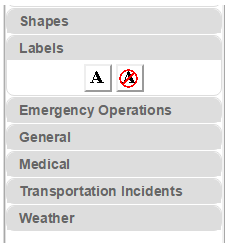
From MapTac, on the left side panel, click the Labels tab. The label palette opens.
-
Click the label icon
 .
. -
Click the marker to be labeled. The label text prompt opens.
-
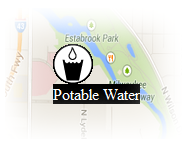
Enter the text for the label and click OK. The label appears under the marker.
To clear a label on a marker
-
In the main menu, click Plug-Ins, and then select MapTac.
-
From MapTac, on the left side panel, click the Labels tab. The label palette opens.
-
Click the label icon
 .
. -
Click the marker associated with the label you want to remove.
-
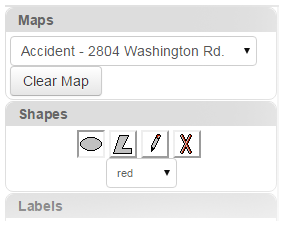
Alternatively, to clear all shapes, markers, and labels from a map/image, click Clear Map.
-