Manage the Inbox
You can manage the notifications that you receive in your Inbox. Actions that you can do include:
-
View notifications
-
Respond to notifications (polls)
-
Forward notifications
-
Archive notifications
-
Restore notifications
-
Mark notifications as read
To manage the Inbox
- To open the Inbox, on the toolbar, click the Inbox icon
 .
. -
In the Inbox, do any of the following actions.
 View a new notification
New notifications are indicated by a red number displayed on the Inbox icon
. In the Inbox, new notifications appear in a bold font.On the Inbox tab, click the notification that appears in a bold font. The message details appear on the right panel.
After you open a notification and its details display, the number next to the Inbox icon will decrement by one.
If the Inbox is open and you do not see the notification, click the refresh icon
 .Reply to a notification
Replying to a notification involves either of the following actions:
-
Reply to a poll. See Respond to a notification poll.
-
Forward a notification. See Forward a notification.
You cannot reply directly to a notification.
Respond to a notification poll
-
On the Inbox tab, click the notification that appears in a bold font. The message and its details appear on the right panel.
-
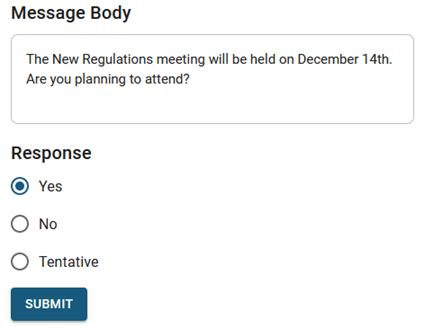
On the panel under Response, select your response.
-
Click Submit. The response is sent.
Forward a notification
You can only forward notifications from the Inbox tab. If the notification is on the Inbox Archived tab, move the notification to the Inbox tab. See Move an archived notification back to the Inbox tab.
-
On the Inbox tab, click the notification you want to forward.
-
On the panel, click the ellipses.
-
Select Forward.
-
Add recipients and modify any fields, as needed. See Create and Send alerts.
-
Click Review and Send.
Archive a notification
You cannot delete notifications; however, you can archive them. Archived notifications are saved indefinitely.
To archive one notification
-
On the Inbox tab, select the notification you want to archive. The Archive icon appears in the top right.
-
Click the archive icon, and then confirm the action. The notification moves to the Inbox Archived tab.
If you do not see the notification, click the Refresh button
You can also archive or mark multiple notifications as read in bulk.
To archive multiple notifications or mark multiple notifications as read in bulk.
-
On the Inbox tab, use the filters to display the notifications.
-
Select the checkbox above the notifications to select all notifications that are displayed.
-
Click Mark as Read or Archive in the top right.
Move an archived notification back to the Inbox tab
-
On the Inbox Archived tab, select the notification you want to move back to the Inbox tab. The Restore icon appears in the top right.
-
Click the Restore icon and then confirm the action. The notification moves back to the Inbox tab.
You can also move multiple notifications back to the Inbox.
To move multiple archived notifications back to the Inbox tab
-
On the Inbox Archived tab, use the filters to display the notifications.
-
Select the checkbox above the notifications to select all notifications that are displayed.
-
Click Restore in the top right.
-