Manage Guest Users
View Guest User
View guest users in the table or search for them to narrow the list. The search also lets you enter the name of a piece of equipment to search for guest users that use that equipment, or enter a department name to search for guest users that belong to that department. Click Refresh in the action toolbar at any time to refresh the guest user list.

| Field | Description |
|---|---|
| Select |
Click the checkbox to select the guest user. This is useful when you want to make the same edits for multiple guest users at once. |
| User ID | The guest user's user ID name. |
| First Name | The guest user's first (given) name. |
| Last Name | The guest user's last name (surname). |
Account Used to track and manage users. Accounts differ from your profile, which is used to modify personal settings for using the solution. Used to track and manage users. Accounts differ from your profile, which is used to modify personal settings for using the solution.
|
The account to which this guest user has access. |
| Jurisdiction | The jurisdiction to which the guest user has access. |
| The guest user's email address associated with Crisis Track. | |
| Office Phone | The guest user's office phone number. |
| Role | The role that the guest user has in this incident Crisis Track allows you to track damage for several events through the Incidents feature. You can create a new incident, edit incidents, and deactivate or delete old incidents. Each incident keeps the data separate. Information such as equipment, employees, and structures are listed across all incidents.: user or viewer. |
| Edit | Click to edit the guest user. |
| Status | Whether the guest user's status in the incident is Active or Disabled. |
| Delete | Click to delete the guest user from this incident. |
Edit Guest User
You can edit the role or status for a single guest user, or you can edit the status of multiple guest users at once.
After a guest user's status is Disabled, the incident will no longer show up in their list of incidents.
Editing a single user
-
Click Edit in the row of the Guest User that you would like to edit.
-
The Guest User's role and status can be changed.
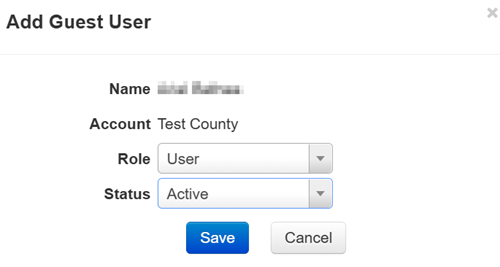
-
Click Save.
If you only want to edit the status for a single user, you can do this quickly by changing the status in the Status column menu.
Editing multiple users' status
-
Click the checkbox in the Select column for all guest users you want to edit.
-
Click Edit in the action bar.
-
Click Activate or Disable.
All selected guest users' status will be changed.
Delete Guest User
-
Click Delete in the row of the guest user that you would like to delete.
-
Confirm this guest user should be deleted.
Related Concepts