Delete Employee Records
In the Personnel Records module, you can delete employee records or all records for a single employee altogether.
To delete one employee record
-
In either the Chart or Table view of the Personnel Records module, click the Edit button next to the employee's name.
To find an employee record, search for a specific record in the search box at the top of the page or scroll down to find the appropriate record.
-
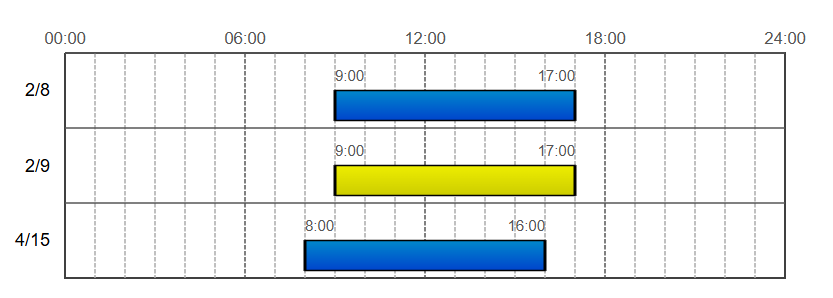
Delete an existing date range by clicking on the time span for the date you want to delete (shown to the right of the resource fields). The selected date will be highlighted in yellow.
-
Click the Delete button to remove the record.
You will be asked to confirm this action.
This operation cannot be reversed.
-
Do this for as many records as you want to delete for this employee.
-
When you have finished deleting the appropriate employee records, click Save to return to the previous page.
To delete all records
-
In either the Chart or Table view of the Personnel Records module, click the Edit button in the upper right.
-
Click the Delete button next to the employee's name.
You will be asked to confirm this action.
This operation cannot be reversed.
-
Click Save.
This deletes all records for an employee.
Related Concepts