Edit Employee Records
In the Personnel Records module, you can edit any employee record that has been added to the module. You can edit records to modify hours, add time records, amend rates, or modify employee information.
To edit one employee
-
In either the Chart or Table view of the Personnel Records module, click the Edit button next to the employee's name.
To find an employee or record, search for a specific record in the search box at the top of the page or scroll down to find the appropriate record.
-
Edit the resource fields on the left, as needed.
For information on the resource fields, refer to Add Employee Records.
-
To add or edit an employee record, do one of the following:
-
To add a record, click Add. The Add Record pop-up appears.
-
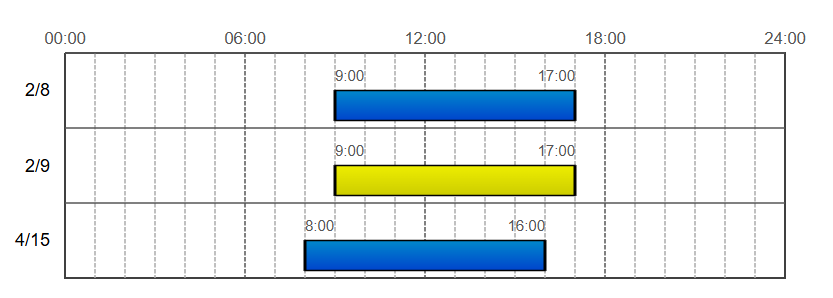
To edit an existing record, click the time span for the date you want to edit, shown to the right of the resource fields. The selected date will be highlighted in yellow. Click Edit. The Edit Record pop-up appears.
-
-
Add or edit the record as described in the table below.
Record fields (single record) Field Description Date Modify the date of the shift. Start Modify the start time of the shift. End Modify the end time of the shift. Regular Hours and OT Hours Enter the number of regular hours worked.
This field is dynamic and will automatically populate with the number of hours, given the start and end time.
If the total number of hours during this shift were not all regular hours, modify this and enter the number of overtime hours in the OT Hours field.
Category Select the category for the work performed from one of FEMA's Public Assistance categories. For more information, see FEMA's documentation on their website: https://www.fema.gov/fact-sheet/fema-public-assistance-0
-
Click Save.
-
When you have finished editing the employee record, click Save to return to the previous page.
To edit multiple records
-
In either the Chart or Table view of the Personnel Records module, click the Edit button in the upper right.
-
Edit the fields as described in the table below.
Search for specific records in the search box at the top of the page or scroll down to find the appropriate records. Use the horizontal scroll to find the appropriate record date.
Record fields (multiple records) Field Description R Enter the number of regular hours for that date. OT Enter the number of overtime hours for that date. CAT Select a Category (CAT) code for the time worked from one of FEMA's Public Assistance categories. For more information, see FEMA's documentation on their website: https://www.fema.gov/fact-sheet/fema-public-assistance-0
-
A (Debris Removal)
-
B (Protective Measures)
-
C (Roads and Bridges)
-
D (Water Control Facilities)
-
E (Buildings and Equipment)
-
F (Utilities)
-
G (Parks, Recreation, and Other)
-
PNP (Private Non-Profit)
-
IA (Residential)
-
IAC (Commercial)
-
Z (Administration)
Add Date Adds a specified date to the record list. You cannot add time to this new date. This must be done by editing the individual employee record. -
-
Click Save.
Related Concepts