Delete Entries for a Task
In the Tasks module, administrators and commanders can delete existing entries for a task.
 To delete entries using the table
-
Locate the task for which you want to delete entries. On that row, click View. The task opens.
-
Do one of the following, depending on how many entries you want to delete.
-
Delete one entry: On the table, locate the entry you want to delete. On that row, click Delete. A confirmation dialog opens.
-
Delete multiple entries: On the table, select the checkbox for each entry you want to delete. On the upper right, click Edit and select Delete. A confirmation dialog opens.
-
-
Click OK.
To delete entries using the map
-
Locate the task for which you want to delete entries. On that row, click View. The task opens.
-
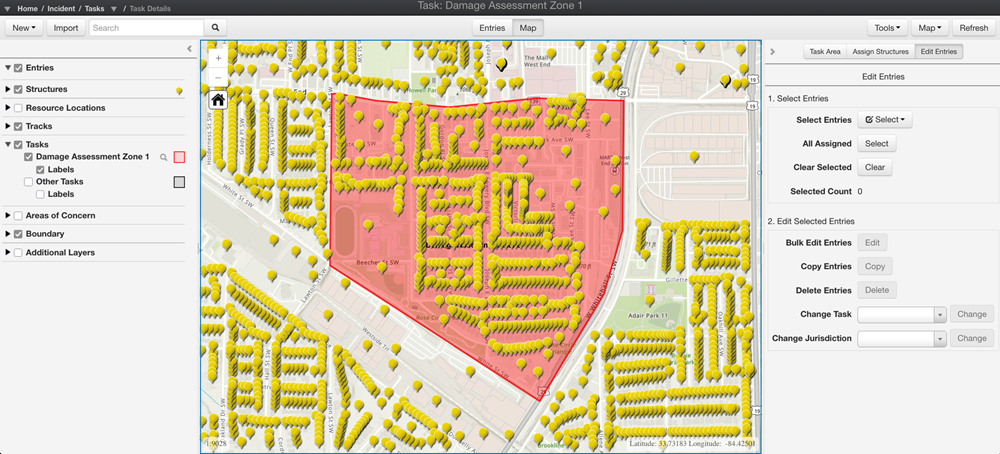
On the action bar, click Map. The Map page opens.
-
On the right pane, click Edit Entries.
-
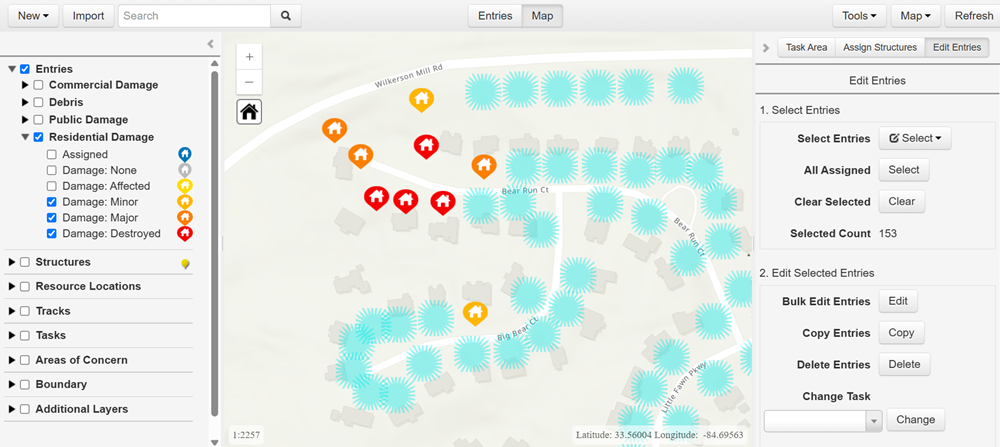
Delete all entries within the task area: Click Select next to the All Assigned label. This highlights all the assigned entries (as shown in blue in the image below).
-
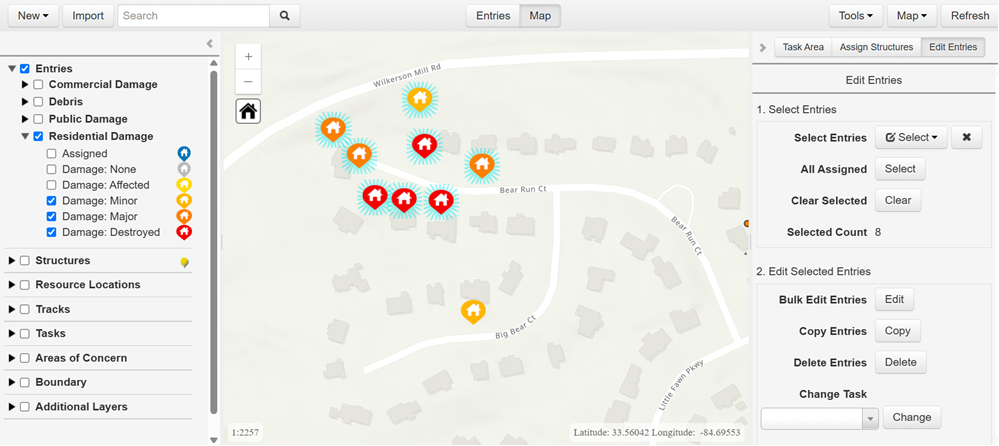
Delete specific entries within the task area: Choose a Select Entries method (Rectangle, Polygon, or Freehand Polygon) then draw an area around specific entries. This highlights all the selected entries (as shown in blue in the image below).
-
-
Do one of the following, depending on whether you want to delete all assigned entries or only specific entries.
-
Click Delete. A confirmation dialog opens.
-
Click Delete.
Related Concepts