
The Board Permission component inserts an area where you can group multiple components together with the same permission tag to determine how or if users can interact with the components. When the permissions are applied for the board in WebEOC, the Board Permission tag appears as a checkbox. If the checkbox is selected, this feature is activated.
The Board Permission component is supported in the Input view, Details view, and List view and is found in the Advanced section of the Components tray.
The Board Permission component provides you with a toggle that provides two views:
-
On: The view that includes components that appear if the user has the permission.
-
Off: The view that includes components that appear if the user does not have the permission.
For example, if you want users who have view, edit, and delete permissions to see a button with an Admin View label, you would add the button to the Board Permission component area while the toggle is in the on state. If you want to provide users that have view and edit permissions with an alternate button, you could switch the toggle off and add a button with a Non Admin View label to the Board Permission component area. When the user accesses the board, the button that they see is determined by their assigned permissions for the board.

To add the Board Permission component
-
In DesignStudio, drag the Board Permission component to the canvas.
-
Provide a Permission Name.
-
Add one or more components to the Board Permission component area.
-
In WebEOC, select the Permission Name as a board permission.
To add an alternate view for users who do not have the permission
This procedure assumes that the Permission Name checkbox, in WebEOC, is selected.
-
In DesignStudio, select the same Board Permission component on the canvas.
-
Switch the toggle off.
-
Add one or more components to the Board Permission component area.
Settings
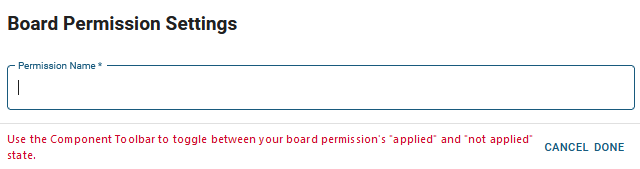
The following field is available in the Board Permission Settings window.
| Field | Description | Procedure |
|---|---|---|
|
Permission Name |
The name of the permission that appears in WebEOC when you assign group permissions to a board. |
Enter between 2 - 50 alphanumeric characters, excluding special characters. |
Actions Toolbar
The following actions are available when you select any component on the canvas in the Board Workspace when working with Classic Styling.
| Icon | Name | Description | Procedure |
|---|---|---|---|

|
Settings |
Opens the Settings dialog. You can modify the component’s settings, such as label, database field name, help text, style, and conditional settings. |
|

|
Move |
|
This icon is not used. To move the component, click and drag it to its new location. |

|
Clone |
Copies the current component and its settings, then pastes it after the current component. |
|

|
Delete |
Deletes the selected component. |
|
Actions Toolbar
The following actions are available when you select any component on the canvas in the Board Workspace when working with Nexus Component Styling.
| Icon | Name | Description | Procedure |
|---|---|---|---|
|
|
Settings |
Opens the Properties tab next to the Components Tray. You can modify the component’s settings, such as label, database field name, help text, style, and conditional settings. |
|
|
|
Move |
|
This icon is not used. To move the component, click and drag it to its new location. |
|
|
Clone |
Copies the current component and its settings, then pastes it after the current component. |
|
|
|
Delete |
Deletes the selected component. |
|