History Configuration Component Nexus Component Styling
This component is not available as a Classic Styling component and can only be used if you select the Use Nexus Component Styling checkbox when creating a view.

The History Configuration Toolbox component that configures which fields display on a record's History tab and how they appear. component allows you to set the fields that display on the History tab when a user select View History from the more icon
  on a record.
The History Configuration component is supported in the History view and is found in the Toolbox section of the Components tray.
To use the History Configuration component
-
Open a History view in the Explorer.
For information about History views and how to add them, see Create a History View.
-
In the Toolbox section, click the History Configuration component. The History View dialog opens.
-
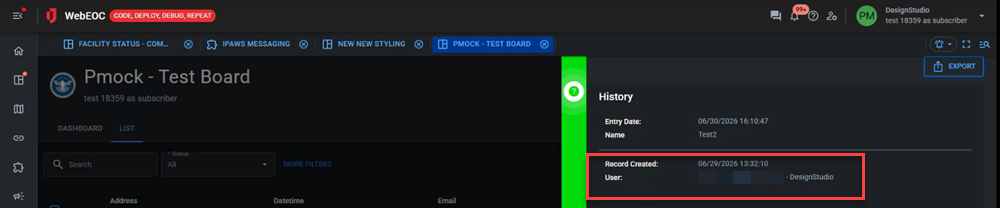
On the First Record tab, in the Fields section, drag the fields to the Selected Fields section that display as the first record on the History tab.
-
For each field, you can set:
-
Title: The name of the field as it displays on the History view.
-
Type: How the field displays.
-
Standard: The field displays as text.
-
Status Badge: For fields with status indicators
Visual element using color and icon to display a record's status on a list view based on its value., the field displays a status badge. -
User Details: For fields with user names, displays the user's user name, position, and group.
-
-
-
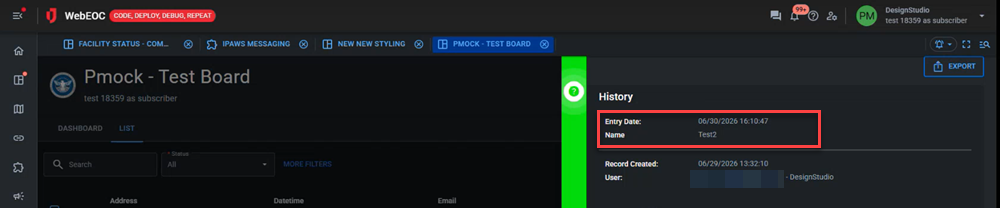
On the Data Records tab, in the Fields section, drag the fields to the Selected Fields section that display in the subsequent data records on the History timeline.
-
For each field, you can set:
-
Title: The name of the field as it displays on the History view.
-
Type: How the field displays.
-
Standard: The field displays as text.
-
Status Badge: For fields with status indicators, the field displays a status badge.
-
User Details: For fields with user names, displays the user's user name, position, and group.
-
-
-
Click Confirm.