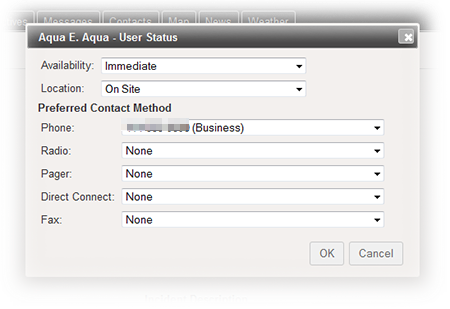
When an incident occurs, contacts The internal and external people that participate in, might be affected by, or need to be notified about an incident. associated with the incident's IRG are notified automatically. When a contact accesses the Incident Dashboard, the User Status window opens so they can quickly provide information about their availability.
For more information, see the article Response Tracker Report.
Availability/Location
When an incident is created in eICS, the application automatically notifies all contacts associated with positions, listed in the depth chart A list of qualified personnel who can fill an ICS position during an incident. and labor pool, and those designated as "other contacts to notify." For potential responders, the notification An alert, update, advisory, information, drill, or test message that can be sent & received through delivery methods such as email, voice, text, fax, or inbox. includes a request for information about the contact's availability.
On the Incident Dashboard, contact Availability is listed as No Response until the contact or command staff changes the status. In order to obtain the most accurate information possible, when the contact first opens the dashboard, the Summary tab opens and:
-
If the candidate is not assigned to a position for this incident, the User Status window opens automatically.
-
If the candidate is assigned to a position, a window opens asking whether the user wants to update their status. If the user clicks Yes, the User Status window opens. The window prompts the contact to identify their Availability and Location. They can choose from the following availability responses:
-
Unavailable - contact is currently unavailable
-
Immediate - contact is already onsite
-
0-15 mins
-
16-30 mins
-
30-45 mins
-
46-60 mins
-
>60 mins
-
At this point, the user also specifies their Location: On Site, Off Site, or En Route. Unknown in this field is likely to indicate the contact has not responded to notifications.
The updated information appears accordingly on the Incident Dashboard, for instance, on the Contacts tab.
In addition:
-
If a user is logged into the application when they are assigned to a position, they will be asked if they want to update their availability and location.
-
As long as the user is logged in to the application, the window automatically opens every two hours, asking the user if they want to update their status.
Methods and Devices
If a contact is logged into the application when they are assigned to a position, they will be prompted to identify their preferred contact methods. This window provides the opportunity to immediately identify their preferred contact methods for this particular incident and current situation.
Methods
The options in each field in the window are derived from the contact's established contact information (My Profile A collection of information that identifies and defines you in the solution. Your profile differs from your account, which is how you log in.), the Planning area, and changes to the incident dashboard, as follows:
|
Method |
Available Options |
Source |
|---|---|---|
|
Phone |
All specified for the contact |
User's profile (home, business, mobile, other) |
|
|
Established for the contact's assigned position |
Planning > ICS Chart > Position Contact Information |
|
|
Identified for the Incident Command Center |
Planning > Facilities > Command Center Details |
|
Radio |
All specified for the contact |
User's profile |
|
|
Established for the contact's assigned position |
Planning > ICS Chart > Position Contact Information |
|
Pager |
All specified for the contact |
User's profile |
|
Direct Connect |
All specified for the contact |
User's profile |
|
|
Established for the contact's assigned position |
Planning > ICS Chart Position Contact Information |
|
Fax |
All specified for the contact |
User's profile |
|
|
Identified for the Incident Command Center |
Planning > Facilities > Command Center Details |
In this window, the Phone field shows the phone number in the contact's profile (Notify First) and the Direct Connect field shows the first specified Direct Connect number (if any) from their profile. The default values for Radio and Fax are None. The contact can change any of these values.
For each of these methods, the contact can also specify another number by selecting the Other option. A new field opens below the device so the contact can manually enter a new number.
Preferred contact methods and information appear in the General Info drawer in the ICS Chart tab (incident dashboard) and the Contact Details window, which is available by clicking the contact's name in various tabs.
Devices
eICS can send notifications to the following devices:
-
Phone: work, home, and/or mobile
-
Pager
-
Fax
-
SMS/Text Msg
-
TTD/TTY
-
Email
Additional Information
Note the following about contact information and methods:
-
Position-specific contact information is available to a contact only when they have been assigned to that position.
-
Changes the contact makes to their contact information in the context of being enlisted apply only to the current incident; they are not stored in the position-specific detail in the Planning area or in the user’s profile (My Profile).
-
Unassigning a contact from a position may change the preferred contact methods available to that contact.
-
Specifying preferred contact methods does not change the notification processes, which use the individual contact's information from their profile.
Related Concepts