Use the Messages tab on the Incident Dashboard to communicate with incident participants.
From the Messages tab, you can:
-
Create new messages.
-
Reply to existing message threads.
-
Delete messages, if you have permission.
Send a Message
-
In the Home page, from the list of Active Incidents, locate the incident, and click View.
The Incident Dashboard opens. -
Select + New Message.
-
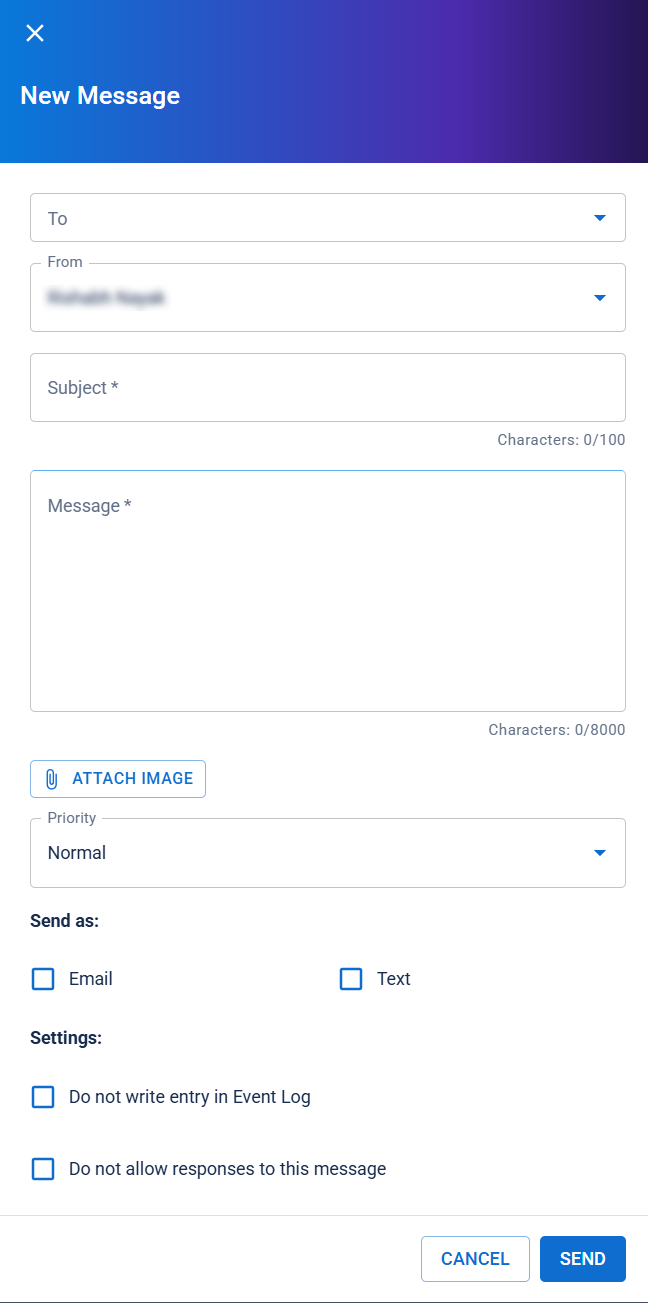
Enter this information.
Send Message fields and descriptions Field
Description
Options
To
To whom the message will be sent.
-
All Candidates, which by default includes All candidates. Alternately, you can choose to send the message to All assigned positions.
-
Enter participants by name, ICS Chart position, or group
 Comprised of accounts with certain shared characteristics, such as role or location, but not necesarily employer..
 -
You can select one or more recipients.
From Select yourself or one of the active positions. By default, the user’s name is selected; however, an ICS chart position can be selected. Subject
Summary, overview or main purpose of the message.
NA
Message
Text describing the message or main body of communication.
NA
Attach Image Attach a image to the message. NA Priority
Indicates the level of importance or urgency of the message.
-
Normal
-
High
-
Low
Send as Identifies the mode of the message sent to recipients.
-
Select the Email checkbox.
-
Select the Text checkbox.
-
Select both the checkbox, as preferred.
Skip Log Entry
Indicates if the message and responses to the message will appear in the Event Log.
-
Select the checkbox to omit the message and responses from the Event Log
-
Clear the checkbox to add the message and responses to the Event Log
Do Not Allow Responses
Indicates if the message recipients can respond to the message.
- Select the checkbox to prevent recipients from responding
-
Clear the checkbox to allow recipients to respond
-
-
Click Send. The window closes and the message appears in the list of Messages.
Reply to a Message
If responses are enabled and the incident is active, you can reply to a message thread.
-
Open the Messages tab.
-
Select the message.
-
In the message thread, select Reply.
-
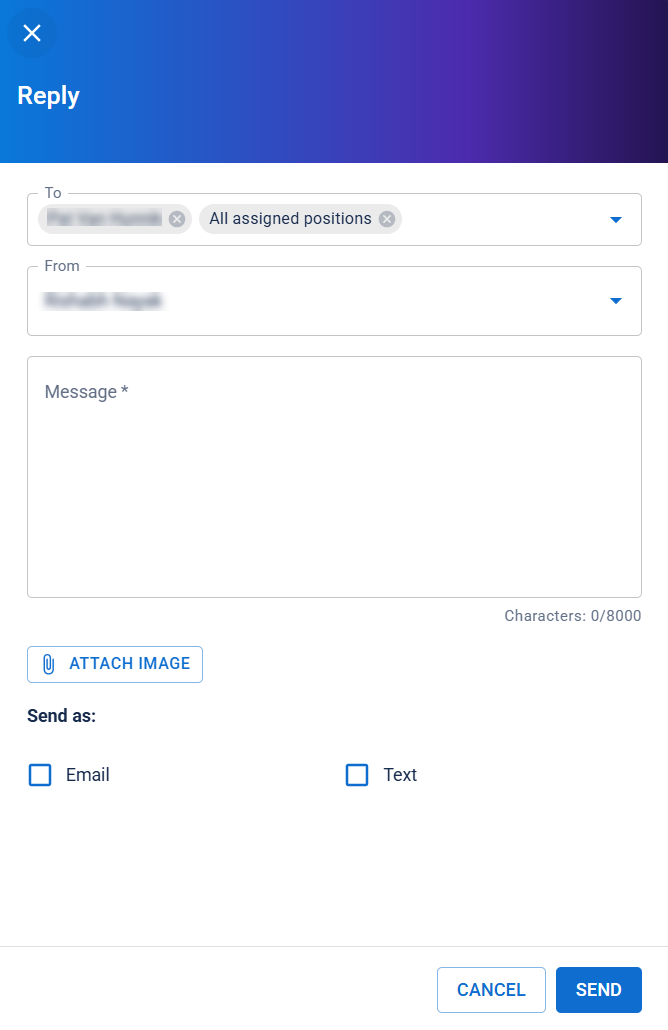
Enter this information.
Add Response fields and descriptions Field
Description
Options
To To whom the message will be sent. -
Displays the recipients of the reply. You can modify the recipient list before sending the response.
-
All, which by default includes All candidates. Additionally, you can send the message as an email to All candidates or All assigned positions.
-
Enter participants by name, ICS Chart position or group.
From From whom the message will be sent. By default, the user’s name is selected; however, an ICS chart position can be selected.
Message Text describing the message or main body of communication. NA Attach Image Attaches an image to the response. NA Send as Identifies the mode of the message sent to recipients. -
Select the Email checkbox.
-
Select the Text checkbox.
-
Select both the checkbox, as preferred.
-
-
Click Send. The window closes and the message appears in the list of Messages.
If the original message was marked Do not write entry in Event Log, messages sent in response are likewise not added to the Event Log.
Delete a Message
Only administrators can delete messages and responses. Specifically, they can be deleted by Domain Administrators in the domain of the incident's facility and Facility Administrators for the incident's facility. Deleting a message also deletes any responses to that message. If you use facility groups or coalitions, the message is deleted from any associated incident it appears in.
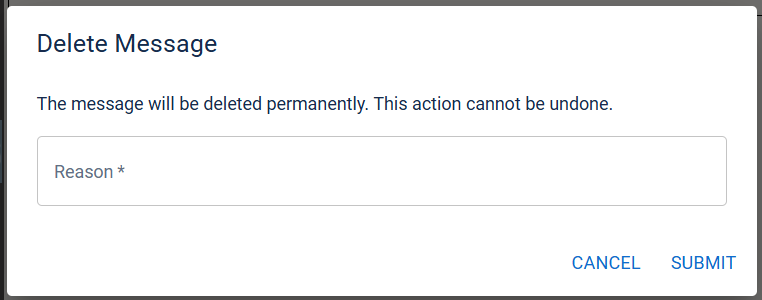
When you delete a message or response, you must enter the reason why you deleted it. A new event log entry is automatically created with this text.
-
In the Incident Dashboard, click Messages. The Messages tab opens.
-
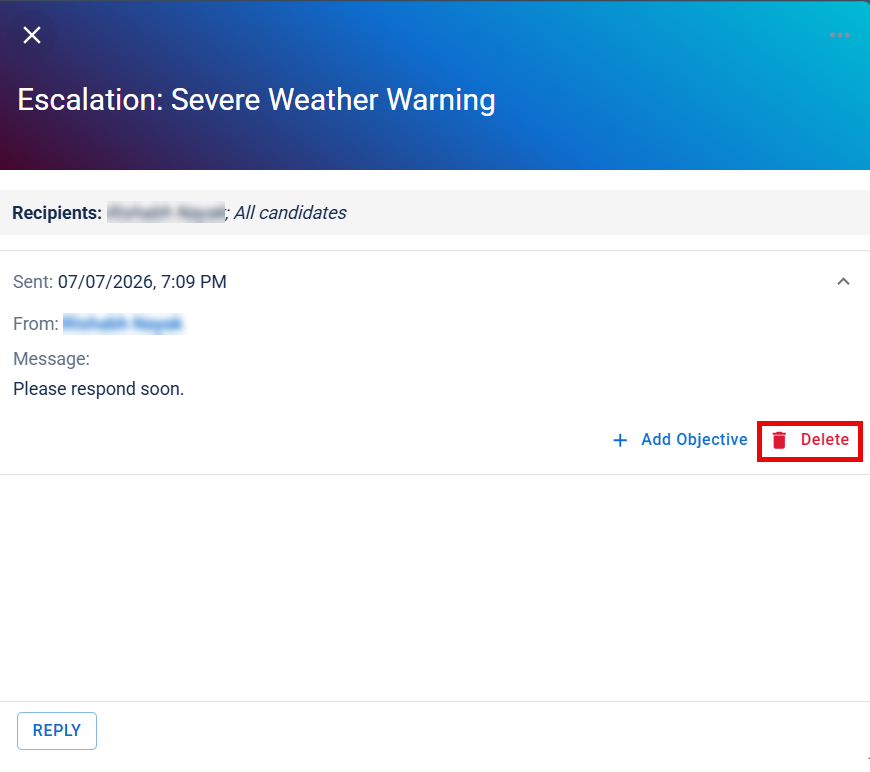
Click the relevant message. The message details are displayed on the right.
-
Click Delete Message for the message or response you want to delete. The Delete Message window opens.
-
Enter the reason why you are deleting the message or response. This text will be displayed in a new event log entry.
-
Click Submit.
Related Concepts