Event Views
When an event is created in your region, the solution displays a notification in the event bar. The bar appears on every page in the solution and displays the event's name and icon. For more information, see event notifications.
To view the event status page, take one of these actions:
-
In the event bar, click the event notification
 Sent when ad hoc, planned, and unplanned events are created, updated, or ended..
 -
On a View page, click the event icon next to a participating resource.
-
In the Event List, locate the event and, on that row, click View.
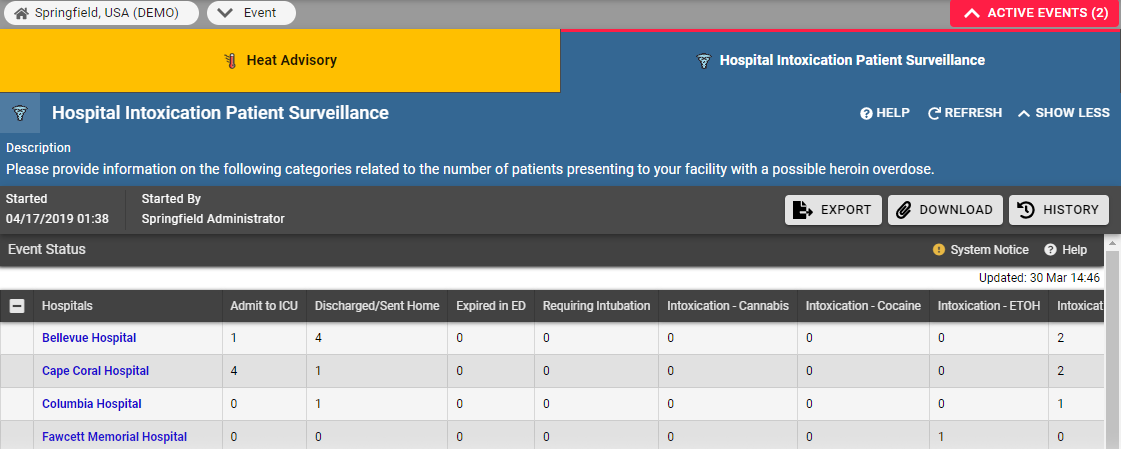
The Event Status page opens. The first table shows the resources associated with the event and various details, such as status types Custom fields that track information about resources. This is region-specific and are unique fields. (example: triage categories) and the date and time of the last update.
The second table shows the summaries of any numeric status types. You can also print or export the event details. If you want to view an ended event's history, see View Event History.
-
In some cases, the event creator may choose to not display the event in the event bar. In this situation, you can view event details by clicking the event icon, located next to a resource on a view.
-
On a view and the Event List, the keys icon appears in the first column of a resource table if you are authorized to update the status for that resource. See also Update Resource Statuses.
Event List
To see a list of all events, in the main menu:
-
Click Event then click Event List.
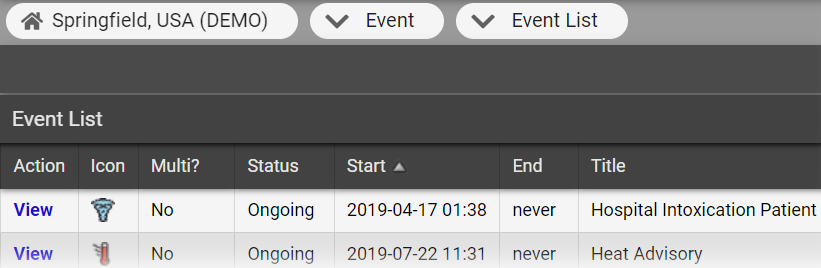
This page offers details about active events and events that have ended within the last 24 hours. Details include the event's status, start and end times, name, and so on. The Action column provides access to tasks you can perform.
-
Click View to open the Event Status page.
-
For an ended incident, click View History to open the Event History window, which offers information about updates, and the date and time each update occurred.
This list does not include events scheduled for the future. Future events are only available through the Event Management page.
Event Status
Some events are informational only and resources are not necessarily involved or queried. Other events involve resources and their status types. For these, the Event Status page provides details by resource. This can include numbers, such as available beds in the Emergency Department (ED), available Operating Rooms (OR), doses of a particular medication, ventilators on hand, and available trauma surgeons.
If the event creator marked the event as private, you will see only those statuses associated with your facility.
On the Event Status page, take any of these actions.
-
To open a document attached to this event, click Download.
-
To view the event history, click History.
-
To update an item, such as the number in a triage category, click the corresponding cell in the table.
-
To update all event statuses for a resource, click the keys icon. If you are authorized and required to update a resource, when you take an action in the solution, the system automatically takes you to the Update Status page first.
For a multi-region event, clicking the banner shows you the details for your currently selected region and its resources. If you want to view the event from another participating region's perspective, in the main menu, click My Regions and click the name of the region. Then, click the notification in the event bar.
Related Concepts