Form Configuration Reference
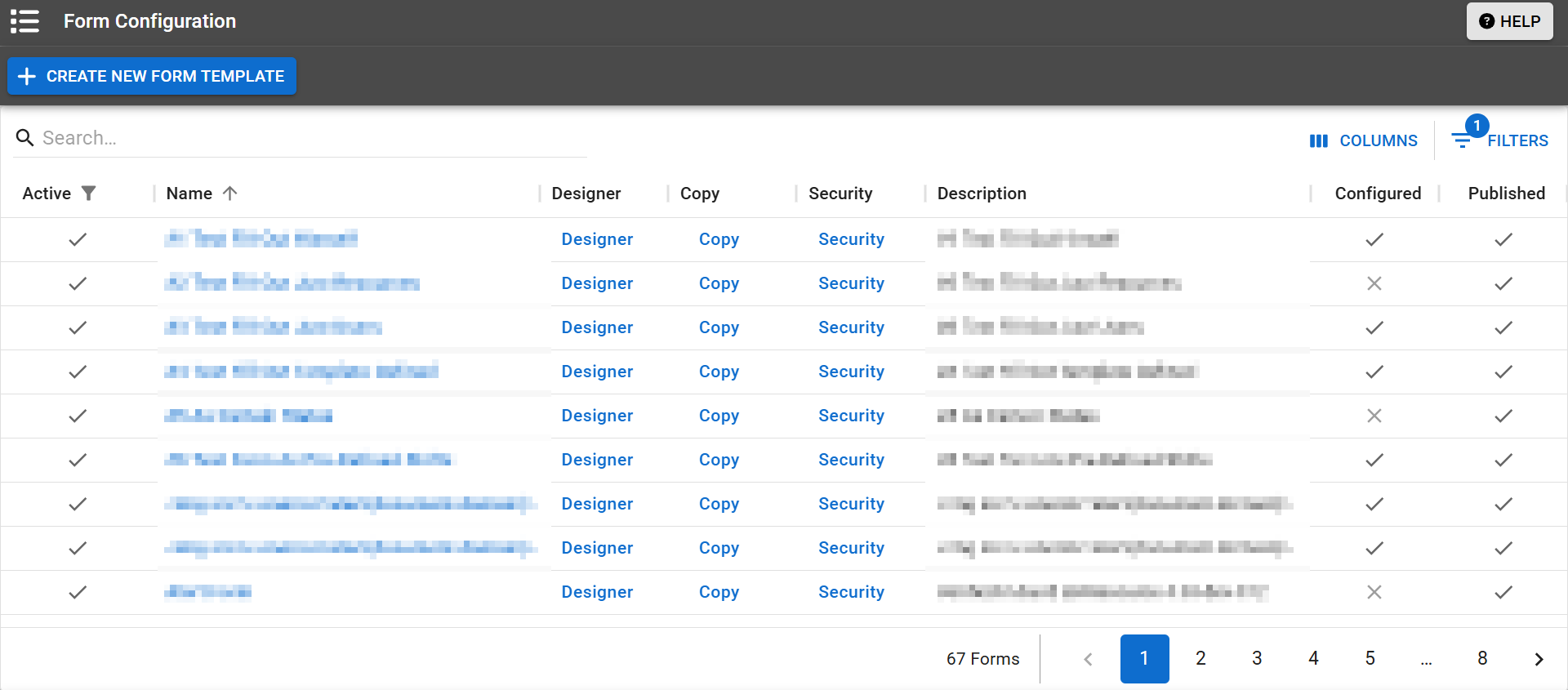
Forms are an excellent way of collecting and exchanging information. On the Form Configuration page, administrators with the appropriate permissions can view, configure, copy, and edit forms and form questions. After forms are activated, completed, and submitted, they are delivered to the specified recipients.
Only the resource completing the form can run a report Provides specific information about statuses and details, notifications, forms, templates, snapshots, and roles/rights in EMResource. on the data in their form, and only the recipient is able to run a report on submitted forms. For information about form questions or questionnaires, see the article Configure Form Questions.
Configuration includes specifying the form template's name, delivery method Used to ensure messages reach recipients when creating a notification, and may include email, inbox, voice, text, fax, or pager.(s), triggers for activation, and individuals and/or resources responsible for completing and submitting the form.
Fields
There are certain fields you need to set up prior to building the questionnaire.
|
Field |
Description |
|---|---|
|
Title |
Name of the form as it appears in the forms list. |
|
Description |
Details about when, why, and who can use the form. This appears to users and administrators who have the right to create and edit forms. |
|
Active |
Select to make the form active and available to the authorized users. Clear to pull the form out of circulation. When the form is marked active, it appears in the Activate Form page for users who are authorized to complete it or to activate and assign to another user to complete. A form must also be active to be automatically activated by a status change or time of day. When a form is not active, it does not appear in any user's activate forms list or pending forms queue. It is still accessible to administrators from the Form Configuration page. An Active status is different to activating a form, which is when an active form is distributed to users and/or resources that are responsible for completing and submitting it. |
|
Form Activation |
Identifies how the form is to be initiated and, where applicable, how it is to be delivered to the individuals responsible for completing it.
|
|
Completed Form Delivery |
Specifies how the completed form is to be delivered when the user submits it.
For read receipt forms, you must choose one of the following options: User to Individual Resources or User to Individual Users. |
|
Select Notification Method |
Indicates how the completed form should be delivered. Options are Web (EMResource), email, pager, and/or text. Refer to Notifications for more information. |
|
Read Receipt should be sent when the completed form is reviewed |
A read receipt lets you know when recipients view the form. For example, after a dispatcher activates, completes, and sends a patient form to a facility, they may want a read receipt to confirm that the receiving hospital has seen the form. This is available only when Form Activation is set to User Initiate & Fill Out Him/Herself. |
|
User may NOT dismiss form |
Makes the form mandatory, which means the recipient is required to complete it. Clear this option to allow the user to dismiss the form. If you choose to make form completion mandatory, the users that are set up to complete it are allowed to close the form notification temporarily (snooze). However, the window continues to re-open periodically until the user completes and submits the form. |
|
Notification Sound |
Specify the sound alert that is played to the user when the completed form appears in their queue. You can choose from several alert options, allowing you to associate a specific sound with this form, and the same sound alerts the form activator of the read receipt arrival, if read receipts were enabled. To test out a sound, select it and click Play. |
Configuration pages
When you click Next after completing or changing the template details, your next steps depend on the activation and delivery options you selected.
-
For user-initiated forms where delivery is not defined by the template, you are asked to specify the users and/or resources to complete the form, as well as those who should receive the completed form.
-
For automatically activated forms, you can select the status type or the shift that initiates form activation.
Delivery
If you configure a form so that a user can both initiate and complete the form, the workflow differs based on the option you select for delivery of the completed form. Specifically, this is when you set Form Activation to User Initiate & Fill Out Him/Herself.
Subsequent form setup pages enable you to define the form's potential recipients by pre-selecting a subset of users and/or resources. The individual who activates the form is then restricted to choosing from this subset.
Example If you select User to Individual Users in the Completed Form Delivery field, the workflow includes specifying the users to whom the completed form is delivered.
Example If you choose the User To Users and Resources option, the workflow includes specifying the users and resources for the completed form.