Copy a Form Template
If you have the appropriate rights, you can copy an existing form template to create a new one. After doing this, you can modify the form settings and questions to meet your needs.
As with creating a template from scratch, the process of completing the template differs based on how the form is activated and how the completed form is to be delivered. For details, refer to Create a Form Template.
To copy an existing template
-
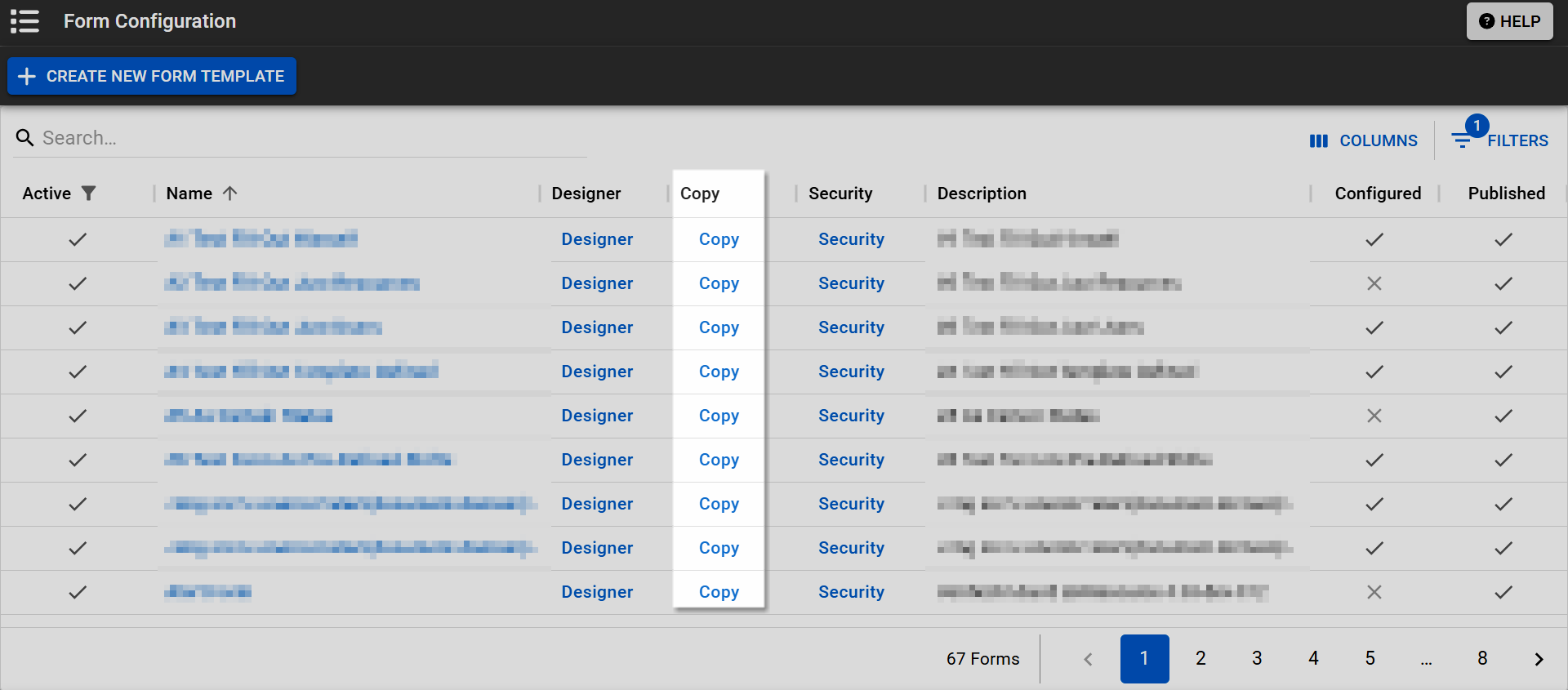
In the main menu, click Form then click Configure Forms. The Form Configuration page opens.
-
Locate the form you want to copy. On that row, click Copy. The Copy Form Configuration to Region page opens.
-
Specify the Target Region to which the form template should be copied.
-
Give the form template a Title and Description.
-
Specify the Form Activation type the form template follows.
See Form Configuration Reference for detailed field definitions.
-
Click Execute. The Form Configuration page opens. Your form copy appears in the list.
-
Click the copied form then click Edit to make additional changes as appropriate. For assistance with how to edit the copied form template depending on the Form Activation field, refer to Create a Form Template.
Related Concepts