Access Reports on the Jobs List
Depending on the resources, roles Assigned to determine which features and functions are available to users., and user rights Governs the views and features to which the user has access. with which you are associated, you may have access to various Reports. Reports Provides specific information about statuses and details, notifications, forms, templates, snapshots, and roles/rights in EMResource. are processed in the background, allowing you to navigate to other pages and/or solutions while the report is being generated. Most reports are available for seven days through the main menu, by clicking Jobs then Jobs List.
To access reports on the Jobs List
On the Jobs List page, you can arrange available jobs using the Columns button or filter the list of jobs using the Filters button on the upper right. You can also search for a job using a keyword in the Search field in the upper left.
The Columns button allows you to hide or show columns in the Jobs table. The Filters field allows you to filter column content using Boolean operators and specific values.
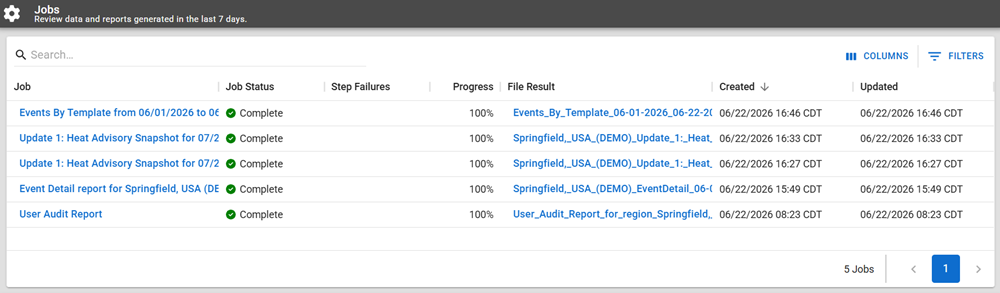
-
In the main menu, click Jobs, then click Jobs List. The Jobs page opens.
-
To apply filters to your jobs, click Columns or Filters and specify the criteria.
-
Locate the report and, on that row, click the name of the report. The View Job page opens.
-
To download, click the report file name in the blue box in the upper left.
Related Concepts